You may come across this message saying your number is linked to your Apple Account but not to your phone when you switch your service provider. The full message follows:
This number is registered to your Apple Account but is not associated with this phone. You can keep using this number for iMessage and FaceTime until it expires.
You can switch cellular service providers; for example, you can go from Verizon to AT&T while keeping the same phone number. The process is also known as phone number porting. If you are using a phone with a SIM card, the process involves changing the SIM card.
Note: In the United States, iPhone 18 Pro and iPhone 18 Pro Max use advanced eSIM technology for more convenience and security (not compatible with physical SIM cards). Use of an eSIM requires a carrier that supports eSIM and a wireless service plan.
This error message may appear as a popup after successfully transferring your number to a new provider. Unless you fix this, your number for iMessage and FaceTime will expire. You will keep getting notifications that your iMessage and FaceTime number will expire unless you fix this.
Please note that this problem may also occur if there are changes in your Apple Account settings. You can address it by checking your Apple Account settings to make sure the correct phone number is selected as the primary one for iMessage and FaceTime; we will explain this more below. See Invalid Phone Number for Apple Account on iPhone 18 Pro.
There can be various reasons why this issue may occur. For example, some carriers may give you a temporary number during the transfer process. If you’ve been receiving alert popups for iMessage and FaceTime notifying you about your phone number’s expiration after switching cellular providers, here’s what you can do.
1. Check your settings
- On your iPhone 18 Pro, go to Settings > Apps > Phone > My Number. Ensure that this number mirrors your iMessage and FaceTime number; if it does not, contact your new carrier.
- Go to Settings > Apps > Messages > Send & Receive and ensure that your number is there and selected.
- Go to Settings > Apps > FaceTime and ensure that your number is listed there and selected.
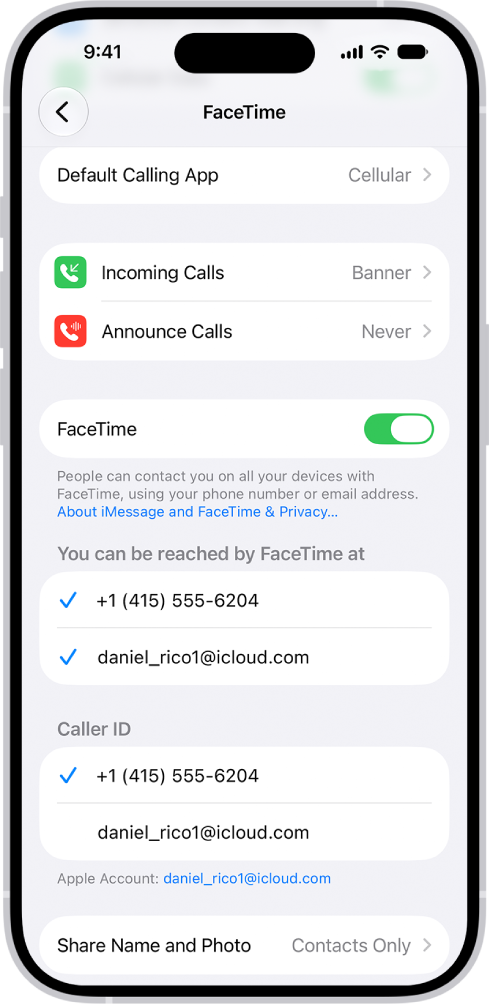
If wrong numbers are listed in FaceTime and/or iMessage, you can add or remove your phone number in Messages or FaceTime.
2. Turn off iMessage and FaceTime, restart and then turn them on again
Please follow these steps in this order:
- Tap Settings > Apps > Messages and turn off iMessage.
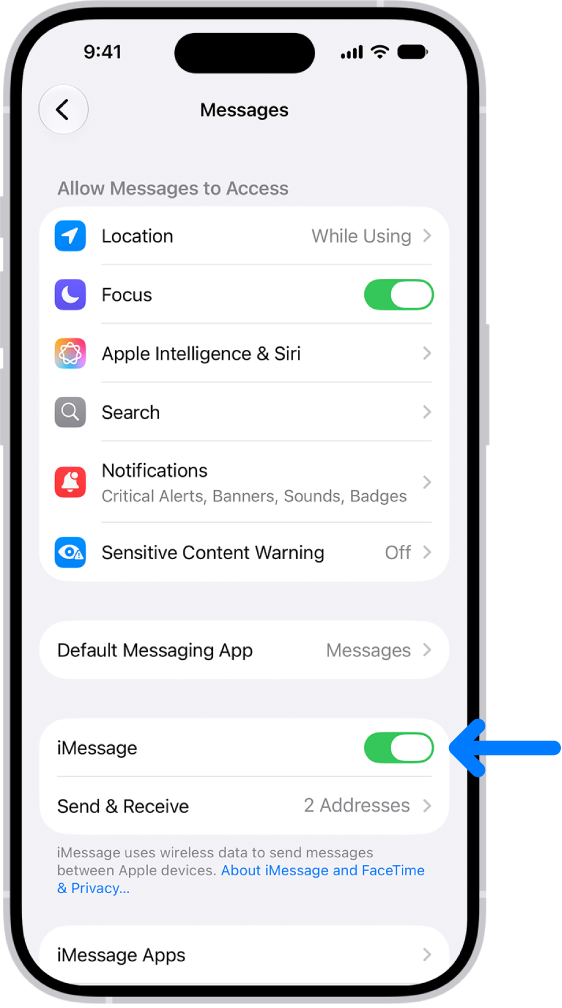
- Tap Settings > Apps > FaceTime and turn off FaceTime.
- Restart your iPhone 18 Pro.
- Turn iMessage and FaceTime back on.
3. Sign out and sign in again
Follow these steps:
- Go to Settings > Apps > Messages > Send & Receive. Tap your Apple Account and then tap Sign Out.
- Go to Settings > Apps > FaceTime. Tap your Apple Account, then tap Sign Out.
- Restart your iPhone 18 Pro.
- And then, sign in to both FaceTime and iMessage.
4. Reset network settings
Resetting network settings on an iPhone essentially erases all custom settings related to your network connections and restores them to the factory defaults. This includes Wi-Fi passwords, VPN configurations, cellular settings, and Bluetooth connections. Your content and other settings will not be deleted.
Go to Settings > General > Transfer or Reset iPhone > Reset > Reset Network Settings. Then, follow the onscreen instructions.