Several iPhone 18 Pro users are complaining that they are unable to print from the Photos app. You can AirPrint wirelessly from apps like Mail, Safari or Photos. You need an AirPrint compatible printer, which most printers are.
Users have said that photos in the Photos app are not printing, while they are able to print other items from other apps, like websites from Safari. They have said that when they attempt to print a photo, their printers print a blank page.
To print a photo from an iPhone, follow these steps:
- Open the Photos app and choose the photo you want to print.
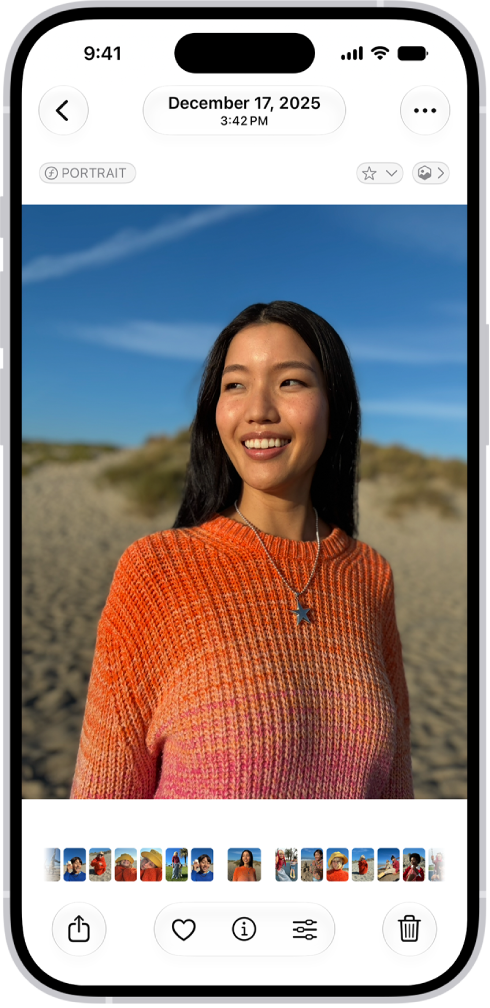
- Tap the Share button, a square with an arrow pointing up.
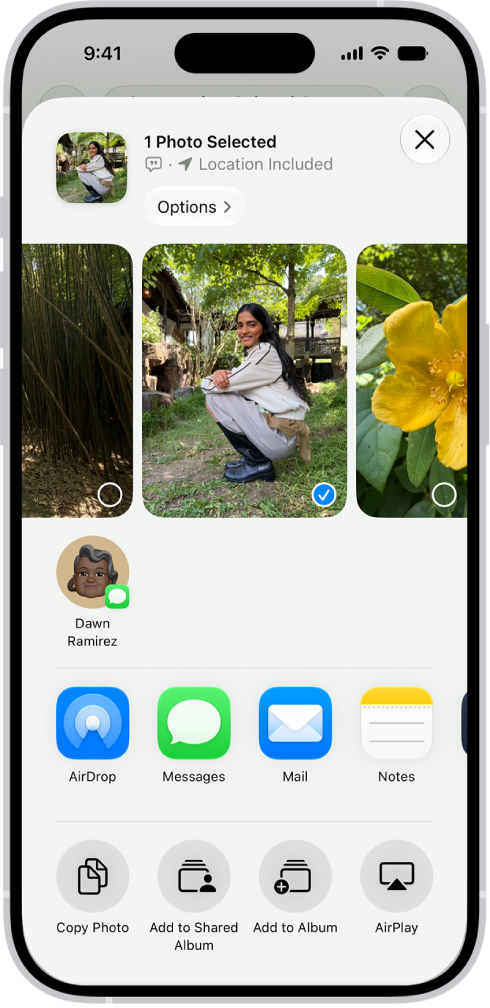
- From the various share options, find and tap Print.
- Tap on the printer you want to use.
- Adjust the print options, such as the number of copies and paper size.
- When you are done, tap Print in the upper-right corner.
If your printer won’t print, try the steps below.
1. Restart everything
By restarting everything, I mean restart your iPhone 18 Pro, the printer and then the Wi-Fi modem/router.
- iPhone restart instructions: Simultaneously press and hold the side button and either volume button until the sliders appear, then drag the Power Off slider.

- Printer restart instructions: You can power off the printer using the power button. Press to turn it off and then turn it on again. If this does not work, you can also try unplugging the printer from the power source, waiting for a bit, and then plugging it back in.
- Wi-Fi modem/router restart instructions: Find the power cable connected to it. Disconnect it from power, wait a few seconds and then reconnect it.
2. Update your iPhone 18 Pro
Ensure that your iPhone has the newest version of iOS. Software updates often come with bug fixes, security improvements, and new features that enhance performance and user experience. One of these bug fixes may also have addressed your printer issue. Furthermore, updating your iPhone can contribute to a more seamless integration and improved functionality across your Apple ecosystem, including with AirPrint.
To update your iPhone 18 Pro, you can go to Settings > General > Software Update. Make sure your device is connected to Wi-Fi and has sufficient battery life or is connected to a power source before initiating the update. An update may take several minutes.
3. Update the firmware on your printer
Ensure that your printer has the latest firmware installed. New firmware releases may enhance compatibility with other services, such as AirPrint.
To update your printer’s firmware, you typically need to visit the manufacturer’s website and download the latest firmware version for your specific printer model. The update process varies by manufacturer.
However, the easiest and most common way to update printers is using its built-in control panel if your printer has one. The control panel is a small screen on the printer that is used as a user interface. It allows you to manage and configure settings for various aspects of your printer. Simply use the control panel and find the Update menu to update your printer to the latest firmware.
4. iCloud
If you have iCloud enabled along with “Optimize iPhone Storage,” then you may be experiencing this printing issue because the photo you’re trying to print is only an optimized version of it. What you can do is download the full version from iCloud, and then you can print it. Try editing the photo to force it to download the full version of the photo.
5. Reset all settings
If the issue continues, you may want to reset all settings on your iPhone 18 Pro. Resetting all settings on an iPhone is a way to revert various system and configuration settings back to their factory default values, including network settings like Wi-Fi passwords, privacy settings, display settings and more. This does not affect your personal data, such as photos, videos, contacts, or apps.
Tap Settings > General > Transfer or Reset iPhone > Reset > Reset All Settings and then follow the onscreen instructions.
6. Convert photos to PDF and print
This is not a fix but a workaround. If your issue continues, you can try this. Convert your photo to a PDF file, and then you can print it. Here are the steps:
- Open the photo you want to print in Photos.
- Tap the Share button, then Print and then Share again.
- This will give you the PDF version of the photo. You can then share or save it to Files and then print it.