Some users are running into an issue where the Share menu on iPhone 18 Pro is not working as expected. There are several aspects to this problem, including:
- The Share menu, also called the share sheet, is fully blank and doesn’t show any share options, such as messaging or AirDrop.
- Some of the Share items are not showing up, like contact names or share options.
- Share options are not working; no icons appear, and nothing happens when a share menu or item is tapped. For example, when AirDrop is tapped, nothing happens.
Your iPhone makes it easy to share items. A lot of apps include share options. For example, you can share web pages from Safari, share photos from Photos or share notes from the Notes app. To share an item in Safari or Photos, you will need to tap the Share button, which is represented by a square icon with an upward-pointing arrow. When this menu is tapped, a share menu will appear that allows you to share through various options, such as messaging, email, social media, AirDrop, and more.
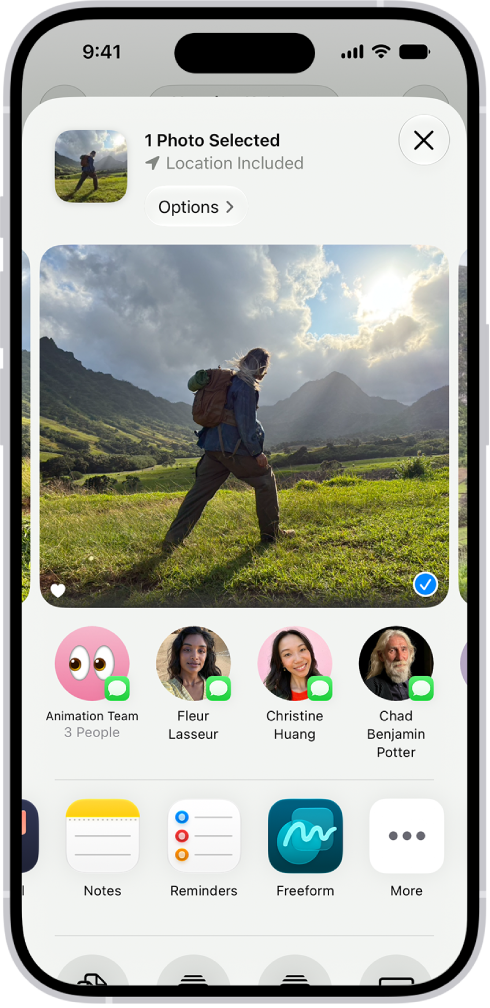
Preliminary steps to fix the Share menu problem
Before we go into the more complex fixes, you may want to try these two first:
- Restart your iPhone 18 Pro and then test the Share button to see if it is working or not.
- Update your iPhone 18 Pro to the latest version of iOS. On your iPhone, go to Settings > General > Software Update to check for updates. If your device finds an update, simply tap Update Now to install the update to your device.
Delete VPN and configuration profiles
It seems that VPN and management profiles may cause this. Delete them to see if this fixes your problem.
On your iPhone, go to Settings > General > VPN & Device Management.
First, delete the VPN profiles; even if you are not using the VPN, you may have previously installed them.
If you have an unused configuration profile installed through work or school, which you are no longer part of, delete the profile.
Sharing suggestions not working?
When you open the Share menu, the first row consists of Siri’s suggestions. These Siri suggestions include contact names that you have frequently communicated with in supported apps. For example, I often chat with Stacey via WhatsApp, and Stacey’s name with a WhatsApp icon frequently appears in Siri suggestions. I can easily share items through WhatsApp with Stacey by simply tapping her name.
Sometimes, this row may be blank or not working properly. If your issue involves the suggested contacts row, you can restart this feature. Here is how:
- On your iPhone, go to Settings > Siri and then tap Suggestions.
- Turn off Show When Sharing.
- Restart your iPhone 18 Pro.
- Go back to Settings > Siri > Suggestions and turn on Show When Sharing.
Reset All Settings
If your Share buttons are still not working, you may now consider resetting all settings. Doing so will erase all of your settings and restore them to their factory defaults. This may seem extreme for many. The short version is that your content and media will not be deleted. However, your settings will be gone, like your network settings, Wi-Fi passwords and more. Here is how you can do this:
- Tap Settings > General > Transfer or Reset iPhone > Reset.
- Tap Reset All Settings and follow the onscreen instructions.