How to fill out and sign PDF forms in Preview on iPhone

You can fill out and sign PDF forms in the Preview app on iPhone, using AutoFill suggestions and adding signatures or text boxes.

By Kristina Terech - Staff Writer
0 Min Read

In the Preview app on your iPhone, you can fill out and sign PDF forms. You can enter information in a field, or use the AutoFill suggestion above the onscreen keyboard to add that information. You can also add a signature or a text form box.
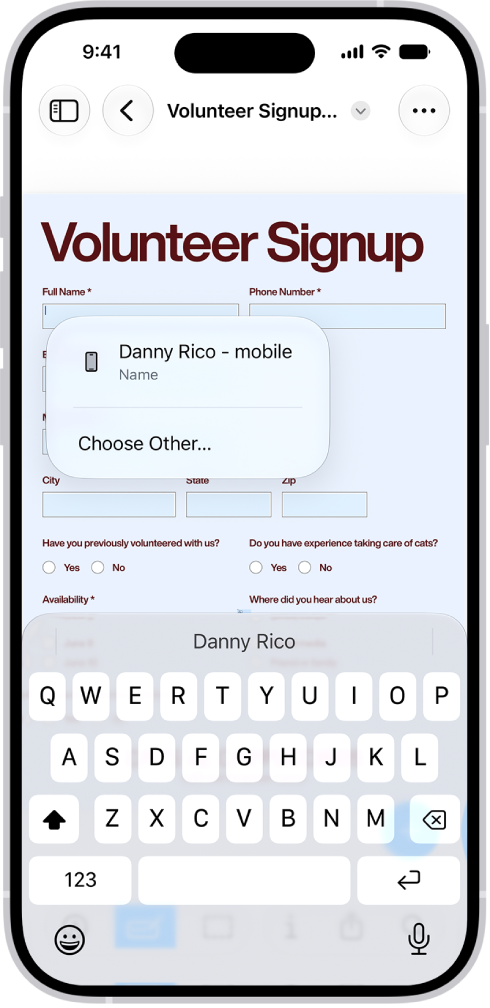
A fillable PDF form showing an AutoFill suggestion for the name and phone fields.

  1. Start the Preview app on your iPhone.
  2. Open a PDF form.
  3. Tap the Form Filling button.
  4. Tap a field and enter information (or tap the AutoFill suggestion above the onscreen keyboard to add that information).
  5. To add a signature or a text form box, tap the Add button.

TAGGED:
Staff Writer
Follow:
Kristina is a staff writer at GeeksChalk, and is interested in all things Apple. This includes its best products such as the iPad, iPhone, Mac, AirPods, and Apple Watch. When she's not tinkering with the latest Apple gear, you’ll find her watching movies, taking pictures and exploring the great outdoors.
Leave a Comment