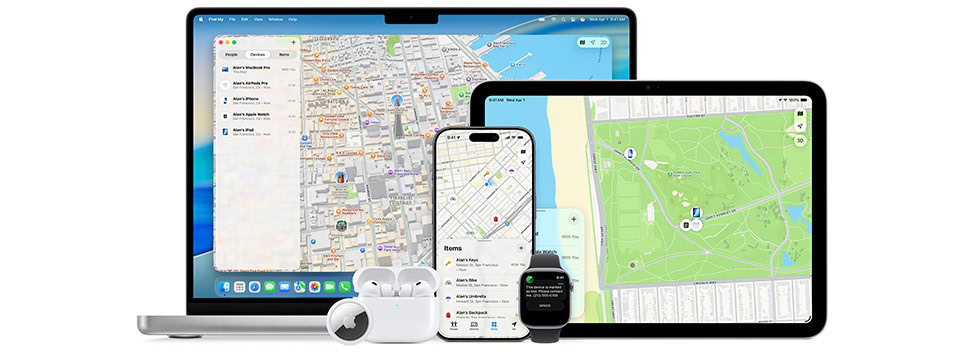
Notify When Left Behind helps with absent-mindedness, exhaustion, and theft. Using your presence, whenever you move a certain distance away from a device or item—Apple doesn’t define how far—you receive a notification on that device.
Found on the sheet for any device or item in native Find My apps, it’s enabled by default under Notifications. You can choose to disable it on a per-item basis. Apple also excludes the place you defined as Home or Apple inferred was your Home.
The device on which you would be notified is listed as part of the explanation when you tap or click Notify When Left Behind.
Your Apple Watch doesn’t alert you when something is left behind (and the Find My app explains this); instead, the alert comes only when the item is separated from your primary presence device, typically an iPhone. (See how Find My works.)
Notify When Left Behind helps in a bunch of scenarios I can imagine:
- Forgetting you placed an iPad in the seat-back pocket on an airplane. (This is certainly a main cause of loss for iPads and Kindles.)
- Leaving an iPhone, iPad, or Mac in a coffee shop or restaurant.
- Forgetting your backpack that has an AirTag in its pocket at someone’s house.
- Checking your luggage at an airport or train station for a trip.
- Leaving items at a hotel room, hostel, Airbnb, or the like after checking in during a trip, such as in a hotel safe.
- Not packing your laptop in a bag you’re carrying with you before leaving for school or work—or vice versa!
- Locking up a bike that you’ve attached a Find My item to at your destination—then forgetting you biked there and taking a bus home. (Folks, if you bike regularly and you haven’t made or almost made this mistake, count yourself lucky.)
Trust a place
When you’re notified, you can tap Don’t Notify Me, and the location where your Find My item or device was left will be added as a location. If you have an Apple Watch, a notification on the watch also lets you tap Trust Location or Dismiss.
You can also suppress this notification in a Find My app on an iPhone, iPad, or Mac by selecting the item or device, which then shows where it was last seen. You can tap or click Don’t Notify Me Here.
When you add a location through this method, the operating system prompts you, “Don’t notify at map description of location?” You can then tap or click “For all Items or Devices,” “For this Item/Device,” or Cancel.
You can also manually add other locations to exclude by tapping or clicking Notify When Left Behind, then New Location. The map interface for location selection is identical to the one for People. You have the additional option when you click Done to add the location to select “For all Items and Devices” or “For this Device.”
You can accumulate a list over time of places that you don’t want to be notified about items being left behind at. For me, this has become an interesting travelogue of all the hotels, homes, and workplaces I’ve been at.
You can clean this list up by removing locations. On an iPhone, iPad, or Mac, tap or click the remove button to a location’s right. The exception is the Home location, which can be removed only on the device that establishes presence. You can view those locations on an Apple Watch, but not remove them.
It is not an anti-theft feature
Because the notification occurs only when the device remains static and you’ve left it behind, it is not an anti-theft feature. Conceivably, we need Apple to add the opposite case, too: Notify When Moves Away. Perhaps this could cause both the device that’s taken and the hardware that notifies to both squeal uncontrollably until reunited?
A bag in a hotel safe
As I was revising this edition, I received a text from a friend. After a trip out of state, he’d realized he’d forgotten to retrieve a small bag in the hotel safe. He didn’t care much about the bag—except that it contained his passport! The bag also contained an AirTag, but he wasn’t alerted that it was left behind for several hours.
He could see the AirTag in what appeared to be the parking lot. A few slightly clueless hotel front-desk people seemed helpless, although one walked out into the parking lot and said the location appeared to be a grate. Maybe a thief had thrown the AirTag down its openings? But that would mean someone had stolen it from the room safe or lost and found after he had checked out.
After a day or so, a more clued-in staffer called back: it was in the lost-and-found safe, which apparently other people hadn’t checked. For $60, the hotel used a third-party service to return the bag. And then he watched as it didn’t move for days—requiring three more calls to the hotel—before it finally landed at the airport near us. And then sat there for a day before UPS put it on a truck.
The related setting: Notify When Found
Device notifications don’t let you see when something comes or goes, but instead provide you useful feedback related to losing something or having it stolen.
Find My enhances its Lost Mode/Mark as Lost option by providing a notification option after you mark a device as lost. This notification can occur when that device is “found”—that is, when it’s back online, however briefly (see what someone sees when they find your lost device).
Notify When Found is disabled by default on the sheet of actions for a device or item in a native Find My app unless it’s been marked as lost. Then you have just the option to turn it on or off. If enabled, a notification appears on your devices in one of two cases: a piece of your equipment detects the missing item; or the device or item reports its location through Find My or the Find My network.