If your iPhone Wallet with MagSafe has Find My support, you can connect it to your Apple Account so you can see its last known location in the Find My app. You can allow someone who finds it to see your contact information to help them return it to you.
When you add your iPhone Wallet with MagSafe to Find My, you can get notified if it detaches from your iPhone. You can add it the first time you attach it to your iPhone, or later from the Find My app.
Here’s how to add your iPhone Wallet with MagSafe to Find My on iPhone.
Note: iPhone Wallet with MagSafe and Find My support needs a compatible iPhone model.
Add iPhone Wallet with MagSafe when you first attach it to your iPhone
- Go to the Home Screen on your iPhone.
- Attach your iPhone Wallet with MagSafe and Find My support to your iPhone.
- Tap Continue on your iPhone screen. Follow the onscreen instructions.
Add iPhone Wallet with MagSafe later
You can still add your iPhone Wallet with MagSafe and Find My support later from the Find My app, even if you decide not to when you first attach it to your iPhone.
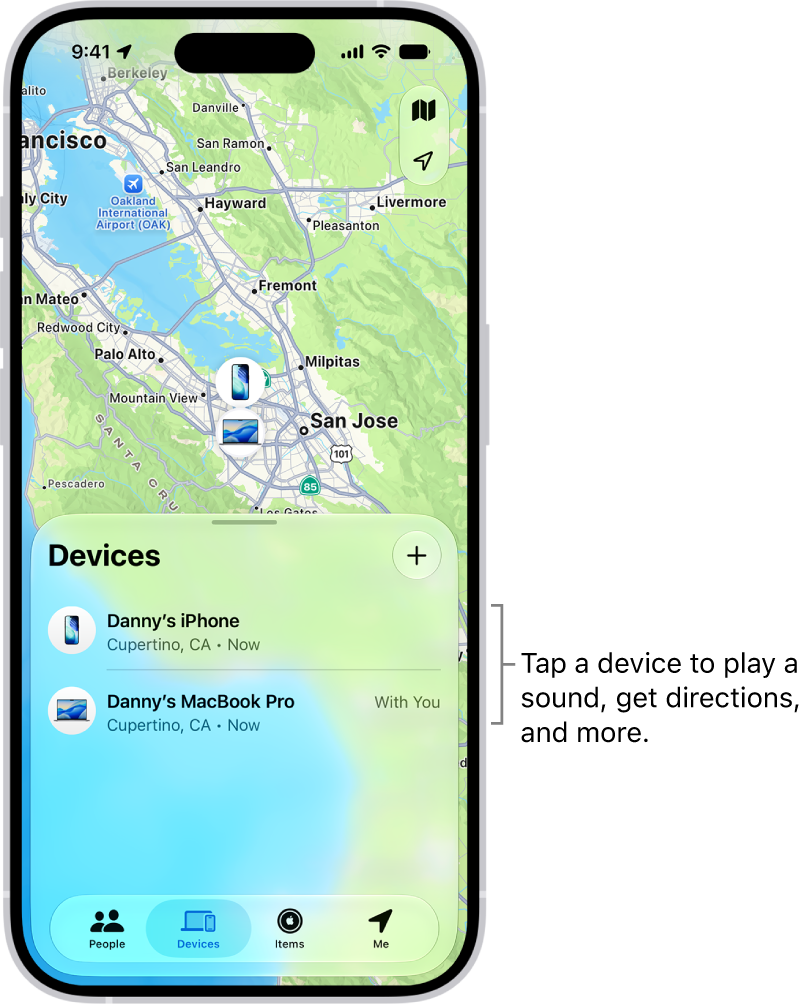
- Open the Find My app on your iPhone.
- Attach your iPhone Wallet with MagSafe and Find My support to your iPhone.
- Tap the Add button and choose Add MagSafe Accessory. Follow the onscreen instructions.
Is the iPhone Wallet with MagSafe and Find My support associated with someone else’s Apple Account? Then they need to remove it before you can add it.