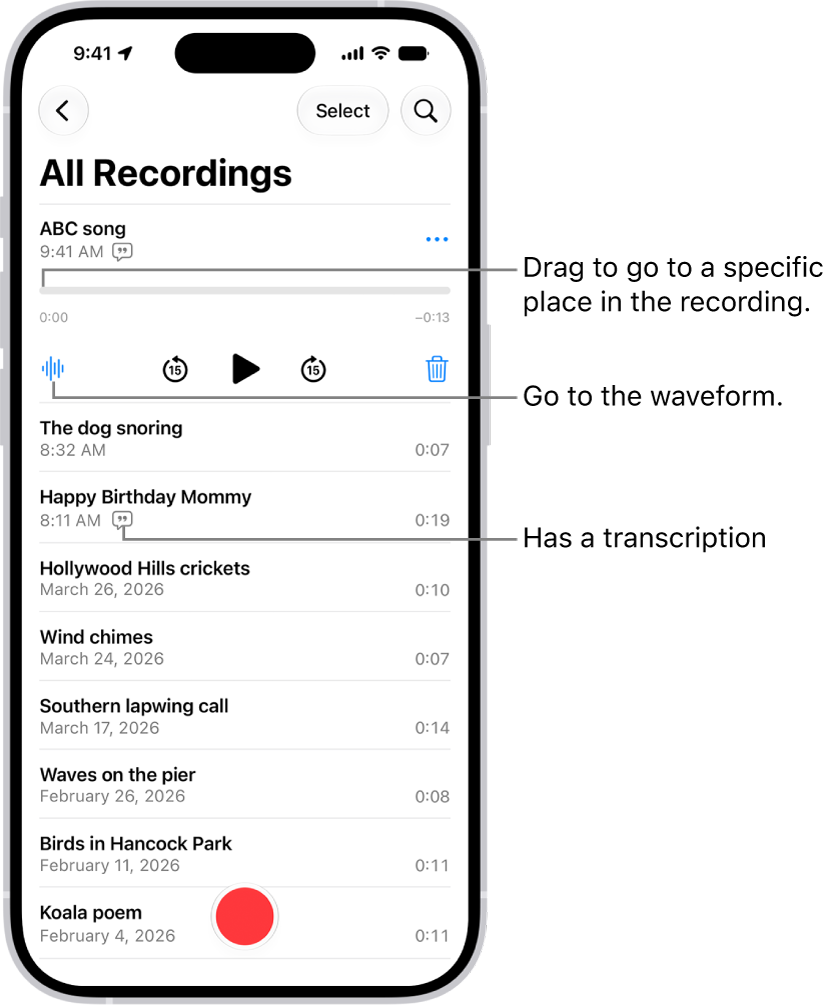
Any recording can be exported from Voice Memos to the Files app on your iPhone. By default, recordings are exported in .m4a format, so layered recordings are flattened and Spatial Audio becomes stereo.
You can keep them, though. When you share, you can adjust your sharing options to retain any layers or recording effects, and from the Files app, you can import your recording into Logic Pro, where you’ll edit or enhance it with professional audio editing tools.
- Start the Voice Memos app (in the Utilities folder) on your iPhone.
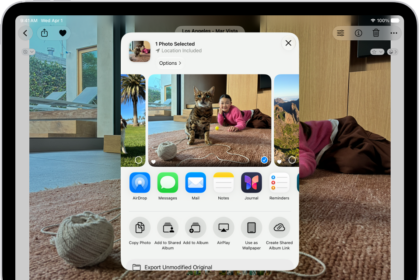
- Tap the recording you want to export, tap the More button, and then tap the Share button.
- To export a file where the effects and layers can be adjusted later (QuickTime Audio format), tap Options. Then tap Editable. Choose if you want your layers merged or separated. Then tap the Done button.
- Scroll down and tap Save to Files, go to the location where you want to save the recording. Then tap Save.