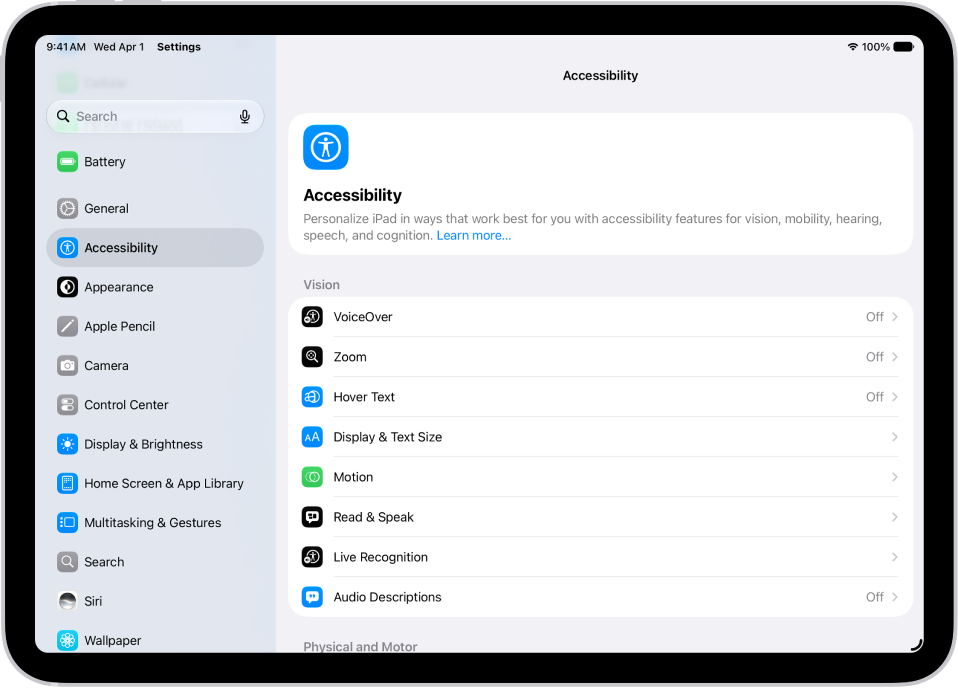
If you have difficulties with hand tremors, dexterity, or fine motor control, you can adjust how the iPad touchscreen responds to tap, swipe, and touch-and-hold gestures. You can have iPad recognize faster or slower touches and ignore multiple touches.
You can also prevent iPad from waking when you touch the screen, or turn off Shake to Undo if you unintentionally shake iPad. After you set up Touch Accommodations, you see a personalized list of options, like Hold Duration and Tap Assistance.
Set up and adjust Touch Accommodations
- Start the Settings app on your iPad.
- Tap Accessibility and tap Touch. Then tap Touch Accommodations.
- Tap Set up Touch Accommodations. Then follow the onscreen instructions.
After you complete setup, you’ll see a personalized list of Touch Accommodations—like Hold Duration or Tap Assistance—that you can turn on.
- You can adjust any of your Touch Accommodations after setup. Tap Settings, then adjust any of the following:
- Respond to longer or shorter touches: Turn on Hold Duration. Then tap the Decrement button or the Increment button to adjust the duration.
Note: When you turn on Hold Duration, taps and swipes within the duration are ignored. You can turn on Swipe Gestures to make swiping easier when Hold Duration is on.
- Make swiping easier while Hold Duration is on: Turn on Hold Duration, then tap Swipe Gestures. Turn on Swipe Gestures, then choose the required movement before a swipe gesture begins.
- Treat multiple touches as a single touch: Turn on Ignore Repeat. Then tap the Decrement button or the Increment button to adjust the amount of time allowed between multiple touches.
- Respond to the first or last place you touch: Under Tap Assistance, choose Use Initial Touch Location or Use Final Touch Location.
If you choose Use Initial Touch Location, iPad uses the location of your first tap—when you tap an app on the Home Screen, for example.
If you choose Use Final Touch Location, iPad registers the tap where you lift your finger. iPad responds to a tap when you lift your finger within a certain period of time. Tap the Decrement button or the Increment button under Tap Assistance Gesture Delay to adjust the timing. Your iPad can respond to other gestures, such as a drag gesture, if you wait longer than the gesture delay.
Note: When you turn on Tap Assistance, taps and swipes within the duration are ignored. You can turn on Swipe Gestures to make swiping easier when Hold Duration is on.
- Make swiping easier while Tap Assistance is on: Choose either Use Initial Touch Location or Use Final Touch Location. Then tap Swipe Gestures. Turn on Swipe Gestures. Then choose the required movement needed before a swipe gesture begins.
- Respond to longer or shorter touches: Turn on Hold Duration. Then tap the Decrement button or the Increment button to adjust the duration.
You can recalibrate or reset Touch Accommodations at any time.
Adjust settings for touch-and-hold gestures
You can use the touch-and-hold gesture to see additional options or actions you can perform, or to get a preview of content. If you have trouble performing this gesture, do the following:
- Start the Settings app on your iPad.
- Tap Accessibility and tap Touch. Then tap Haptic Touch.
- Choose the touch duration—Fast or Slow.
- Test your new settings on the image at the bottom of the screen.
Recalibrate or reset Touch Accommodations
- Start the Settings app on your iPad.
- Tap Accessibility and tap Touch. Then tap Touch Accommodations.
- Do either of the following:
- Recalibrate your Touch Accommodations: Tap Recalibrate Touch Accommodations.
- Reset your Touch Accommodations: Tap Reset Touch Accommodations.
Turn off Tap to Wake
On a supported iPad model, you can prevent touches on the screen from waking iPad.
- Start the Settings app on your iPad.
- Tap Accessibility, tap Touch, and then turn off Tap to Wake.
Turn off Shake to Undo
If you tend to unintentionally shake iPad, you can turn off Shake to Undo.
- Start the Settings app on your iPad.
- Tap Accessibility and tap Touch. Then turn off Shake to Undo.
Quick tip: To undo text edits, swipe left with three fingers.
See also