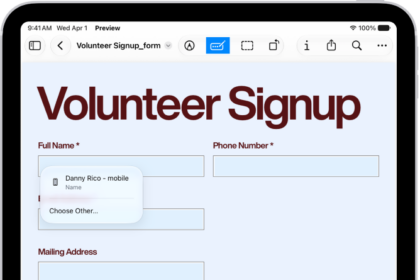
On iPad, in the Notes app, you can use the camera to scan text and documents.
In supported languages, you can insert scanned text right into a note. When you scan a document, iPad can capture it automatically once it detects the page boundaries, or you can capture it yourself. Either way, it’s saved as a PDF right in the note.
Here’s how to scan text and documents in Notes using the iPad camera.
Scan text into a note
The camera lets you insert scanned text in supported languages.
- Open the Notes app on your iPad.
- In a note, tap the Attachments button. Then tap Scan Text.
- Position your iPad so that the text appears within the camera frame.
- Drag or use grab points to select text and tap Insert.
Scan a document into a note
- Open the Notes app on your iPad.
- In a note, tap the Attachments button and tap Scan Documents.
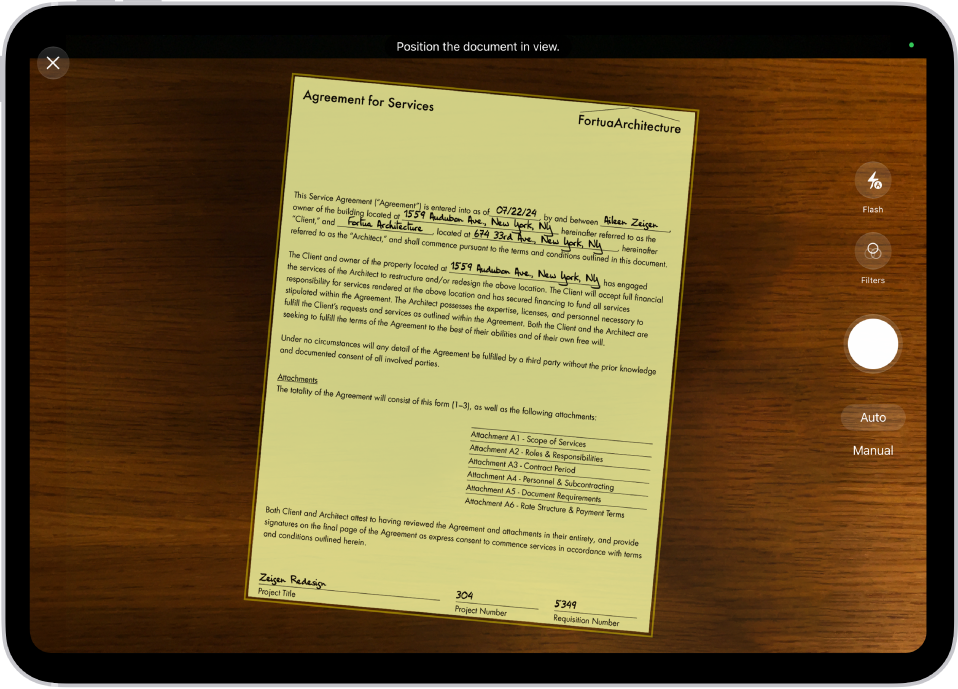
- Position your iPad so that the document page appears on the screen, adjust any settings such as Flash (on supported models) or Filters. Do one of the following:
- Automatic capture: Keep your iPad steady. Your iPad automatically captures the document when it detects the page boundaries. To make adjustments, tap the thumbnail, tap an option such as Adjust, make your changes, and then tap the Back button.
- Manual capture: Tap Manual and tap the Take Picture button. Adjust the corners as needed and tap Retake or Keep.
- Scan additional pages, then tap the Done button when you’re done.
The document is saved as a PDF in the note.
See also