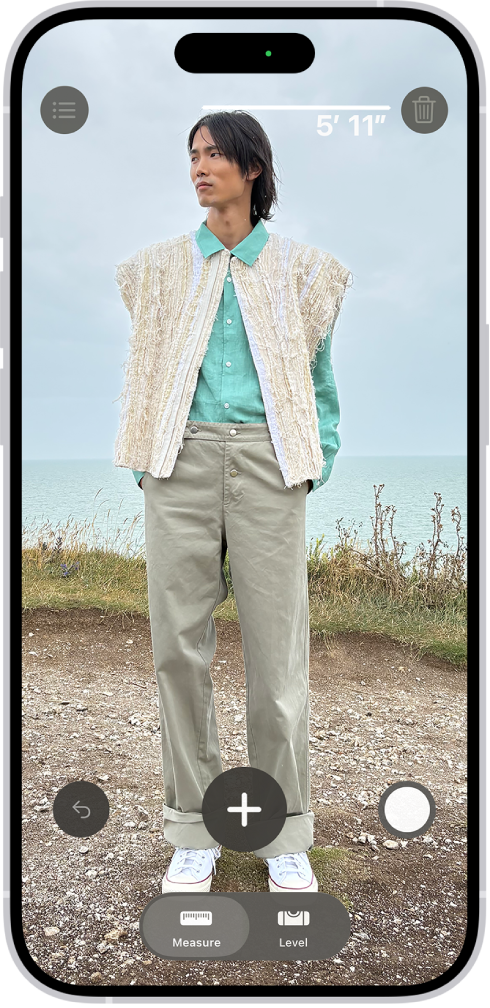
On supported iPad models, you can instantly measure a person’s height from the floor to the top of their head, hair, or hat, and even measure a person’s seated height in the Measure app.
A line appears at the top of the person’s head, with the height measurement just below it, and you can take a photo of the measurement. You can access and share that image from Photos or Files whenever you want, and reset the height to take the measurement again.
- Go to the Measure app (in the Utilities folder) on your iPad.
- Position iPad so that the person you want to measure appears on the screen from head to toe.
A line appears at the top of the person’s head (or hair, or hat), with the height measurement showing just below the line.
- To take a photo of the measurement, tap the Take Picture button.
- To save the photo, tap the screenshot in the lower-left corner, tap Done, and choose Save to Photos or Save to Files.
You can easily access and share the height measurement image from Photos or Files on iPad whenever you want.
To reset the height and take the measurement again, turn iPad away for a moment.