Connect your iPad to the internet by using an available Wi-Fi network. Wi-Fi + Cellular models can also connect using a cellular data network when Wi-Fi isn’t available, though those steps don’t apply to a Wi-Fi only model.
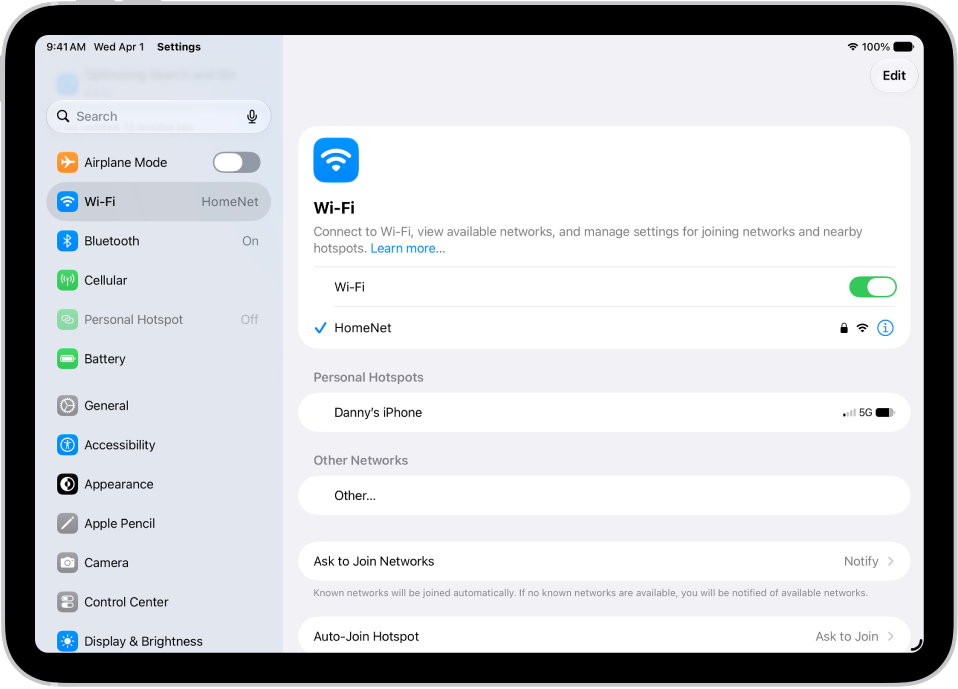
You can also join a hidden network or a Personal Hotspot, and when iPad is on Wi-Fi, a blue checkmark appears next to the network name. On models that support 5G, iPad may even use 5G instead of Wi-Fi.
iPad connects in this order: the most recently used Wi-Fi network, then a Wi-Fi network you choose from the list, then your carrier’s cellular data network (Wi-Fi + Cellular models). On models that support 5G, iPad may use 5G cellular data instead of Wi-Fi. To switch back to Wi-Fi, tap the Info button next to the network name, then tap Use Wi-Fi for Internet.
Connect to a Wi-Fi network
- Start the Settings app on your iPad.
- Tap Wi-Fi and turn on Wi-Fi.
iPad automatically joins known networks.
- To join a new network, do one of the following:
- Join an available network: Tap the name of the network. If asked, enter the password.
- Join a hidden network: Tap Other. Then enter the name of the network, security type, and password.
When iPad is connected to Wi-Fi, you’ll see a blue checkmark next to the network name and the Wi-Fi icon at the top of the screen.
If you want to change settings for a network you’ve joined, share its password, or change how iPad joins networks, check out our guide, Manage Wi-Fi settings.
Join a Personal Hotspot
You can use the cellular connection of an iPhone or iPad with cellular service that’s sharing a Personal Hotspot.
- Start the Settings app on your iPad.
- Tap Wi-Fi. Choose the name of the device sharing the Personal Hotspot.
- If asked, enter the password. On the device sharing the Personal Hotspot, the password is shown in the Settings app, tap Cellular Data and then tap Personal Hotspot.
You can choose whether iPad joins Personal Hotspots on its own when no Wi-Fi network is available. See our article, Set whether iPad joins Personal Hotspots automatically.
Connect to a cellular network if Wi-Fi isn’t available
On Wi-Fi + Cellular models, iPad automatically connects to your carrier’s cellular data network if a Wi-Fi network isn’t available. If iPad doesn’t connect, check the following:
- Verify that your SIM is activated and unlocked. See Set up cellular service.
- Start the Settings app on your iPad.
- Tap Cellular Data and then verify that Cellular Data is turned on.
Use Connectivity Assist on iPad
With Connectivity Assist on, Wi-Fi + Cellular models of iPad use cellular data along with Wi-Fi to keep your internet connection dependable if Wi-Fi is weak, busy, or not connected to the internet. Turn Connectivity Assist off, and iPad sticks to Wi-Fi only when it’s connected to Wi-Fi networks, even if the connection is weak or busy.
Note: Connectivity Assist is on if you previously had Wi-Fi Assist turned on.
- Start the Settings app on your iPad.
- Tap Wi-Fi.
- Turn Connectivity Assist on or off.
iPad shows the amount of cellular data Connectivity Assist has used. To start a new count, tap Reset Data Usage.
Note: Connectivity Assist only taps into cellular data when it’s needed to keep your connection reliable. It stays off when you’re roaming internationally, when iPad is in cellular Low Power Mode or Low Data Mode, and with some apps that stream audio and video. To check your overall cellular data usage, go to the Settings app and tap Cellular Data.
See also