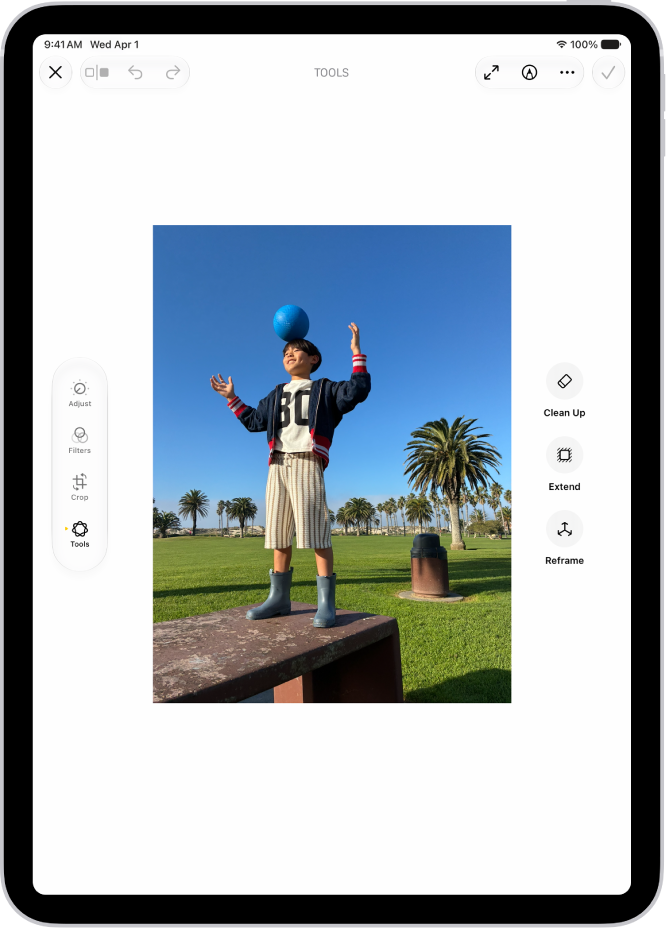
On iPad, with Apple Intelligence, you can remove distracting objects, extend a photo beyond its original frame, and adjust its perspective.
The Clean Up tool removes distracting objects from a photo, and it may even highlight some items for you to tap and remove. You can also extend the background or reframe the perspective, though Clean Up isn’t available in all languages or regions.
Here’s how to clean up, extend, and reframe photos on iPad.
Note: Apple Intelligence on iPadOS 27 or later is available on an Apple Intelligence-enabled iPad mini (A17 Pro) and iPad models with M1 or later. Apple Intelligence is not available in all languages or regions. Usage limits may apply.*
Clean up distractions
Use the Clean Up tool to remove distracting objects from a photo.
Note: Clean Up is not available in all languages or regions.
- Start the Photos app on your iPad.
- Open a photo and then tap the Edit button.
- Tap Tools, then tap Clean Up.
- Tap, brush, or circle what you want to remove.
- Some items may be highlighted automatically so you can quickly tap to remove them.
- You can use two fingers to pinch, zoom, or pan the image.
- Tap the Undo button if you want to restore something you removed.
- Tap Clean Up (if you’re using High Quality processing).
- Tap the Done button. Then tap Done to close the photo.
To undo Clean Up changes after saving, follow steps 1 through 3 above, then tap Reset.
You can choose the processing type Photos uses for Clean Up—Auto, Fast, or High Quality. Tap Auto during the Clean Up process, then choose an option.
Extend the background
Use the Extend tool to expand the edges of the original photo frame.
- Start the Photos app on your iPad.
- Open a photo and then tap the Edit button.
- Tap Tools, then tap Extend.
- Pinch or drag the photo to adjust the background ratio; drag the edge of the frame to crop.
- Tap Extend.
- Tap the Done button and tap the Done button to close the photo.
After you save, you can undo the changes you made with the Extend tool. Follow steps 1 through 3 above, then tap Reset.
Reframe the perspective
Use the Reframe tool to change the point of capture after you take a photo.
- Start the Photos app on your iPad.
- Open a photo and then tap the Edit button.
- Tap Tools, then tap Reframe.
- Touch, then drag the photo to adjust the perspective.
- Tap Reframe.
Tap the photo to compare the reframed version to the original.
- Tap the Done button and tap the Done button to close the photo.
After you save, you can undo the changes you made with the Reframe tool. Follow steps 1 through 3 above, then tap Reset.
*Apple Intelligence is available with Siri and device language set to Chinese (Simplified), Chinese (Traditional), Danish, Dutch, English, French, German, Italian, Japanese, Korean, Norwegian, Portuguese, Spanish, Swedish, Turkish, or Vietnamese. Some features may not be available in all regions or languages. Some devices may not be available in all regions. Siri AI is available in beta in iOS 27, iPadOS 27, macOS 27, watchOS 27, and visionOS 27 and requires an Apple Intelligence–enabled device set to a supported language. Available in English to start. Siri AI will not be initially available in the EU on iOS, iPadOS, and watchOS. Certain Apple Intelligence features that rely on server-side models are subject to daily usage limits, including but not limited to Siri AI, Intelligent Photo Editing Tools, Image Playground, and AFM 3 Cloud models in Shortcuts. Daily limits may vary by feature, request complexity, system demand, system policies, and other factors. Expanded access to such features will be available for a fee in the future. Use of these features is subject to the Apple Intelligence Terms and Conditions.
See also