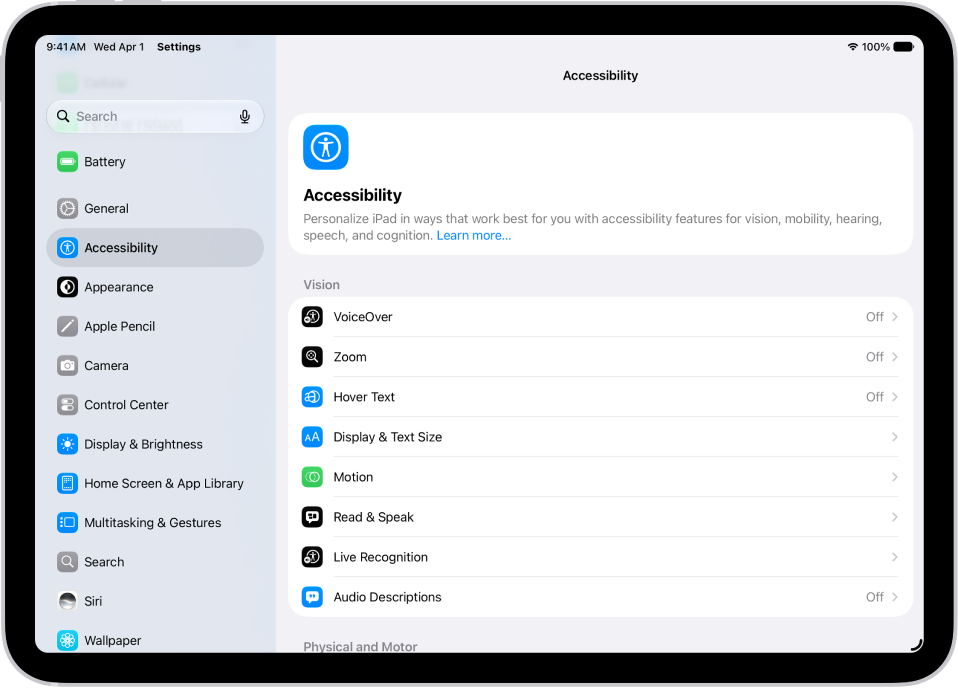
On iPad, you can set up a shortcut to quickly start Live Recognition when VoiceOver is on. If VoiceOver is off, the same shortcut opens the Magnifier app in Detection Mode instead.
You can use a VoiceOver gesture or the Accessibility Shortcut, and you can even assign a different gesture. It’s one of many accessibility features for vision on iPad.
- Use a VoiceOver gesture: When VoiceOver is on, triple-tap the screen with four fingers to turn Live Recognition on or off. To assign a different gesture, go to Settings > Accessibility > VoiceOver > Commands > Touch Gestures.
- Triple-click the top button or Home button: Go to Settings > Accessibility > Accessibility Shortcut, then select Live Recognition. See Quickly turn accessibility features on or off.
See also