Facebook-f Twitter
GeeksChalk Logo GeeksChalk Logo
Notification
  • Home
  • iPhone
  • iPad
  • Mac
  • Apple Watch
  • Pages
    • About Us
    • Contact Us
    • Advertise With Us
  • 🤩 Trending:
  • 100 new iOS 26 features for iPhone
  • 10 Best iOS 26 Tips & Tricks
  • iPhone 16: Everything We Know
  • iPhone 16 Pro: Everything We Know

GeeksChalk is the leading source for all things iPhone, Mac, iPad, Apple Watch, Vision Pro, and more

GeeksChalkGeeksChalk
  • Home
  • iPhone
  • iPad
  • Mac
  • Apple Watch
Search

Popular Post

iPhone 15 Pro in black titanium, white titanium, blue titanium, and natural titanium finishes.
iPhone

Apple CarPlay GPS Not Working, Showing Wrong Location: Fix

iPhone 14 Pro and iPhone 14 Pro Max are shown in gold.
iPhone

How to Fix iPhone not sending text messages to Android

Connect an iPhone to car Bluetooth
Troubleshooting

How to fix Bluetooth not working on iPhone after iOS 26 update

iPhone outline with an Apple logo
iPhone

Need to restore an iPhone backup? Here’s how

Follow US
Copyright © 2026 www.GeeksChalk.com
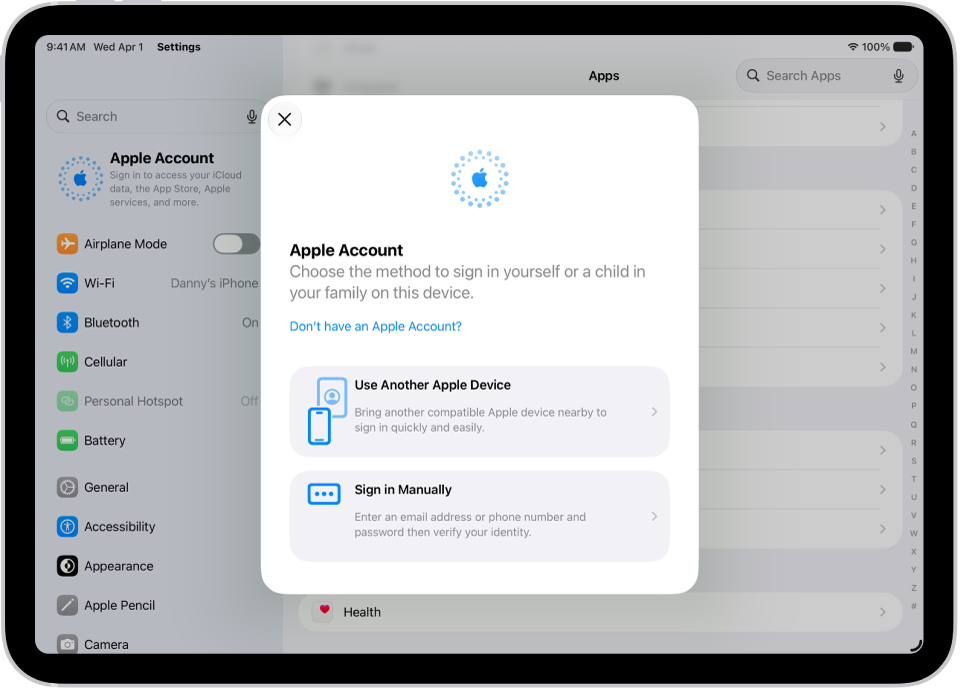
The Settings app, with the Apple Account sign-in dialog in the middle of the screen.
GeeksChalk > iPad > How to sign in with fewer CAPTCHA challenges on iPad

How to sign in with fewer CAPTCHA challenges on iPad

You can sign in with fewer CAPTCHA challenges on iPad, since iCloud can automatically and privately verify your iPad and account.

Last updated: October 21, 2026 8:52 pm
By Kristina Terech - Staff Writer
Share
0 Min Read

On iPad, some website and app sign-in screens require you to pass CAPTCHA challenges, such as recognizing letters in unusual shapes. iCloud allows you to bypass many of these challenges by automatically and privately verifying your iPad and account, so you can sign in with fewer CAPTCHA challenges.

The bypass is called Automatic Verification, and you can turn it on or off. It’s one of the built-in privacy and security protections of iPad.

  1. Start the Settings app on your iPad.
  2. Tap your name and tap Sign-In & Security.
  3. Turn Automatic Verification on or off.

See also

  • Use the built-in privacy and security protections of iPad
TAGGED:Apple AccountiCloud
ByKristina Terech
Staff Writer
Follow:
Kristina is a staff writer at GeeksChalk, and is interested in all things Apple. This includes its best products such as the iPad, iPhone, Mac, AirPods, and Apple Watch. When she's not tinkering with the latest Apple gear, you’ll find her watching movies, taking pictures and exploring the great outdoors.
Leave a Comment Leave a Comment

Leave a Reply Cancel reply

Your email address will not be published. Required fields are marked *

Recent News Flash

An iPhone and Apple Watch showing their syncing screens.

How to get started with Apple Watch

Apple Watch showing a conversation in the Messages app.

How to stay connected with Apple Watch

The Phone app showing a call in progress.

How to make and receive FaceTime audio calls on Apple Watch

The Photos watch face showing a photo from a synced photo album. The time appears on the left of the screen.

How to customize the Photos watch face on Apple Watch

Trending Now

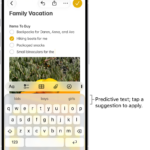
The onscreen keyboard is open in the Messages app. Text is entered in the text field and above the keyboard are predictive text suggestions for the next word.

How to use predictive text on iPhone

The Erase This iPad screen.

How to erase iPad

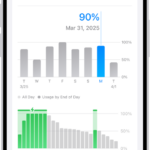
The Battery Usage screen in Settings on iPhone. It shows two graphs: the top graph displays daily battery usage for the last week, and the bottom graph details the battery level throughout the selected day, including periods of charging. Below the graphs, it summarizes total screen active and screen idle time.

How to save battery life with Power Modes on iPhone

Explore More

Recommended For You

The Passwords app showing details for an account, including User Name, Password, and Website.

How to create a password for a website or app on iPad

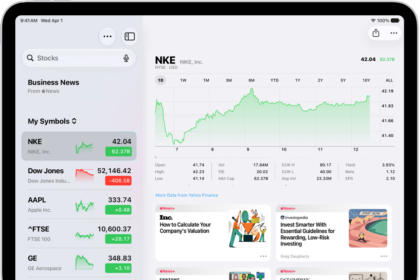
The Stocks screen on iPad includes a chart showing the performance for a stock over the course of a morning. On the left are a list of ticker symbols. Above the chart are buttons to display the stock performance over a week or larger increments of months and years, up to 10 years. Below the chart are stock details such as opening price, high, low, and market cap, and links to business-related news.

How to use a Stocks widget on your iPad

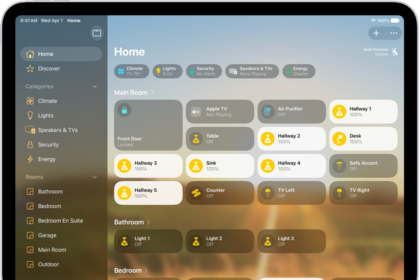
The Home app with the sidebar on the left, showing Home, Automation, and Discover tabs near the top left. Categories and Rooms in the home appear below. To the right of the sidebar, at the top, are the Intercom, Add, and More Options buttons. Category buttons appear near the top. Below that are scenes, camera images, and a room with its accessories.

How to get started with Home on iPad

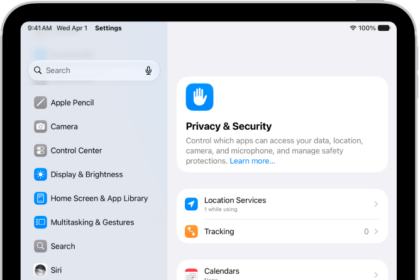
The Privacy & Security screen, with settings for Location Services and Tracking, and settings to control which apps can access your data.

How to use Impersonation Risk Detection on iPad

GeeksChalk Logo GeeksChalk Logo
  • Home
  • Contact Us
  • Advertise
  • Our Staff
  • Editorial Guidelines
  • Terms
  • Privacy
  • Accessibility
  • Copyright
  • About Us
  • Fact Checking Policy
  • Correction Policy
  • Ethics Policy
  • Ownership Policy
Copyright © 2026 www.GeeksChalk.com
Welcome Back!

Sign in to your account

Username or Email Address
Password

Lost your password?