On AirPods 4 with Active Noise Cancellation (ANC), AirPods 5, AirPods Pro, and AirPods Max, you can block out external sounds with noise cancellation. On most of those models, you can also adjust your settings to allow noise cancellation in one ear.
There’s more you can change, too. You can turn on Personalized Volume with AirPods 4, and newer models, like AirPods Pro 3 and AirPods Max 2, add Conversation Awareness. And with Adaptive Audio, which cancels or allows noise around you, you can customize how much noise comes through.
- Personalized Volume helps adjust the media volume for you by taking into account your environmental conditions and your system volume preferences over time.
- Conversation Awareness makes it easier to interact with people nearby. When you start speaking, Conversation Awareness automatically lowers the volume of your media and enhances voices in front of you, while reducing background noise.
Allow noise cancellation in one ear
On AirPods 4 (ANC), AirPods 5, and AirPods Pro, you can allow noise cancellation in one ear.
- Wear your AirPods, and make sure they’re connected to your device.
- Do one of the following:
- iPhone or iPad: Go to the Settings app and then tap Accessibility. Below Accessories, tap AirPods and then turn on Noise Cancellation with One AirPod.
- Mac: Go to the System Settings app and click Accessibility in the sidebar. Then click Audio (you may need to scroll down). Turn on Noise Cancellation with One AirPod.
- Apple TV 4K or Apple TV HD: Go to the Settings app and select Accessibility. Select AirPods and turn on Noise Cancellation with One AirPod.
Use Personalized Volume or Conversation Awareness
Note: You’ll need AirPods Pro 2, AirPods Pro 3, AirPods Max 2, AirPods 4 (ANC), or AirPods 5 to use Conversation Awareness.
- Wear your AirPods, and make sure they’re connected to your device.
- Do one of the following:
- iPhone or iPad: Go to the Settings app, tap the name of your AirPods near the top of the screen, and turn on Personalized Volume or Conversation Awareness (if you don’t see that option, first tap Audio & Routing).
- Mac: Go to the System Settings app, click the name of your AirPods in the sidebar (you may need to scroll down), and then turn on Personalized Volume or Conversation Awareness (if you don’t see that option, first click Audio & Routing).
Note: In some countries or regions, you may also have an option to turn Loud Sound Reduction on or off. Loud Sound Reduction automatically reduces harsh noise around you for more comfortable listening (available with AirPods Pro 2, AirPods Pro 3, and AirPods Max 2 on iPhone or iPad).
When Conversation Awareness is turned on, media volume lowers when you start speaking; if you’re listening to spoken media, like a podcast, the media pauses after a few seconds. The media remains at a low volume (or paused) as long as your conversation continues and returns to its previous level after your conversation ends. To manually end the conversation (for example, if people are talking around you, but you aren’t part of the conversation), press and hold the stem.
You can also turn Conversation Awareness on or off in Control Center on iPhone or iPad. Touch and hold the volume control, then tap Conversation Awareness.
Allow more or less noise when using Adaptive Audio
Adaptive Audio cancels or allows noise around you in response to your environment, and you can customize it to allow more or less noise.
Note: Adaptive Audio works with AirPods Max 2, AirPods Pro 2, AirPods Pro 3, AirPods 4 (ANC), and AirPods 5.
- Wear your AirPods, and make sure they’re connected to your device.
- Do one of the following:
- iPhone or iPad: Go to the Settings app. Then tap the name of your AirPods near the top of the screen. Tap Adaptive below Listening Mode. Then drag the slider to adjust Adaptive Audio more toward Transparency or Noise Cancellation.
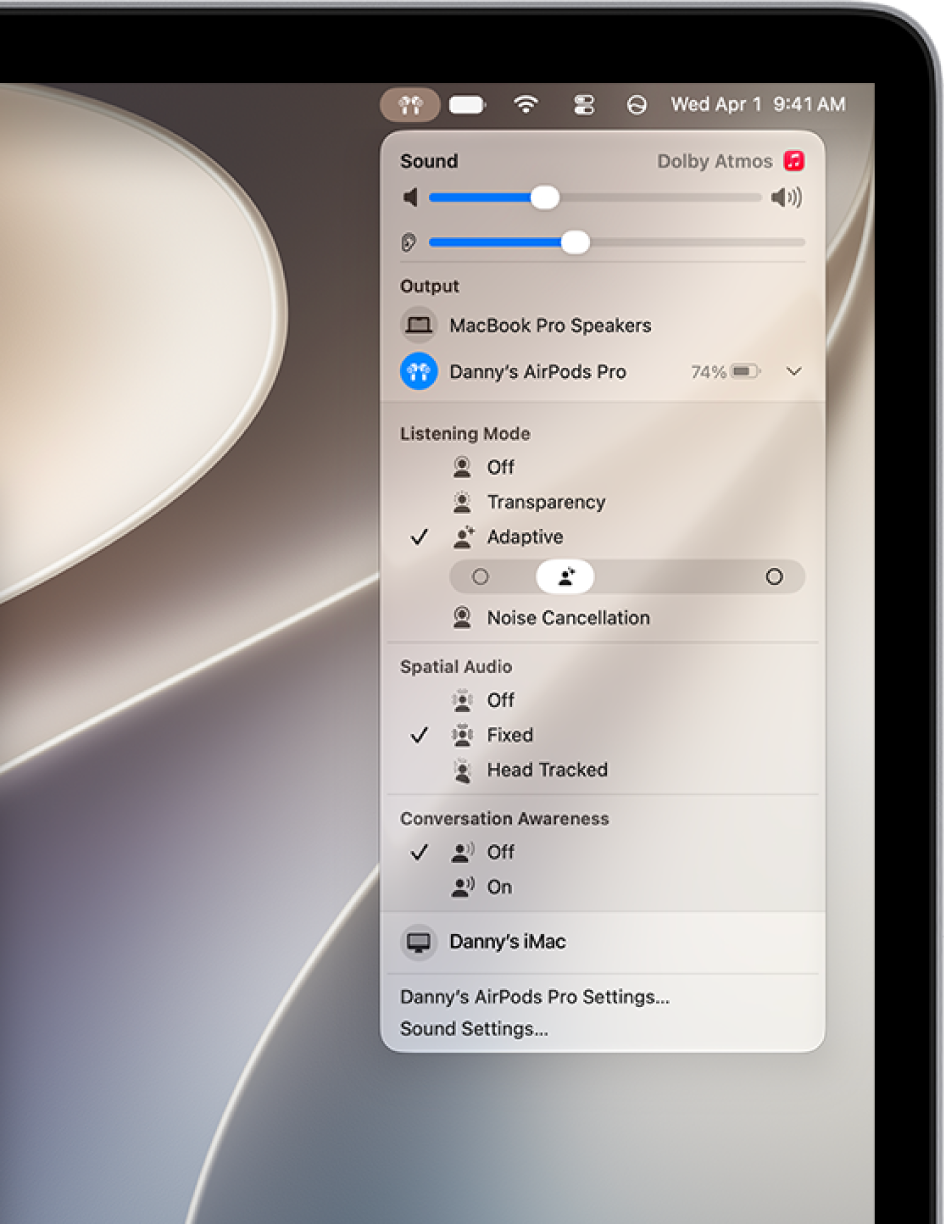
- Mac: Go to the System Settings app and click the name of your AirPods in the sidebar (you may need to scroll down). Click Adaptive below Listening Mode and drag the slider to adjust Adaptive Audio more toward Transparency or Noise Cancellation.
Check out our article, Switch between listening modes, to start using Adaptive Audio.
Use Transparency mode with AirPods Pro 3
With AirPods Pro 3, you get an improved Transparency experience. It’s personalized, and it adapts to the fit of your AirPods Pro.
To switch to Transparency mode, see our article, Switch between listening modes.
This guide is for iOS 27, iPadOS 27, macOS 27, tvOS 27, watchOS 27, or later.
See also