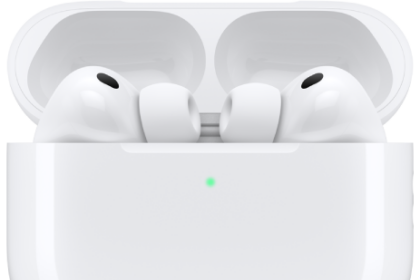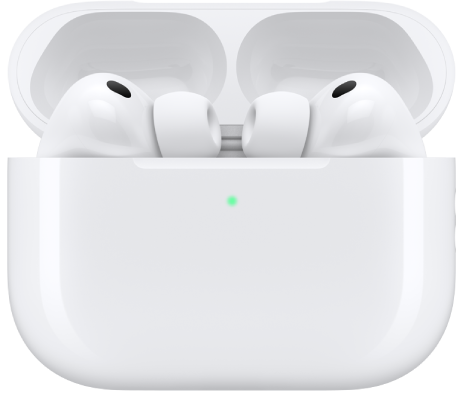
Pair AirPods with your Apple devices to listen to music, movies, messages, and more. You can also use your AirPods to make and answer phone calls and FaceTime calls with compatible devices.
When pairing with an iPhone or iPad, your device needs a Wi-Fi or cellular connection, or you may not have access to Find My features. After you set up your AirPods with one Apple device (like your iPhone), they connect automatically to your other Apple devices where you’re signed in to the same Apple Account. You can pair them with iPhone, iPad, Mac, Apple Watch, Apple TV, and Apple Vision Pro.
If you aren’t sure which AirPods you have, see Which AirPods do I have?
Pair AirPods with iPhone or iPad
Your device should have the latest version of iOS or iPadOS installed before you begin. It’ll also need a Wi-Fi or cellular connection while pairing. Without that connection, you may not have access to Find My features.
- Open the Settings app on your iPhone or iPad.
- Tap Bluetooth and turn on Bluetooth. Do one of the following:
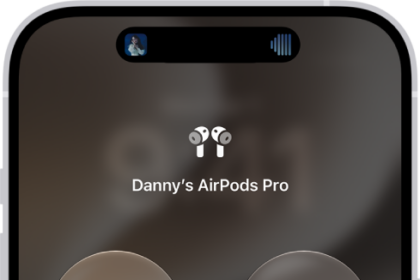
- AirPods or AirPods Pro: Open the case with your AirPods inside and then hold it next to the device that you want to pair until the setup animation appears.
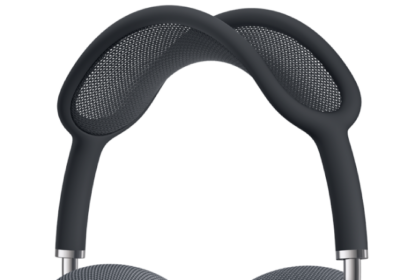
- AirPods Max: Take your AirPods Max out of the Smart Case, and within 60 seconds, hold them next to the device that you want to pair until the setup animation appears.
You can also connect AirPods Max to your device using an audio cable.
- Follow the onscreen instructions, then tap Done.
If the setup animation doesn’t appear, you can pair AirPods with your device manually.
Pair AirPods with Mac
Your Mac needs the latest version of macOS installed first.
- Open the System Settings app on your Mac.
- Click Bluetooth in the sidebar.
- Make sure Bluetooth is on and then do one of the following:
- AirPods 1, 2, or 3, or AirPods Pro 1 or 2: Open the case with your AirPods inside and hold it next to your Mac. Press and hold the setup button on the back of the AirPods case for about 5 seconds, or until the status light flashes white.
- AirPods 4 or 5, or AirPods Pro 3: Open the case with your AirPods inside, hold it next to your Mac and then double-tap the front of the AirPods case so the status light flashes white.
- AirPods Max: Press and hold the listening mode button for about 5 seconds, or until the status light flashes white.
You can also connect AirPods Max to your device using an audio cable.
- In the list of devices, select your AirPods and click Connect.
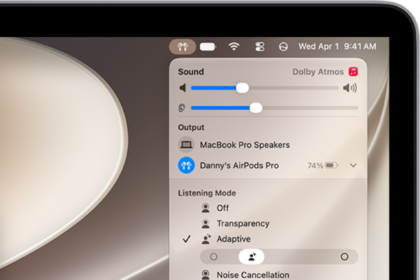
Quick tip: It’s easier to pair your AirPods if you show Bluetooth settings in the menu bar.
Pair AirPods with Apple Watch
Your Apple Watch should have the latest version of watchOS installed before you start.
- Open the Settings app on your Apple Watch.
- Tap Bluetooth, then tap your AirPods on the Bluetooth screen to connect.
No setup animation? You can still pair AirPods with your device manually.
Pair AirPods with an Apple TV device
Your Apple TV 4K or Apple TV HD should be running the latest version of tvOS before you begin.
- Open the Settings app on your Apple TV device.
- Scroll down, select Remotes and Devices, and select Bluetooth.
- Do one of the following:
- AirPods 1, 2, or 3, or AirPods Pro 1 or 2: Open your AirPods case and press and hold the setup button on the back of the case for about 5 seconds, or until the status light flashes white.
- AirPods 4 or 5, or AirPods Pro 3: Open the case with your AirPods inside and hold it next to your device. Then double-tap the front of the AirPods case so the status light flashes white.
- AirPods Max: Press and hold the listening mode button for about 5 seconds, or until the status light flashes white.
- Below Headphones, select your AirPods.
Pair AirPods with Apple Vision Pro
Check that your Apple Vision Pro has the latest version of visionOS installed before you begin.
You can pair AirPods Pro 3, AirPods Pro 2 (USB-C), AirPods 4, or AirPods 5 for the most immersive experience with Apple Vision Pro. Once they’re paired, they provide Lossless Audio with ultra-low latency, using a proprietary wireless audio protocol.
To deliver excellent audio quality, AirPods Max, AirPods 2, AirPods 3, AirPods Pro 1, and AirPods Pro 2 (Lightning) wireless headphones use Apple AAC Bluetooth® Codec. Bluetooth connections aren’t lossless, though.
- Go to the Settings app on Apple Vision Pro.
- Tap Bluetooth.
- Do one of the following:
- AirPods 1, 2, or 3, or AirPods Pro 1 or 2: With your AirPods in the charging case, open the lid and then press and hold the setup button on the back of the AirPods case for about 5 seconds, or until the status light flashes white.
- AirPods 4 or 5, or AirPods Pro 3: Open the case with your AirPods inside and hold it next to your device. Then double-tap the front of the AirPods case so the status light flashes white.
- AirPods Max: Take your AirPods Max out of the Smart Case. Press and hold the listening mode button on AirPods Max for about 5 seconds, or until the status light flashes white.
- Below Other Devices, tap your AirPods.
Note: Lossless Audio only works when connected to Apple Vision Pro. Availability varies by region.
Connect AirPods Max with an audio cable
Using a supported audio cable, you can connect AirPods Max to your device.
- AirPods Max 1: Connect an Apple Lightning to 3.5 mm Audio Cable to the charging port on your AirPods Max and to the headphone jack on your device.
- AirPods Max 1 (USB-C) or AirPods Max 2: Connect an Apple USB-C to 3.5 mm Audio Cable to the charging port on your AirPods Max and to the headphone jack on your device.
You can also connect a USB-C to USB-C cable from your AirPods Max 1 (USB-C) or AirPods Max 2 to an iPhone, iPad, or Mac with a USB-C port. For full functionality, turn on Bluetooth on the connected device. (Requires iOS 18.4, iPadOS 18.4, macOS 15.4, or later.)
Pair AirPods with a device manually
When you try to connect your AirPods to your device but the setup animation doesn’t appear, you can still pair AirPods with your device manually.
- Do one of the following:
- AirPods 4 or 5, or AirPods Pro 3: Open the charging case with your AirPods inside and hold it next to your device. Then double-tap the front of the case so the status light flashes white.
- AirPods Max: Press and hold the listening mode button on AirPods Max for about 5 seconds, or until the status light flashes white.
If you have AirPods Max 1 (USB-C) or AirPods Max 2, you can also pair your AirPods with your device by connecting them using a USB-C to USB-C cable.
- Other AirPods models: Open the case with your AirPods inside and hold it next to your device. Then press and hold the setup button on the back of the case until the status light flashes white.
- Go to the Settings app on your device (on Mac, open the System Settings app).
- Tap or click Bluetooth and select your AirPods when they appear in the list.
This guide is for iOS 27, iPadOS 27, macOS 27, tvOS 27, watchOS 27, or later.
See also