You can switch between listening modes (Transparency, Adaptive, or Noise Cancellation) while listening to audio on AirPods 4 with Active Noise Cancellation (ANC), AirPods 5, AirPods Pro, or AirPods Max.
You can change modes right on your AirPods, and a chime confirms the change. You can also switch from your iPhone, iPad, Apple Watch, Mac, or Apple TV device. On AirPods Pro 2 and AirPods Pro 3, there’s an Off option, too, but only after you enable it.
- Adaptive Audio on AirPods 4 (ANC), AirPods 5, AirPods Pro 2, AirPods Pro 3, and AirPods Max 2: Combines Active Noise Cancellation and Transparency mode into one additional mode, which automatically adjusts the level of noise control based on the changing noise conditions in your environment.
- Active Noise Cancellation: Blocks out external noise to help you focus.
- Transparency mode: Lets you hear the sounds around you.
- Off: Turns off all listening modes.
Note: For AirPods Pro 2 and AirPods Pro 3, AirPods listening modes include an Off option only after you enable it. See Turn off listening modes for AirPods Pro 2 and AirPods Pro 3.
Switch between listening modes on your AirPods
- Wear one or both AirPods, and make sure they’re connected to your device.
- Do one of the following:
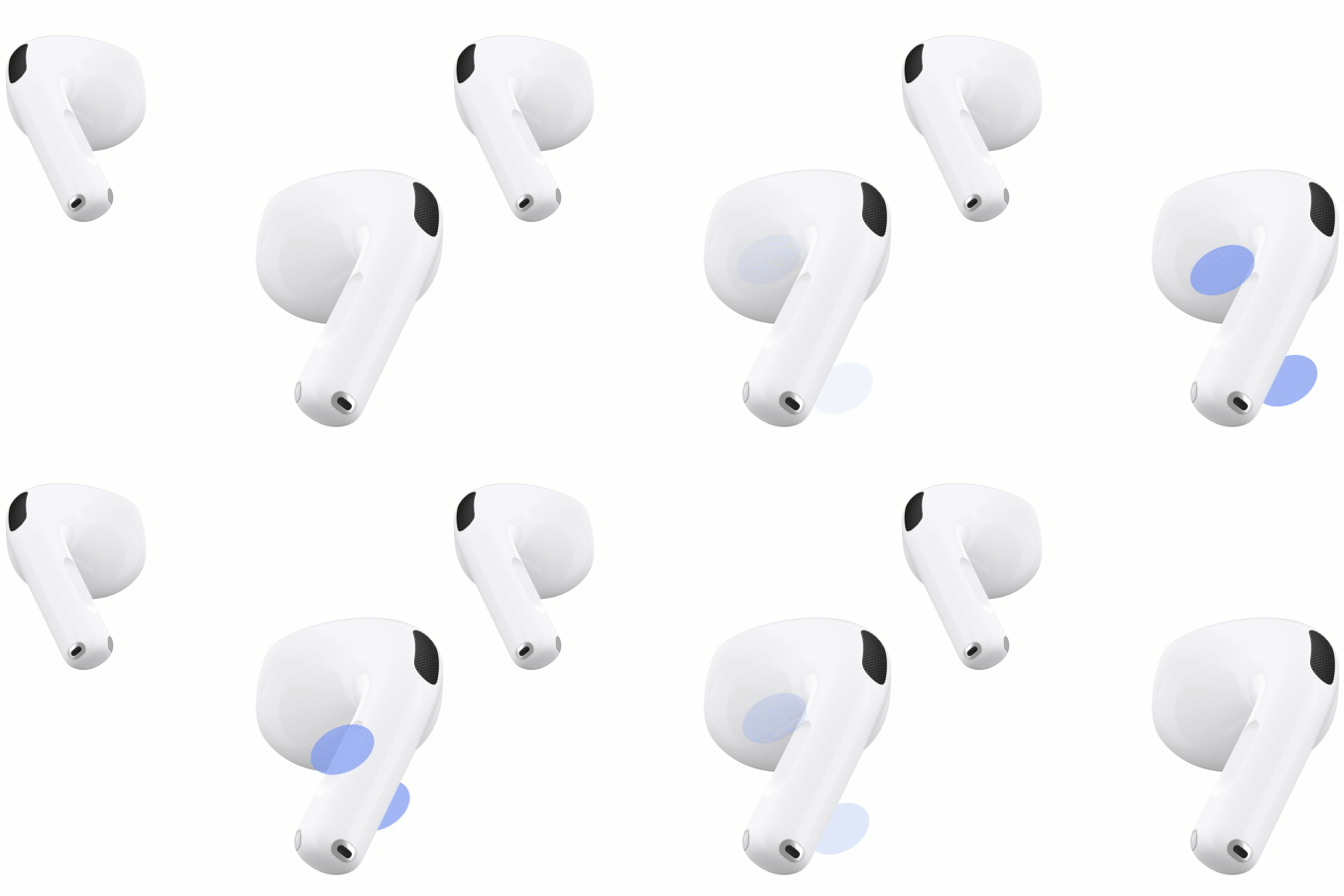
- AirPods 4 (ANC), AirPods 5, or AirPods Pro: Press and hold the stem on either of your AirPods until you hear a chime.
If you have AirPods 4 (ANC), AirPods 5, AirPods Pro 2, or AirPods Pro 3, you can also press and hold the stem to switch to Adaptive Audio. See Change what the double tap, force sensor, or force sensor with volume swipe controls.
AirPods Pro

AirPods 4 (ANC)
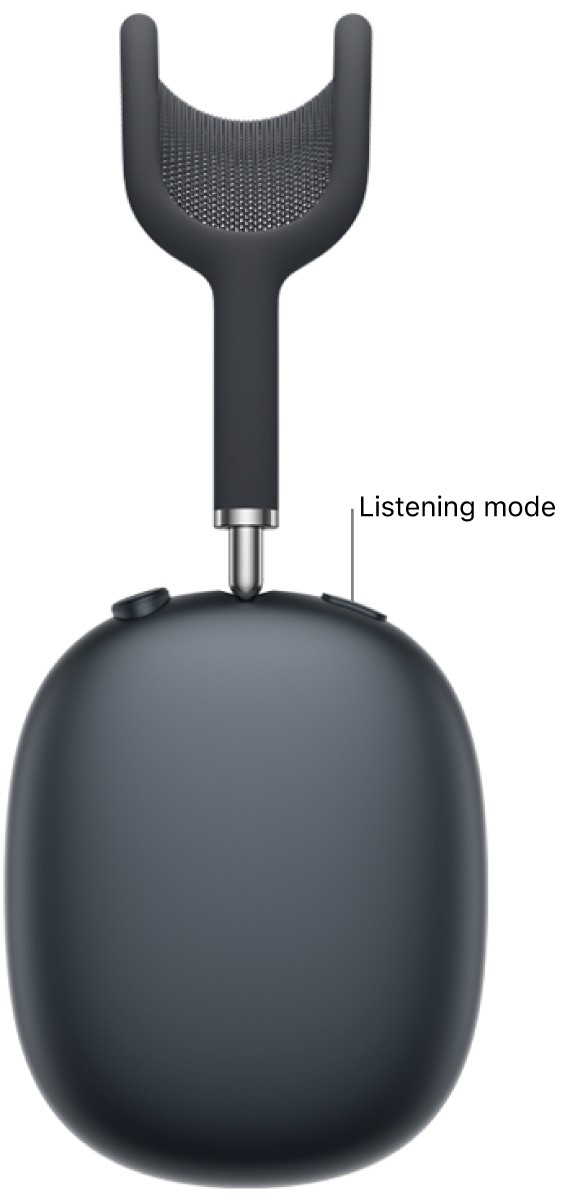
- AirPods Max: Press the listening mode button on the right headphone. A chime confirms the change.
- AirPods 4 (ANC), AirPods 5, or AirPods Pro: Press and hold the stem on either of your AirPods until you hear a chime.
Switch between listening modes on iPhone or iPad
- Wear one or both AirPods, and make sure they’re connected to your device.
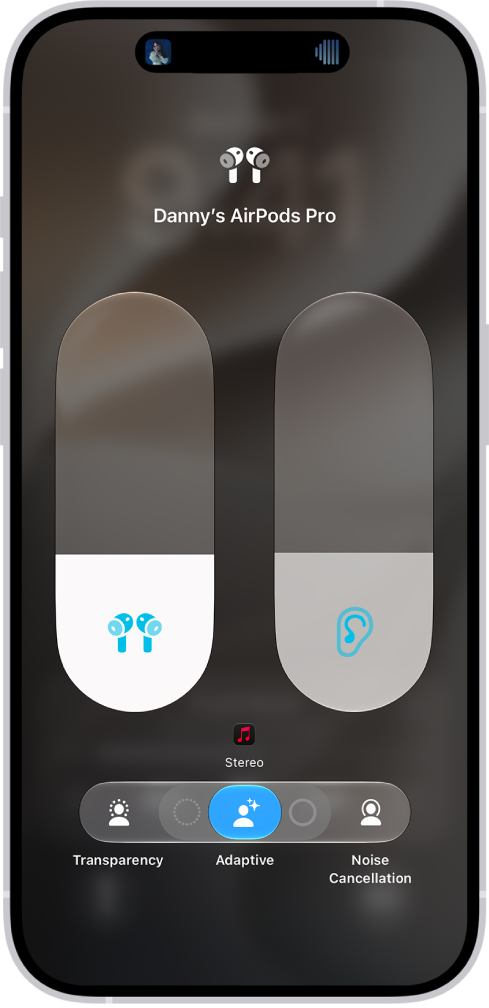
- Open Control Center, then touch and hold the volume control.
- Tap the Listening Mode button at the bottom left, then choose a listening mode.
Tip: You can adjust Adaptive Audio toward more Transparency or more Noise Cancellation by dragging the slider left or right.
When you use Transparency mode on AirPods Pro, you can also customize which sounds come through. For details, read our guide, Use and customize Transparency mode.
Switch between listening modes on Apple Watch
- Wear one or both AirPods, and make sure they’re connected to your Apple Watch.
- Open Control Center and tap the AirPods icon on the left (you may need to scroll down). Choose a listening mode.
Switch between listening modes on Mac
- Wear one or both AirPods, and make sure they’re connected to your Mac.
- Do one of the following:
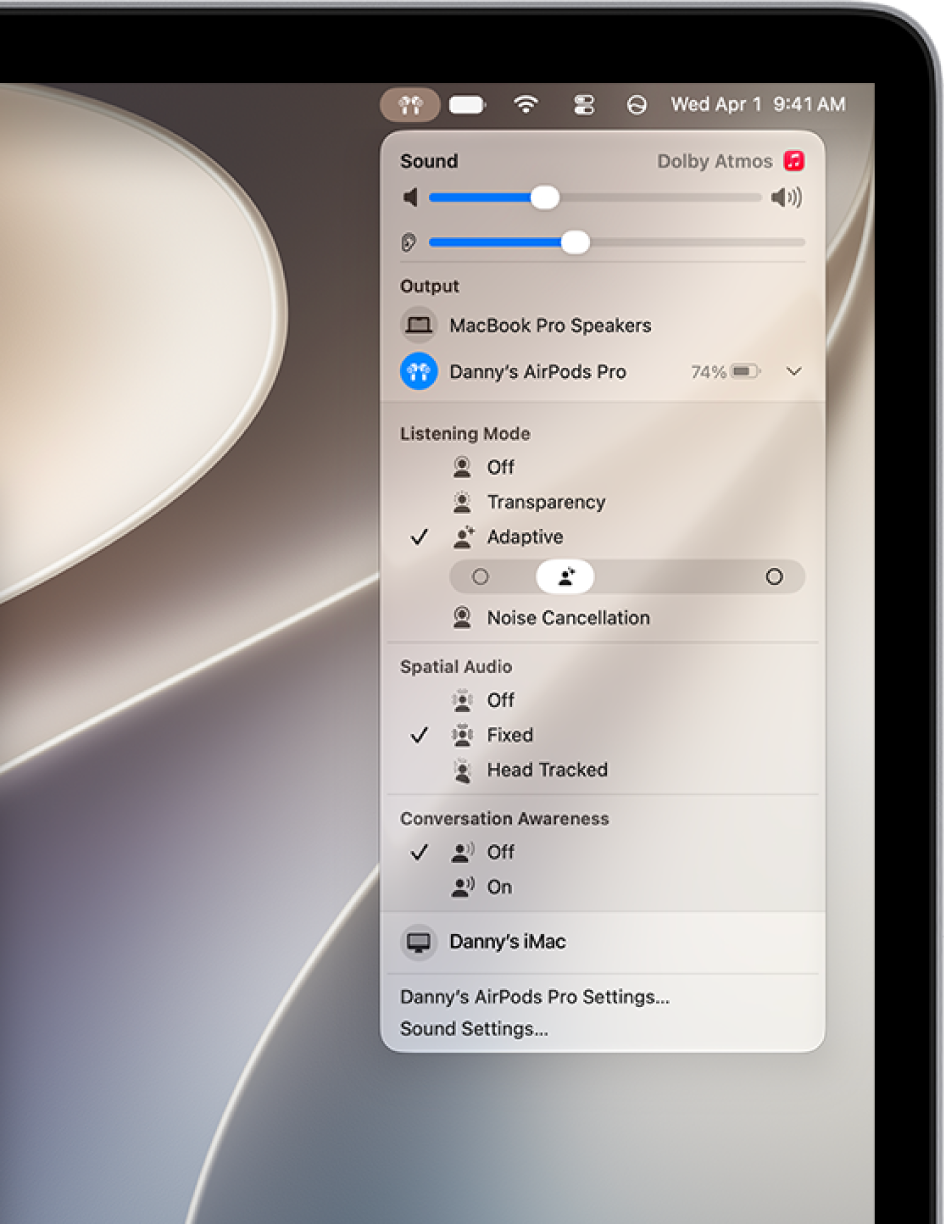
- Click the AirPods Pro or the AirPods Max icon in the menu bar, then choose a listening mode.
- Go to the System Settings app, click the name of your AirPods in the sidebar (you may need to scroll down), then choose a listening mode.
Tip: You can adjust Adaptive Audio toward more Transparency or more Noise Cancellation by dragging the slider left or right.
Switch between listening modes on an Apple TV device
- Wear one or both AirPods, and make sure they’re connected to your Apple TV 4K or Apple TV HD.
- Open Control Center and go to the AirPods icon at the top of the screen (next to the time display). Then adjust the controls.

Turn off listening modes for AirPods Pro 2 and AirPods Pro 3
For AirPods Pro 2 and AirPods Pro 3, AirPods listening modes include an Off option only after you enable it. Your hearing is not protected when the listening mode is set to Off.
- Wear one or both AirPods, and make sure they’re connected to your device.
- Do one of the following:
- iPhone or iPad: Go to the Settings app, tap the name of your AirPods near the top of the screen, and turn on Off Listening Mode (if you don’t see that option, first tap Audio & Routing).
- Mac: Go to the System Settings app and click the name of your AirPods in the sidebar (you may need to scroll down). Turn on Off Listening Mode (if you don’t see that option, first click Audio & Routing).
After Off Listening Mode is turned on, you can choose Off in the Listening Mode slider.
This guide is for iOS 27, iPadOS 27, macOS 27, tvOS 27, watchOS 27, or later.
See also