When AirPods are connected to iPhone, iPad, Mac, or Apple Watch, you can use Siri to find information, play music, accept or decline calls, announce notifications from apps, and more.
With newer models, like AirPods Pro 3 and AirPods Max 2, you can also respond to Siri privately without speaking, using head gestures. Announce Calls and Announce Notifications need to be on first. Then you nod your head to answer a call, or shake your head to dismiss a notification.
Here’s what you need to know about using Siri with your AirPods.
Set up Siri on your device
- iPhone or iPad: Go to the Settings app, tap Siri, then tap Requests. Tap “Siri” or “Hey Siri.”
Note: If you don’t see Requests, turn on Siri first.
- Mac: Go to the System Settings app, then click Siri in the sidebar. Turn on Siri, then click Requests. Click “Siri” or “Hey Siri.”
- Apple Watch: Go to the Settings app, tap Siri, tap “Listen for,” then tap “Siri” or “Hey Siri.”
Note: In some countries and regions, you may only have an option for “Hey Siri.”
With AirPods Max 2, AirPods Pro 2, AirPods Pro 3, AirPods 4, or AirPods 5, either “Siri” or “Hey Siri” activates Siri. Other AirPods models need “Hey Siri.”
Use Siri to announce calls or notifications
With supported headphones, Siri can announce incoming calls if you allow it. When you’ve got your AirPods in and they’re paired with your iPhone, iPad, or Apple Watch, Siri also announces time-sensitive notifications automatically. And you choose which apps you get notifications from and how often.
- iPhone or iPad: Go to the Settings app, tap Notifications, then tap Announce Notifications. Turn on Announce Notifications, then choose the settings you want.
For example, choose Headphones Only or turn on Headphones if you only want Siri to announce calls or notifications while you’re wearing your AirPods.
- Apple Watch: Go to the Settings app, tap Notifications, then tap Announce Notifications. Turn on Announce Notifications, then adjust Announce Notifications From settings.
You can limit notifications when you need to concentrate.
Activate Siri with your voice
AirPods Pro, AirPods Max, AirPods 2, AirPods 3, AirPods 4, and AirPods 5 all let you activate Siri with your voice.
- Wear your AirPods, and make sure they’re connected to your device.
- Say “Hey Siri” and then use Siri to get answers to questions, control apps, and more.
For example, say something like “Hey Siri, what causes a rainbow?” or “Hey Siri, set a meeting with Gordon at 9” to create an event in Calendar.
Activate Siri with controls
- Wear your AirPods, and make sure they’re connected to your device.
- Do one of the following:
- AirPods 1 or 2: Double-tap either of your AirPods, wait for a chime and then make your request.
To change the settings on AirPods 2 to activate Siri with a double tap, see Change your settings to activate Siri with a touch.
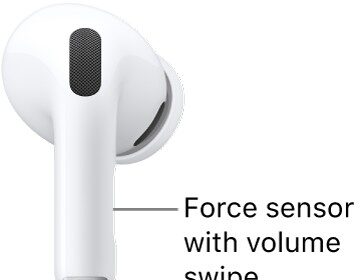
- AirPods 3, 4, or 5, or AirPods Pro: Press and hold the stem on either of your AirPods, wait for a chime and then make your request.
To set up AirPods Pro 1 to activate Siri when you press and hold the stem of either of your AirPods, see Change your settings to activate Siri with a touch.
- AirPods Max: Press and hold the Digital Crown, wait for a chime. Then make your request.
- AirPods 1 or 2: Double-tap either of your AirPods, wait for a chime and then make your request.
Use Siri to start a workout from your AirPods Pro 3
AirPods Pro 3 can start a workout for you in the Fitness app on your iPhone or Apple Watch.
During Fitness app workouts, AirPods Pro 3 use their heart rate sensors to track your fitness metrics, including heart rate, pace, distance, and calories burned, plus steps for walking and running workouts.
- Wear your AirPods Pro 3, and make sure they’re connected to your device.
- Press and hold the stem on either of your AirPods Pro 3, wait for a chime, then ask Siri something like, “Start a 30-minute outdoor run.”
Or start the workout yourself in the Fitness app on your iPhone or Apple Watch.
Change your settings to activate Siri with a touch
You can use the buttons on your AirPods to activate Siri.
- Wear your AirPods, and make sure they’re connected to your device.
- Do one of the following:
- iPhone or iPad: Go to the Settings app. Tap the name of your AirPods near the top of the screen. Below Press and Hold AirPods, choose Left or Right (if you don’t see those options, first tap Controls & Gestures). Choose Siri.
- Mac: Go to the System Settings app. Then click your AirPods in the sidebar (you may need to scroll down). Click a pop-up menu next to L or R (if you don’t see those options, first click Controls & Gestures). Then choose Siri.
Note: AirPods Max, AirPods Pro 2, and AirPods 1 and 3 have their controls set to activate Siri by default. For more on the controls, check out our article, Use controls and gestures with your AirPods.
This guide is for iOS 27, iPadOS 27, macOS 27, tvOS 27, watchOS 27, or later.