When you start watching in the Apple TV app on Apple TV 4K, you can use your remote to control playback, get more information, turn on subtitles, and more. You can scrub through video thumbnails on the playback timeline to find a scene, too. And while you’re watching an Apple TV movie or TV show, InSight shows real-time details about the actors, characters, and music currently onscreen (Apple TV subscription required).
Play, pause, rewind, or fast-forward
With your remote, you can do any of the following:
- Play or pause: Press the Play/Pause button, or press the center of the clickpad or touch surface.
- Skip backward or forward 10 seconds: Press left or right on the clickpad ring or touch surface. Press again to skip another 10 seconds.
Tip: When you skip backward 10 seconds, subtitles are turned on automatically so that you can rewatch that section with subtitles.
- Continuously rewind or fast-forward: Press and hold left or right on the clickpad ring or touch surface. Press repeatedly to cycle through rewind or fast-forward speed options (2x, 3x, 4x).
To resume playback, press the Play/Pause button.
Pause playback, and playback controls appear onscreen with the elapsed and remaining time and other playback options.
Show onscreen playback controls
While a movie or TV show is playing, you’re able to display onscreen controls showing elapsed time, remaining time, and other options.
Your remote lets you do either of the following:
- Show playback controls: Rest your finger on the clickpad or touch surface, or press up on the clickpad ring (silver remote only).
- Hide playback controls: Press the Back button or the Menu button.
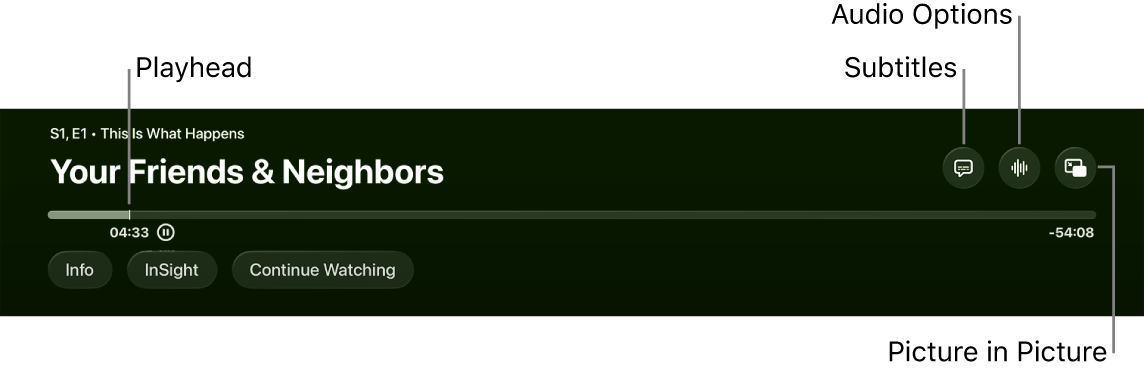
For more information on playback options, see Turn on subtitles and closed captioning, Change audio options during playback, and Turn on Picture in Picture viewing.
Scrub video backward or forward on the playback timeline
To find a scene, scrub through video thumbnails backward or forward on the playback timeline.
- During playback, press the Play/Pause button on your remote to pause.
- Swipe left or right on the clickpad or touch surface to scrub backward or forward.
A preview thumbnail appears above the timeline showing your progress.
Tip: For more precise control, circle your finger around the clickpad ring (silver remote only).
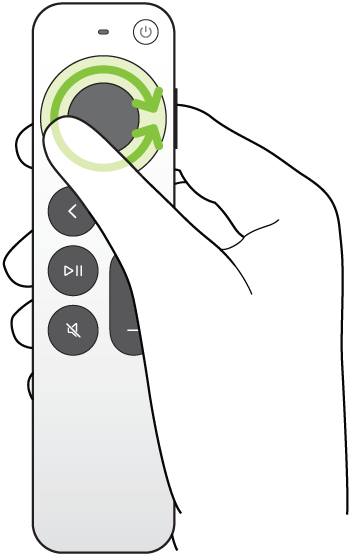
- Do either of the following:
- Start playback at the new position: Press the Play/Pause button.
- Cancel and return to the original position: Press the Back button or the Menu button.
Get information about shows, characters, actors, and music
The Info and InSight buttons become available during playback, and Info tells you about the movie or TV show you’re watching.
InSight gives you real-time details about the actors, characters, and music currently onscreen while you watch an Apple TV movie or TV show (Apple TV subscription required). Select an actor, and you can view their background and filmography page, or view a song that’s playing in the background and quickly add it to an Apple Music playlist (Apple Music subscription required).
- On your remote, do either of the following:
- Show playback controls, then swipe down on the clickpad center or touch surface.
- Press down on the clickpad ring to go directly to the InSight tab (silver remote only).
- Select any of the following options:
- Info: See more information about what you’re watching, start watching from the beginning, or get more details.
- InSight: Select an actor or character to see more info. If music information appears, select the song to add it to a playlist in Apple Music.
Tip: InSight information also appears on iPhone or iPad when you’re using it to control Apple TV 4K. See Use your iPhone, iPad, or Apple Watch as a remote for Apple TV 4K.
- Chapters (available with some movies): Browse chapters and select a chapter to skip to it.
- Continue Watching: Select a different item from your Continue Watching row to start watching it instead.
Turn on subtitles and closed captioning
Missed a moment of dialogue? You can turn on subtitles or closed captioning temporarily, or enable them (if available) and customize their appearance.
During playback in the Apple TV app, you’re able to do any of the following:
- Turn on subtitles or closed captioning: Show playback controls, swipe up on the clickpad or touch surface, select the Subtitles button, then choose the option you prefer.
- Change subtitle or caption styles: Show playback controls, swipe up on the clickpad or touch surface, select the Subtitles button, select Style, then choose the style you prefer, or choose Manage Styles to customize your subtitles and captions.
- Turn subtitles on for the previous 10–30 seconds: Press left on the clickpad ring or touch surface on your remote for each 10-second increment, up to three times for 30 seconds.
- Turn subtitles on while audio is muted: Press the Mute button (silver remote only).
Change audio options during playback
- During playback, show playback controls and then select the Audio Options button.
- Choose an audio option from the pop-up menu:
- Enhance Dialogue: Choose Enhance More to make the dialogue much more prominent (this may alter the original audio mix), Enhance to make the dialogue more prominent with minimal impact to the original audio mix, or Off.
Tip: For maximum clarity, you can add Isolate as a menu option by turning it on in Accessibility Settings. See Add Voice Isolation as an Enhance Dialogue option on Apple TV 4K.
- Reduce Loud Sounds: Lower the overall sound level by reducing the dynamic range so that loud music and sound effects aren’t as loud as other sounds.
- Audio Track: Turn on audio descriptions (AD), or choose a language you want to switch to.
Note: Available options depend on what’s playing, what speakers or headphones you’re using, and what model of Apple TV you have.
- Enhance Dialogue: Choose Enhance More to make the dialogue much more prominent (this may alter the original audio mix), Enhance to make the dialogue more prominent with minimal impact to the original audio mix, or Off.
- To close the pop-up menu, press the Back button or the Menu button on your remote.
Turn on Picture in Picture viewing
You can keep playing or browsing other content on Apple TV 4K while a movie or TV show from the Apple TV app plays in a small viewer in the foreground.
- During playback, show playback controls.
- Swipe up on the clickpad or touch surface and select the Picture in Picture button.
The video you’re watching immediately gets smaller and moves to the lower-right corner of your screen.
- In the main area of the screen, browse content, open other apps, or select another item to play simultaneously.
The new video plays in full screen, behind the smaller picture.

- Do any of the following to control Picture in Picture from the smaller picture:
- Swap audio from the larger to the smaller picture: Press the TV button on your remote. To swap audio back to the larger picture, press the Back button or the Menu button.
- Move the viewer to any corner of the screen: Press the TV button on your remote and then select the Move button onscreen to relocate the viewer to a new corner. Select again to move it to the next corner, and so on. Press the Back button or the Menu button on your remote to confirm the placement and go back to Picture in Picture viewing.
- Restore the smaller picture to full screen: Press the TV button on your remote and then select the Full Screen button onscreen.
- Stop playback and close the smaller picture: Press the TV button on your remote and then select the Close button onscreen.
- To control Picture in Picture from the larger picture, show playback controls, then select the Picture in Picture button and do any of the following:
- Swap the larger picture with the smaller picture: Select Swap from the pop-up menu.
- Move the smaller picture to any corner of the screen: Select Move from the pop-up menu to relocate the smaller picture to a new corner. Select again to move it to the next corner, and so on. Press the Back button or the Menu button on your remote to confirm the placement and go back to Picture in Picture viewing.
- Close the smaller picture: Select Close from the pop-up menu.
Note: Picture in Picture viewing may not be available in all apps.
Use Multiview to watch multiple live sports streams
Multiview lets you play up to four live sports streams at the same time.
It’s only available for sports events that come with your Apple TV subscription, like Formula 1® in the U.S., Major League Soccer (MLS), and Friday Night Baseball doubleheaders in the Major League Baseball (MLB) season.
During live Formula 1 (F1) events, you can pick a preset team Multiview, or build your own from multiple F1 feeds like driver-view cameras, course maps, and more.
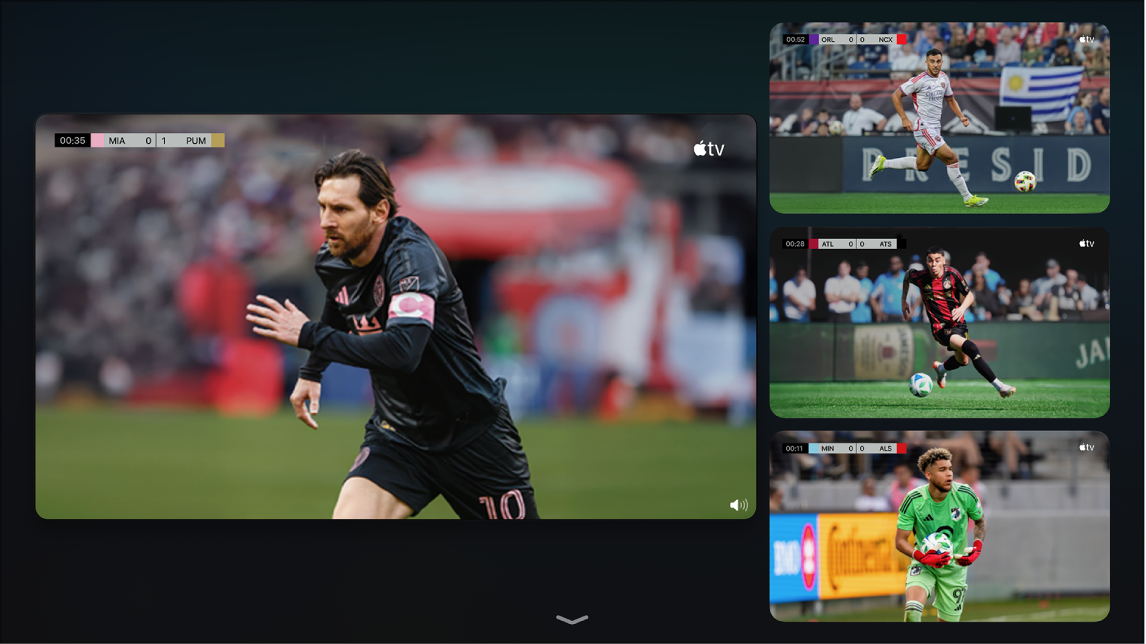
- While you’re watching a sports event available with an Apple TV subscription (an MLS match, a Formula 1 event, or Friday Night Baseball), show playback controls. Do any of the following:
- Select the Multiview button.
- When watching MLS or Friday Night Baseball, select Live Sports in the lower-left corner of the screen, then choose Watch in Multiview.
- When watching Formula 1, select Multiview in the lower-left corner of the screen, then select a preset Multiview option.
Formula 1 Multiview includes preset streams that can be changed to your preference. For all others, the current stream appears in a grid view next to an empty inset for the stream to be added.
- To add another stream, go to an item at the bottom of the screen and then select it.
You can select up to four streams from the bottom of the screen.
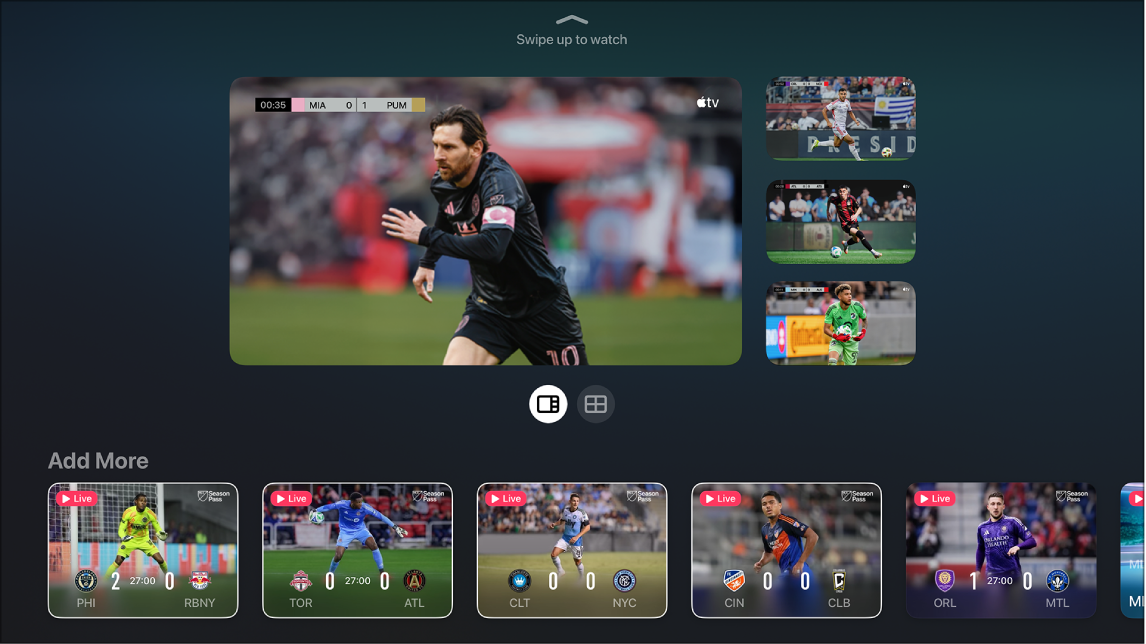
- To change the layout of the streams in the grid, do any of the following:
- When two streams are selected: Select the Two-stream Seventy-thirty button to view the streams in a 70/30 ratio. Select the Fifty-fifty button to view the streams at the same size.
- When four streams are selected: Select the Four-stream Seventy-thirty button to view the streams in a 70/30 ratio (one stream at 70%, three streams at 30%). Select the Multiview button to view all the streams at the same size.
Note: By default, three streams are presented in a 70/30 ratio with no option to view them all at the same size.
- When you’re finished adding streams and viewing options, swipe up to watch.
By default, the audio stream matches the currently highlighted stream.
- While watching, do any of the following:
- Change the audio to a different stream: Go to a different stream in the grid.
- Move streams: Go to a stream, press the TV button on your remote, then select the Move button onscreen and move the stream to a new position. When you’re finished, press the Back button or the Menu button on your remote to go back to watching.
- Remove a stream: Go to a stream, press the TV button on your remote, and select the Remove button onscreen.
- To exit Multiview, press the Back button or the Menu button on your remote.
Note: Multiview requires Apple TV 4K with tvOS 16.5 or later, plus a subscription to Apple TV. Multiple game viewing options are subject to scheduling.
Subscription required for Apple TV, which in some countries and regions may include some or all of the following: Friday Night Baseball, Major League Soccer (MLS), and Formula 1®. Not all features and content are available in all countries or regions, or on all Apple TV hardware models. Apple TV subscription does not include third-party branded subscription services or content available for rental or purchase in the Apple TV app.