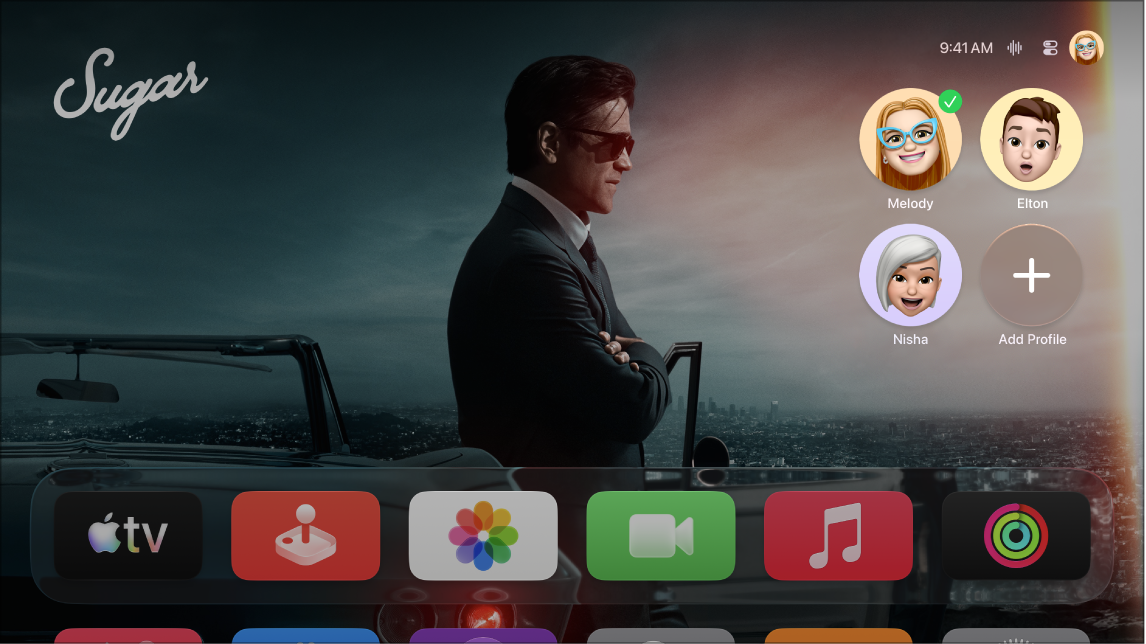
You can adjust settings for profiles and accounts on Apple TV 4K, like whether the profile screen appears when Apple TV 4K wakes. For a profile associated with an Apple Account, you can set password preferences for purchases or change subscriptions. For a managed profile, it’s possible to change the image or upgrade it to a full Apple Account.
- Go to Settings on Apple TV 4K.
- Go to Profiles and Accounts.
- To switch profiles, select Switch Current Profile and then select a profile.
- To set whether the profile screen appears when you turn on Apple TV 4K, turn Choose Profile on Wake on or off.
- To set whether to show or hide suggested profiles from Control Center, and when Apple TV 4K wakes from sleep, select Suggested Profiles and choose Show or Hide.
- To adjust settings for a profile associated with an Apple Account, select a profile. Adjust any of the settings listed below.
Note: Some settings appear only for the default profile. See Change the default profile on Apple TV 4K.
Option Description Store Select to sign in or out of the Apple Account used to make purchases for this profile. Game Center Select to do either of the following:
• Sign in or out of the Apple Account associated with Game Center for this profile.
• Select Nearby Players to allow or block other nearby Game Center players from inviting this profile to multiplayer games.Photos (default profile only) Select to set preferences for the Photos app, including syncing iCloud photos, showing or hiding Memories, and showing or hiding Shared Albums. One Home Screen (default profile only) Turn on to keep your apps and Home Screens up to date across every Apple TV 4K using this Apple Account. Shared with You (default profile only) Turn on to allow media shared with you in Messages on your iPhone or iPad to appear on this Apple TV 4K. Purchases Select to set password preferences for this profile’s purchases: always require a password, require a password after 15 minutes, or never require a password. Free Downloads Choose whether or not your password is required for free downloads. Recognize My Voice Turn Siri voice recognition on or off. See Set up voice recognition on Apple TV 4K. Edit Name Select to enter a new name for this profile. For All of You Choose whether or not this profile is included in For All of You recommendations in the Apple TV app. See Manage recommendations that appear in the Apple TV app. Show Incoming Calls Select to turn on Show Incoming Calls so that your Apple TV 4K shows you who’s calling on your iPhone. See Manage incoming iPhone calls on Apple TV 4K. Subscriptions Select to change or cancel this profile’s subscriptions. Remove Profile Select to sign the profile out of Apple TV 4K, and remove their media, app data in iCloud, and Game Center account. - To adjust settings for a managed profile (such as a profile for a child or someone without an Apple Account), select a profile and then adjust any of the settings listed below.
Option Description Name Select to enter a new name for this profile. Image Select to change the profile image. Child Shows whether the account is for a child or not. To set up content restrictions for the account, see Adjust Apple TV app settings on Apple TV 4K. For All of You Choose whether or not this profile is included in For All of You recommendations in the Apple TV app. See Manage recommendations that appear in the Apple TV app. Upgrade to Apple Account Select to upgrade a profile for an adult to a full Apple Account, so its owner can sign in individually, make purchases, and more.
Note: The managing profile needs to initiate the upgrade by opening the camera on a phone or tablet device and scanning the QR code that appears onscreen.Delete Profile Select to delete the profile from all devices associated with the managing account. The managing account holder needs to confirm by signing in to their Apple Account.
Not all features and content are available in all countries or regions or on all Apple TV hardware models.
See also