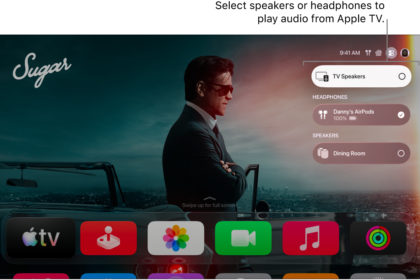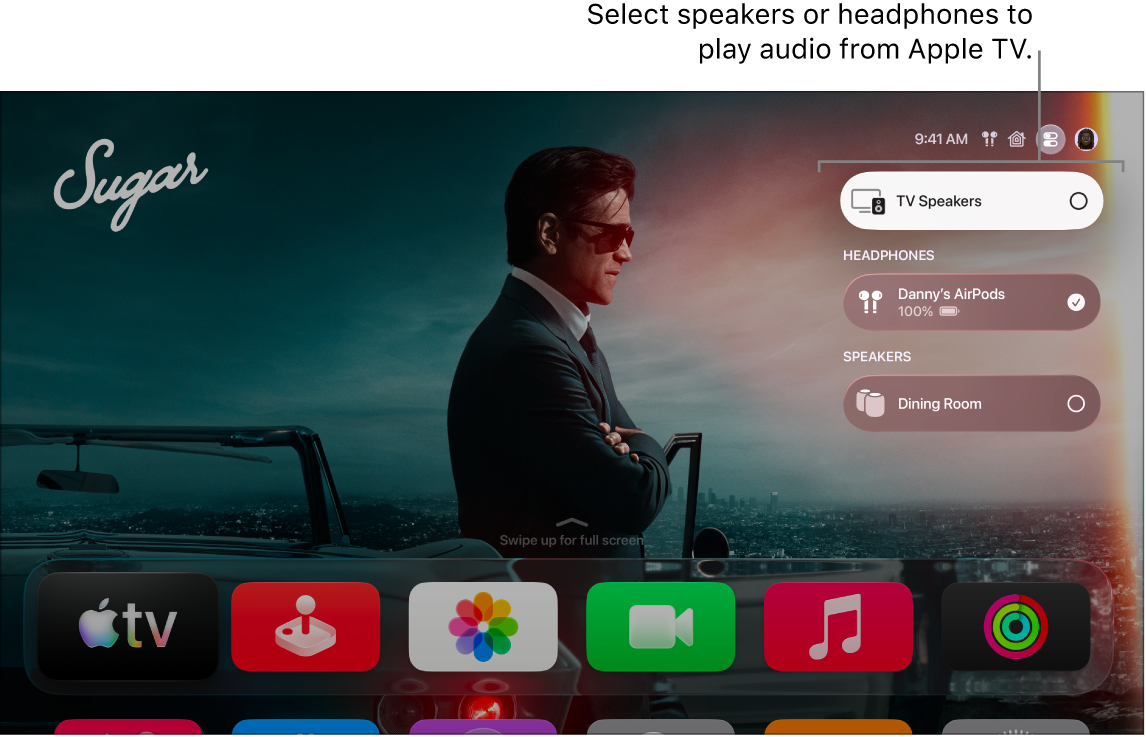
After you connect AirPods 3, AirPods 4, AirPods Pro, or AirPods Max to Apple TV 4K, you can set controls for press speed, press-and-hold duration, or Spatial Audio. With AirPods Pro, noise cancellation mode can also turn on when just one of your AirPods is in your ear.
Turn off centering, and Spatial Audio stays an immersive sound experience, though it won’t track your head movement. You’re also able to adjust the volume of sound effects played by your AirPods.
Set AirPods press controls
- Go to Settings on Apple TV 4K.
- Go to Accessibility > AirPods and then do any of the following:
- Adjust the speed required to press two or three times on your AirPods: Select Press Speed, then choose Default, Slower, or Slowest.
- Adjust the duration required to press and hold on your AirPods: Select Press and Hold Duration and then choose Default, Shorter, or Shortest.
Set noise controls (AirPods Pro only)
When only one of your AirPods is in your ear, you can have AirPods Pro turn on noise cancellation mode.
- Go to Settings on Apple TV 4K.
- Go to Accessibility > AirPods. Then turn Noise Cancellation with One AirPod on or off.
Set Spatial Audio controls
When you’re listening to Spatial Audio, you can set whether audio stays centered on the TV even as your head moves. Turn off centering, and Spatial Audio is still an immersive sound experience, but it doesn’t track with your head movement.
- Go to Settings on Apple TV 4K.
- Go to Accessibility > AirPods and then turn Center Audio on TV on or off.
Note: Spatial Audio is available on Apple TV 4K only.
Set AirPods Tone Volume
You can adjust the volume of sound effects played by AirPods.
- Go to Settings on Apple TV 4K.
- Go to Accessibility > AirPods and select Tone Volume.
- Swipe on the clickpad or touch surface of your remote to drag the slider to a new value.
- Press the Back button or the Menu button on your remote to save the new volume.
Not all features and content are available in all countries or regions or on all Apple TV hardware models.