When you’re using AirPods or Beats headphones with Apple TV 4K, you can turn on Spatial Audio to listen in an immersive theater-like environment with sound that surrounds you. With head-tracked spatial audio, what you hear changes based on the movement of your head, while fixed spatial audio creates a consistent immersive sound.
Note: Spatial audio requires AirPods 3, AirPods 4, AirPods Pro, AirPods Max, Beats Fit Pro, Beats Studio Pro, or Beats Solo 4, and Apple TV 4K (see Which Apple TV 4K model do I have?).
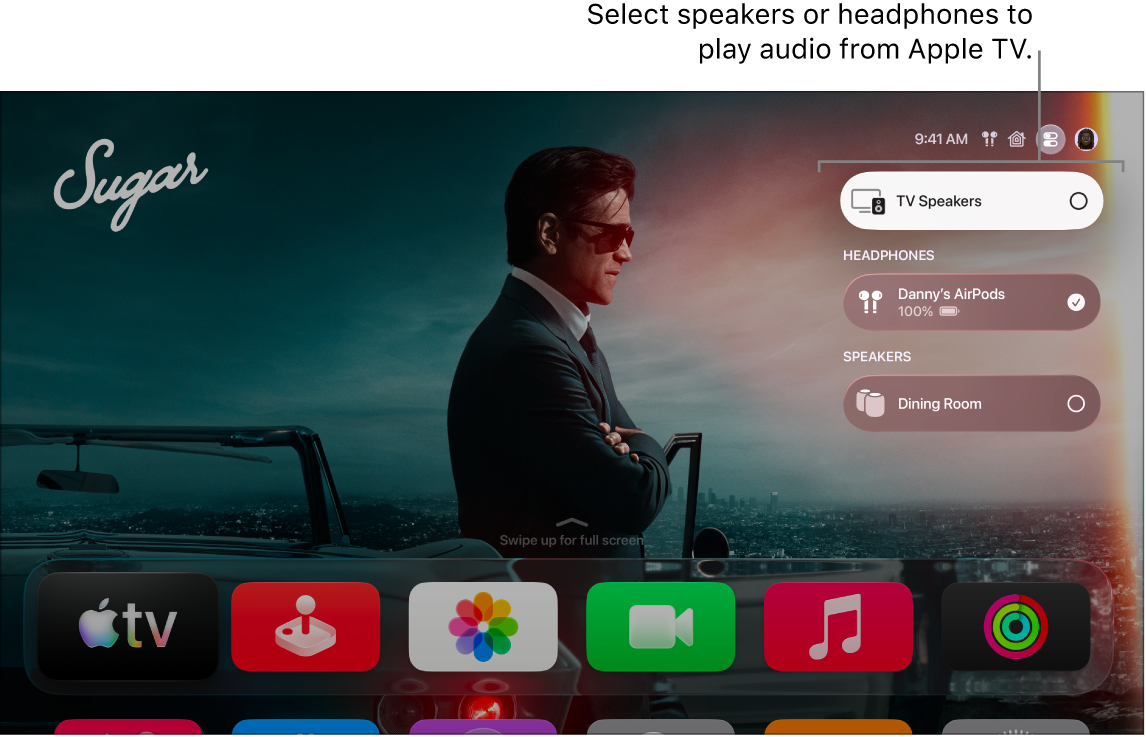
- Connect your AirPods or Beats headphones to Apple TV 4K.
- While watching a movie or TV show or listening to music, press and hold the TV button to open Control Center and then go to the AirPods tab.
- Do either of the following:
- Select Spatial Audio, then select Head Tracked, Fixed, or Off.
Fixed spatial audio creates a consistent immersive sound in your AirPods or Beats. Head-tracked spatial audio changes what you hear based on the movement of your head, so that the audio always sounds like it’s coming from one point in space.
- Select Spatialize Stereo to turn personalized spatial audio on or off.
Personalized spatial audio uses a customized scan of your ear geometry for even better sound. To experience this feature, you need to set up a Spatial Audio profile on iPhone using the same Apple Account as your profile on Apple TV 4K.
- Select Spatial Audio, then select Head Tracked, Fixed, or Off.
- When you’re done making changes, press the Back button or the Menu button on your remote.
Not all features and content are available in all countries or regions or on all Apple TV hardware models.
See also