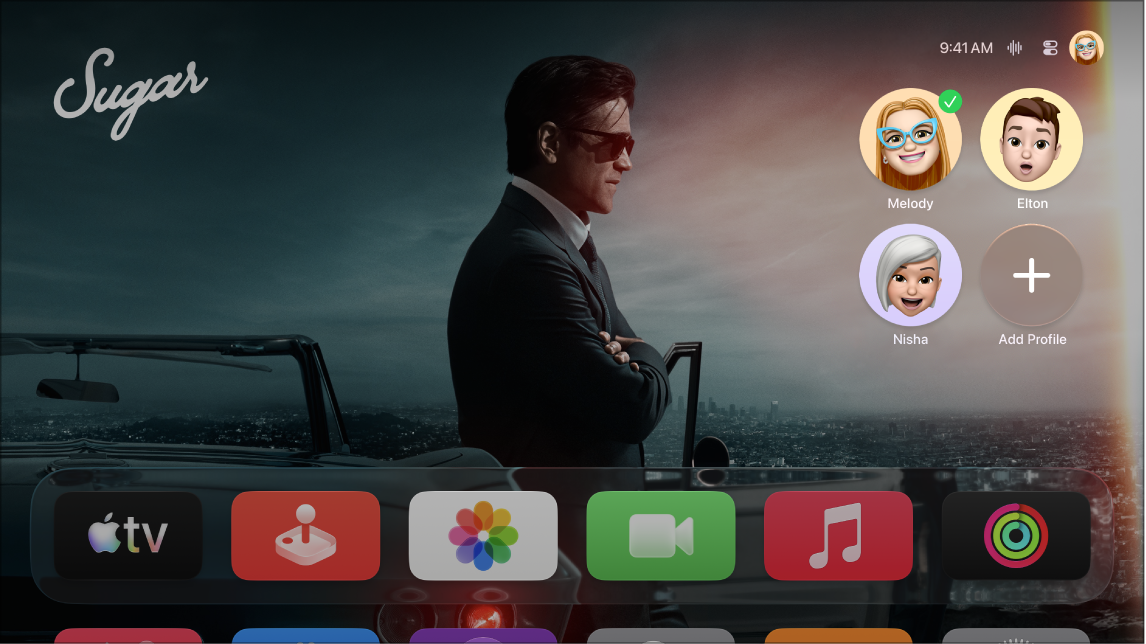
Siri on Apple TV 4K can recognize the voice associated with the Apple Account you use on your iPhone or iPad, and you can set up Recognize My Voice for up to six profiles. Voice recognition starts on your iPhone or iPad, in the Home app or in Siri settings.
If you’re wearing AirPods connected to Apple TV 4K, you can also access Siri by saying “Hey Siri,” followed by your request. With AirPods Pro (2nd generation or later), “Siri” works, too.
Here’s how to set up Recognize My Voice and use Siri with AirPods on your Apple TV 4K.
Set up Recognize My Voice
- On an iPhone or iPad, do either of the following:
- Set up voice recognition in the Home app on an iPhone or iPad.
- Open Settings > Siri (or Apple Intelligence & Siri) > Talk to Siri (or Talk & Type to Siri), then turn on “Siri” or “Hey Siri.”
- Go to Settings on Apple TV 4K.
- Go to Profiles and Accounts, then select a profile.
- Make sure Recognize My Voice is turned on.
Set up Siri requests through AirPods
Wearing AirPods connected to Apple TV 4K? Just say “Hey Siri,” followed by your request, to access Siri.
With AirPods Pro (2nd generation or later), you can say “Hey Siri,” “Siri,” or both.
- Go to Settings on Apple TV 4K.
- Go to General, navigate down to the Siri section, and then do either of the following:
- AirPods Pro (2nd generation or later) only: Select Listen on AirPods. Select Siri or Hey Siri for both options, or Hey Siri.
- All other AirPods models: Select Listen for “Hey Siri” on AirPods.
Not all features and content are available in all countries or regions or on all Apple TV hardware models.