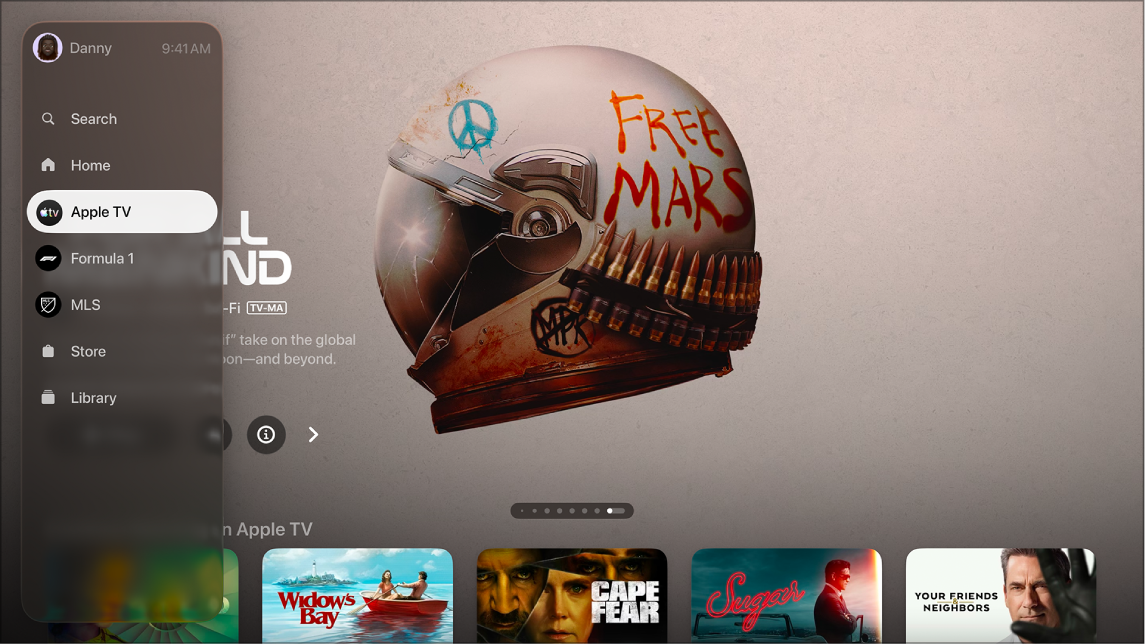
The sidebar in the Apple TV app gives you easy access to everything you want to watch, from Home, Apple TV, MLS, Formula 1®, and Sports to the Store and Library. It also shows the channels and apps you’ve subscribed to or installed on Apple TV 4K.
You can switch profiles right from the sidebar. You can also pin favorite channels or apps to the top, or hide one until it’s used again.
Here’s what you need to know about using the sidebar in the Apple TV app.
Open the sidebar
- Go to the Apple TV app on Apple TV 4K.
- To open the sidebar, use your remote to do either of the following:
- Press the Back button or the Menu button.
- Swipe up on the clickpad or touch surface.
Note: You may have to press or swipe multiple times.
- To close the sidebar, swipe right on the clickpad or touch surface, or select a category.
In the open sidebar, you’ll find Home, Search, Apple TV, MLS, Formula 1, Store, Library, and any other channels or apps you’ve added to Apple TV 4K.
Switch profiles
Switching between profiles in the sidebar is quick, so everyone in the household gets their own watchlist and personalized recommendations.
- Go to the Apple TV app on Apple TV 4K.
- Open the sidebar and select the profile at the top of the sidebar.
- Select the profile you want to switch to, or select Add Profile and follow the onscreen instructions.
When you switch to another profile, the previous profile is signed out on Apple TV 4K, and the Apple TV app refreshes with the new profile’s unique watchlist, video collections, and recommendations.
Tip: You can also switch profiles when Apple TV 4K turns on (see Adjust settings for profiles and accounts on Apple TV 4K) or in Control Center (see Switch profiles in Control Center on Apple TV 4K).
Reorder channels and apps in the sidebar
You’re able to pin favorite channels or apps at the top of the sidebar’s Channels & Apps list.
- Go to the Apple TV app on Apple TV 4K.
- Open the sidebar and then go to a channel or app in the Channels & Apps list.
- Press and hold the clickpad or touch surface to view more options. Do either of the following:
- Move the item to the top of the Channels & Apps list: Select Pin.
If you’ve previously pinned items, the latest one appears at the bottom of the list of pinned items.
- Unpin an item from the top of the Channels & Apps list: If the item is already pinned, select Unpin.
- Move the item to the top of the Channels & Apps list: Select Pin.
Temporarily hide a channel or app in the sidebar
Hide a channel or app, and it won’t appear in the sidebar until it’s used again.
- Go to the Apple TV app on Apple TV 4K.
- Open the sidebar and then go to a channel or app in the Channels & Apps list.
- Press and hold the clickpad or touch surface to view more options and then select Hide.
The next time you play something from this app or channel, it reappears in the sidebar.
Set which apps appear in the sidebar
In Settings, you can choose which apps you want connected to the Apple TV app. Any app connected to the Apple TV app appears in the Apple TV app sidebar.
- Go to Settings on Apple TV 4K.
- Go to Apps > TV, then navigate down to the Connect to TV list and choose options for each app in the list.
Subscription required for Apple TV, which in some countries and regions may include some or all of the following: Friday Night Baseball, Major League Soccer (MLS), and Formula 1®. Not all features and content are available in all countries or regions, or on all Apple TV hardware models. Apple TV subscription does not include third-party branded subscription services or content available for rental or purchase in the Apple TV app.
See also