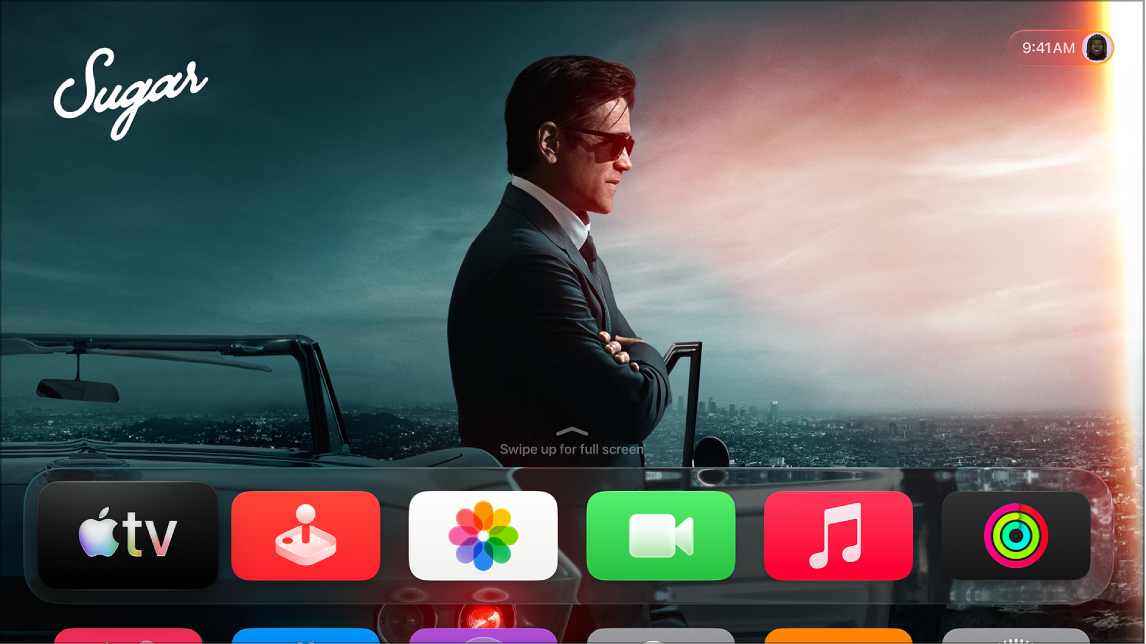
Apple TV 4K sets your time zone automatically by default, based on your location, but you can adjust the time zone manually in Settings. You can also switch between 12-hour and 24-hour time. And if you’d like, you can switch back to the time zone of your current location at any time.
Change the time zone
By default, Apple TV 4K sets your time zone automatically based on your location. You can manually adjust the time zone in Settings.
- Go to Settings on Apple TV 4K.
- Go to General, navigate down to the Date & Time section, and select Set Automatically to turn off automatic time zone detection.
- Select Time Zone and then enter a location in the text field that appears.
- Select a location to use it as your time zone.
To switch back to the time zone of your current location, select Set Automatically to turn it back on.
Use 12-hour or 24-hour time
- Go to Settings on Apple TV 4K.
- Go to General and navigate down to the Date & Time section. Then select Time Format to switch between 12-Hour and 24-Hour time.
Not all features and content are available in all countries or regions or on all Apple TV hardware models.