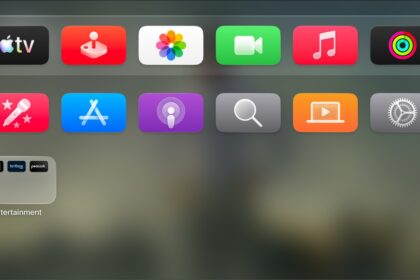
Hover Text lets you see magnified text for any item you select onscreen on Apple TV 4K. You can adjust where the magnified text box appears on the screen, as well as the text font and color. Display Mode gives you Top, Bottom, or Inline, and you’re also able to set the text size, background color, border color, and scrolling speed.
Here’s how to turn on Hover Text and customize it on your Apple TV 4K.
Turn on Hover Text
- Go to Settings on Apple TV 4K.
- Go to Accessibility > Hover Text, then select Hover Text to turn it on.
Tip: You can also set up an accessibility shortcut to activate Hover Text.
Change the onscreen location and appearance of Hover Text
- Go to Settings on Apple TV 4K.
- Go to Accessibility > Hover Text and then do any of the following:
- Set where Hover Text appears onscreen: Select Display Mode and choose Top, Bottom, or Inline.
- Set the scrolling speed for Hover Text: Select Scrolling Speed, then choose a speed option.
- Set the font: Select Font and then choose a font from the list.
- Set the text size: Select Text Size and then adjust the Text Size slider up or down by swiping left or right on the clickpad or touch surface.
- Set the text color: Select Text Color, then choose a color from the list.
- Set the background color: Select Background Color. Choose a color from the list.
- Set the background opacity: Select Background Opacity and drag the Background Opacity slider up or down by swiping left or right on the clickpad or touch surface.
- Set the border color: Select Border Color and choose a color from the list.
Not all features and content are available in all countries or regions or on all Apple TV hardware models.