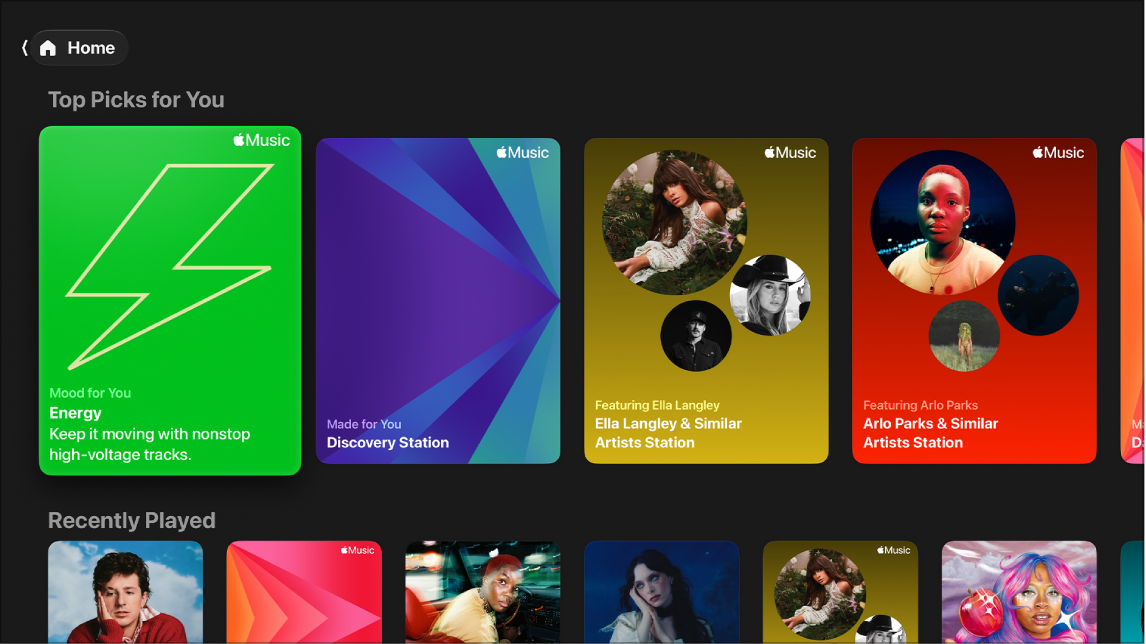
The Library screen in the Music app on Apple TV 4K includes any Apple Music content and playlists you added, your iTunes Store purchases and playlists, and music synced from your computer, iPhone, or iPad if you have an Apple Music or iTunes Match subscription. You can browse your library by category, like Pins, Recently Added, Playlists, Artists, and Albums. Pins shows everything you’ve pinned to your library, and you can add or remove items from your library at any time.
Browse and play music from your library
- Go to the Music app on Apple TV 4K.
- Open the sidebar and then select Library.
- Go to one of the following categories in the sidebar:
- Pins: Shows all the playlists, artists, albums, songs, and music videos that you’ve pinned to your library. Select an item to see more information or to start playing it.
- Recently Added: Shows all the songs, albums, playlists, and mixes that you’ve added to your library, with the most recent at the top. Select an item to see more information or to start playing it.
- Playlists: Shows all the playlists in your library, including playlists you added to your library and playlists you created. Select the Filter button to filter or the Sort button to sort your playlists. Select a playlist to see more information or to start playing it.
- Artists: Shows all the artists in your library. Select an artist to see all the songs and albums by that artist in your library, select the Play button or the Shuffle button to play music by your artists, or select the Filter button to filter which artists you see.
- Albums: Shows all the albums in your library. Select an album to listen to songs from that album that are in your library, select the Play button or the Shuffle button to play or shuffle music in your albums, or select the Filter button or the Sort button to filter or sort the albums you see.
Tip: You can create a custom screen saver that uses album art from your Apple Music library. See Set up Apple TV 4K screen savers.
- Songs: Shows all the songs in your library. Select a song to begin playing it, select the Play button or the Shuffle button to play or shuffle songs in your library, or select the Filter button or the Sort button to filter or sort the songs you see.
- Music Videos: Shows all the music videos in your library. Select a video to begin playing it, select the Play button or the Shuffle button to play or shuffle videos in your library, or select the Filter button or the Sort button to filter or sort the videos you see.
- Made For You: Shows all Made for You mixes you’ve added to your library. Select a mix to see more information or to start playing it, or select the Filter button or the Sort button to sort or filter your mixes.
- Composers: Shows all of the composers of music in your library. Select a composer to see their music.
- Genre rows: Shows music in your library in various genres. Select an item in a genre to see more information or to start playing it, select the Play button or the Shuffle button to play or shuffle songs of this genre, or select the Sort button to sort the music you see.
Add or remove items from your library
- Go to the Music app on Apple TV 4K.
- Do any of the following:
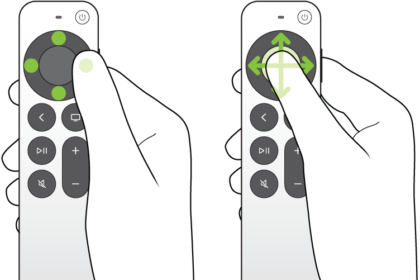
- Navigate to an item anywhere in the Music app, press and hold the clickpad or touch surface, then select Add to Library or Delete from Library.
- Open the sidebar, select Now Playing, select the More button, then select Add to Library or Delete from Library.
- Open an album, playlist, or mix, then select the Add button.
This method only adds to your library. To delete an item you added to your library by accident, navigate to the item in the Recently Added section of your library, press and hold the clickpad or touch surface, and select Delete from Library.
To set whether items that you add to a playlist are automatically added to or deleted from your library, go to Settings > Apps > Music, then turn on Add & Delete Playlist Songs.
To set whether items that you favorite are automatically added to or deleted from your library, go to Settings > Apps > Music, then turn on Add & Delete Favorite Songs.
Pin items in your library
For quick access from the sidebar, you can pin up to six items in your library. It makes getting to your favorite songs, artists, albums, or videos easy.
- Go to the Music app on Apple TV 4K.
- Open the sidebar and then select Library.
- Go to an item anywhere in the library, press and hold the clickpad or touch surface, and then select Pin [Artist, Album, Song, Video].
Pinned items appear in the Pins category in the sidebar.
- To unpin an item, go to a pinned item anywhere in the library, press and hold the clickpad or touch surface, and then select Unpin [Artist, Album, Song, Video].
Rearrange pinned items
- Go to the Music app on Apple TV 4K.
- Open the sidebar, select Library, and select Pins in the sidebar.
- Go to an item on the right. Press and hold the clickpad or touch surface on your remote.
- Select Edit Pins.
- Use the clickpad or touch surface to drag the item to a new location on the screen.
- To save the new arrangement, press the center of the clickpad or touch surface.
Create playlists on Apple TV 4K
- Go to the Music app on Apple TV 4K.
- Do either of the following:
- Navigate to a song, album, playlist, or music video anywhere in the Music app, press and hold the clickpad or touch surface, then select Add to a Playlist.
- Open the sidebar, select Now Playing, show playback controls, select the More button, then select Add to a Playlist.
- Select the playlist you want to add the item to, or select New Playlist and enter a name for your new playlist, then select Done.
A notification appears to confirm the addition to your playlist.
Note: Only playlists you create on Apple TV 4K appear as options when you add items to a playlist on Apple TV 4K.
- Open the sidebar and select Library. Go to Playlists to view all of your playlists, including playlists you created in Apple Music on other devices.
If you have an Apple Music subscription, playlists you create on Apple TV 4K appear on all your iOS, iPadOS, and macOS devices when Sync Library is turned on.
Not all features and content are available in all countries or regions or on all Apple TV hardware models.