You can change the Wi-Fi network your Apple TV 4K is connected to, or use network settings on Apple TV 4K and an iPhone or iPad to join a captive Wi-Fi network that requires sign-in from a browser, like a hotel Wi-Fi network. Network settings also let you switch from a wired network to Wi-Fi without having to set up Apple TV 4K again.
If Apple TV 4K uses an Ethernet cable to connect to the Internet, Wi-Fi can go into low-power mode to save energy. Some captive networks have time limits, though.
Change your Wi-Fi network on Apple TV 4K
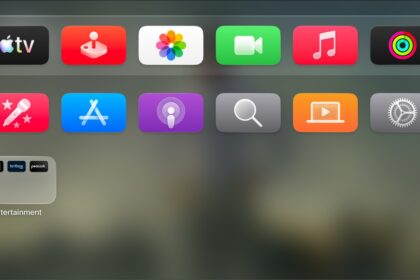
- Go to Settings on Apple TV 4K.
- Go to Network and then select Wi-Fi.
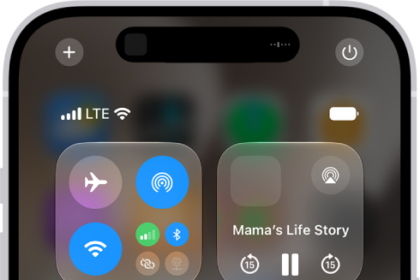
Tip: You can also press and hold the TV button to open Control Center, then select the Wi-Fi button.
- Choose a new Wi-Fi network from the list and follow the onscreen instructions to connect.
You can also select the current Wi-Fi network for additional configuration options.
Join a Wi-Fi network that requires a web browser to sign in
Many hotels and other institutions use captive Wi-Fi networks, which require you to sign in from a web browser. To join one on your Apple TV 4K, you can use an iPhone or iPad and follow the instructions below.
- Go to Settings on Apple TV 4K.
- Select Network.
If Apple TV 4K detects a captive network, a screen appears with options.
- Select Continue on iPhone or iPad.
- On your iPhone or iPad, follow the onscreen instructions to enter the required information, such as username and password.
Some captive networks have time limits for staying connected, so if your connection expires, follow the steps above again to reconnect.
Switch from a wired to a wireless network
Switching to a wireless network doesn’t mean setting up Apple TV 4K again, even if you initially set up Apple TV 4K on a wired network.
- Disconnect the Ethernet cable from Apple TV 4K.
- Go to Settings on Apple TV 4K.
- Select Network and then choose an available network.
Put Wi-Fi in low-power mode on Apple TV 4K
Using an Ethernet cable to connect Apple TV 4K to the Internet? Then you can save energy by putting Wi-Fi in low-power mode.
Note: Ethernet isn’t available on the Apple TV 4K (3rd generation) Wi-Fi.
- Connect an Ethernet cable to Apple TV 4K to switch from a wireless to wired network.
- Go to Settings on Apple TV 4K.
- Go to AirPlay & Apple Home, then turn off Peer-to-Peer Wireless.
Note: When peer-to-peer wireless is turned off, Wi-Fi remains in low-power mode until it is activated again by an AirPlay request from another device.
Not all features and content are available in all countries or regions or on all Apple TV hardware models.