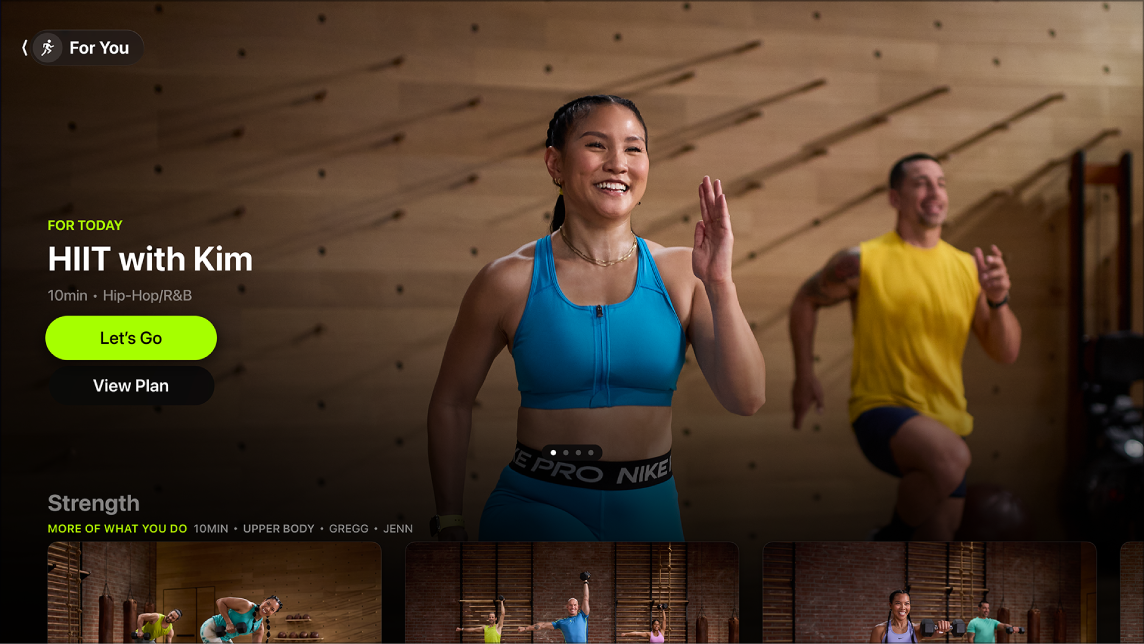
When you select a workout or meditation on Apple TV 4K, the Fitness app shows all the workout details you need to prepare for your workout, including duration, the equipment needed, and the type of music played. Before you start, you can watch a 30-second preview.
Once you start the workout, you can view real-time metrics onscreen for each of your rings, as well as calories burned. With an Apple Watch, you’ll see your heart rate, too. You can control playback in several ways.
Note: Apple Fitness+ workouts require a subscription and an Apple Watch or iPhone connected to the Fitness app on Apple TV 4K.
View details and start a workout or meditation
- Go to the Fitness app on Apple TV 4K.
- Select a workout or meditation anywhere in the Fitness app.
A new screen opens with information about the workout or meditation, including duration, the equipment needed, the type of music played, and a description of the exercises or meditation theme.
- Before you start the workout or meditation, you can do any of the following:
- Watch a 30-second preview: Select Preview.
- Add the session to your library or a stack: Select Add to, then select Add to Library or Add to Stack.
- See what music is played in the workout or meditation: Navigate down to Music.
Tip: If you like the music from a particular workout or meditation (and you subscribe to Apple Music), you can select a song or select Listen in Music to open the playlist in Apple Music. Press the Back button or the Menu button on your remote twice to get back to the workout.
- Browse related workouts: Navigate down to the Related row, then navigate left or right to view related workouts.
- Learn more about the trainers: Navigate down to Trainers to see who leads the meditation or workout. Select a trainer to find all workouts they lead, or select their bio in the About row to read more about them.
- Select Let’s Go to start the workout, or Let’s Begin to start the meditation.
- When you’re ready, select the Play button that appears onscreen, or tap the Play button on your connected device.
After a short countdown, the workout or meditation begins.
Change onscreen metrics during workouts
Your progress for each of your rings, as well as calories burned, shows onscreen in real time on your Apple TV 4K during your workout. And if you’re working out with an Apple Watch, your heart rate appears, too.
During a Fitness+ workout, you can change the onscreen metrics, and those settings sync across the Fitness apps on your devices signed in with your Apple Account, like iPhone and iPad.
- Start a workout or meditation in the Fitness app on Apple TV 4K.
- Show playback controls, then select the Metrics button.
- Do any of the following:
- Turn metrics off or on: Under Metrics, choose Off or On.
When off, your metrics are still collected, but they aren’t displayed on the screen.
- Change how time is displayed: Under Time, choose Off, Show Time Elapsed, or Show Time Remaining.
Turning off time still shows the timer for intervals in your workout.
- Turn off the Burn Bar: Under Burn Bar, choose Off.
The Burn Bar shows how your metrics compare to others who have done the workout before. The more calories you burn, the higher you land on the Burn Bar. Your position on the Burn Bar is saved in your workout summary along with your other metrics.
If you turn off the Burn Bar, your workouts don’t contribute to the community Burn Bar and you won’t see your position at the end of your workout.
- Turn metrics off or on: Under Metrics, choose Off or On.
Control workout playback
During your workout, you can turn on subtitles or Picture in Picture viewing, or change audio options.
- Start a workout or meditation in the Fitness app on Apple TV 4K.
- Show playback controls and then do any of the following:
- Select the Subtitles button to turn on subtitles or closed captions.
- Select the Audio Options button to adjust audio options:
- Audio Focus: Select Trainer to hear the trainer more than the music, or select Music to hear the music more than the trainer.
- Audio Hints: Select a speed to turn on audio hints, which give descriptions of some of the onscreen activity.
- Select the Picture in Picture button to turn on Picture in Picture viewing.
The currently playing workout or meditation moves to a small viewer in the lower-right corner of the screen. In the main area of the screen, navigate to and select another TV show or movie to play simultaneously.
To exit Picture in Picture mode, press the TV button on the remote, then select the Close button onscreen. For more information on Picture in Picture controls, see Turn on Picture in Picture viewing.
Note: If you close a workout in Picture in Picture mode, the workout ends.
Pause a workout
During a Fitness app workout or meditation on Apple TV 4K, your remote can do either of the following:
- Press the Play/Pause button.
- Press the clickpad center or touch surface.
Press the button again to resume the workout.
Note: You can’t fast-forward or rewind a Fitness+ workout or meditation.
End a workout
Once you’ve finished a Fitness app workout or meditation on Apple TV 4K, a summary screen shows your stats from the workouts and progress on your rings.
Quick tip: To end a workout or meditation early, press your remote’s Back button or Menu button, then choose End Workout or End Meditation. You’ll still see the summary screen if you’re far enough into it.
Select Done to return to the workout or meditation page, or if it’s a workout, select Mindful Cooldown to view a selection of guided cooldowns.
Note: Throughout the Fitness app, workouts and meditations you’ve completed show up with a checkmark.
Not all features and content are available in all countries or regions or on all Apple TV hardware models.
See also