KEY TAKEAWAYS
- To fix Face ID problems on an iPhone 16, make sure your face is fully visible for optimal Face ID functionality.
- Add an alternate appearance in Face ID settings for varied looks, and review the Face ID terms.
- Test your front-facing sensor array using Portrait mode in the iPhone camera to ensure everything is working as it should.
Face ID has become such a routine part of how I use my iPhone every day, from unlocking my device in an instant to making quick payments using Apple Pay. But after setting up my new iPhone 16, I found myself stuck – Face ID just wouldn’t unlock my phone, and it kept asking me for my passcode instead. It’s funny how quickly you miss the little conveniences when they stop working.
If you’re also dealing with Face ID issues on your iPhone 16, you’re definitely not alone. This guide will walk you through some troubleshooting steps that helped me, with the hope that one of them can help you get Face ID working smoothly again.
Note: information in this article apply to iPhone 16, iPhone 16 Plus, iPhone 16 Pro and iPhone 16 Pro Max.
Fix 1: Ensure Your Face Is Fully Visible
Face ID works best when your face is fully visible and unobstructed. Make sure you’re not wearing sunglasses or a mask that could block your face from being recognized. If you’re in a low-light environment, try moving to a brighter area, as Face ID may struggle to recognize you in poor lighting.
Fix 2: Add an Alternate Appearance to Face ID
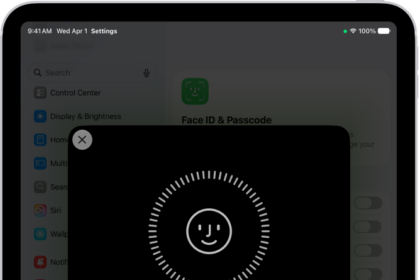
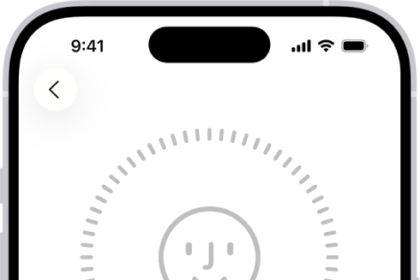
If Face ID is still misbehaving, it might be worth adding an alternate appearance for more reliable authentication. This feature is particularly useful if Face ID works most of the time but falters when you’re wearing a specific look or outfit that significantly changes your appearance.
Steps to Add an Alternate Appearance:
- Open the Settings.
- Tap Face ID & Passcode.
- Enter your passcode.
- Tap Set Up an Alternate Appearance.
- Follow the on-screen instructions to scan your face again.
Fix 3: Reset Face ID and Scan Again
If Face ID is only working some of the time, you might want to consider re-scanning your appearance. Face ID is meant to adapt to subtle changes in your appearance, but sometimes you might undergo a more radical change like shaving a full beard or restyling your hair.
Steps to Reset Face ID:
-
- Open the Settings app.
- Tap Face ID & Passcode.
- Tap Reset Face ID.
- Tap Set Up Face ID to scan your face again.
Fix 4: View Face ID Terms
Viewing the Face ID terms can fix this issue. Here’s how to do it:
Steps to View Face ID Terms:
- Open the Settings app.
- Tap Face ID & Passcode.
- Enter your iPhone passcode.
- Tap the About Face ID & Privacy link.
- Scroll down and view the terms.
- Tap Done and then set up a new Face ID.
Fix 5: Check Content and Privacy Restrictions
Sometimes, content and privacy restrictions can interfere with Face ID functionality. Make sure these settings are allowing Face ID to work properly.
Steps to Check Restrictions:
- Open the Settings app.
- Tap Screen Time.
- Select Content & Privacy Restrictions.
- Enter your Screen Time passcode if prompted.
- Ensure that Face ID is allowed.
Fix 6: Ensure Nothing Is Covering the TrueDepth Camera
Check for any obstructions, such as dust or a case, that might be blocking the TrueDepth camera at the top of your iPhone 16.
Steps to Check the TrueDepth Camera:
- Inspect the front of your iPhone for any obstructions.
- Clean the area gently with a soft, lint-free cloth.
Fix 7: Update to the Latest Version of iOS 18
Check for any available software updates, as Apple often releases fixes that can resolve bugs affecting Face ID after a major update.
Steps to Update Your iPhone:
- Open the Settings app.
- Tap General.
- Tap Software Update.
- If an update is available, tap Download and Install.
Fix 8: Test Whether Your Front-Facing Camera Is Faulty
If the dot projector on the front of your iPhone 16 isn’t working correctly, Face ID won’t work. Damage could be caused by simply dropping your phone on a hard surface since heavy impacts are often enough to damage or dislodge components inside the chassis.
One quick way of testing this is to open the Camera app, choose Portrait mode, and switch to the front-facing camera. If the usual Portrait mode effect of blurring the background isn’t working, this could suggest that your dot projector is faulty. Keep in mind that this is by no means an exhaustive test.
You can take your iPhone 16 to an Apple Store for evaluation, since it’s still under one year limited warranty period. Apple will check your iPhone over and perform diagnostics in a bid to isolate the problem. They may offer you a free fix, but even if the fix isn’t free, you’ll need to approve any work beforehand (so there’s no risk of being charged if you’d rather go elsewhere).