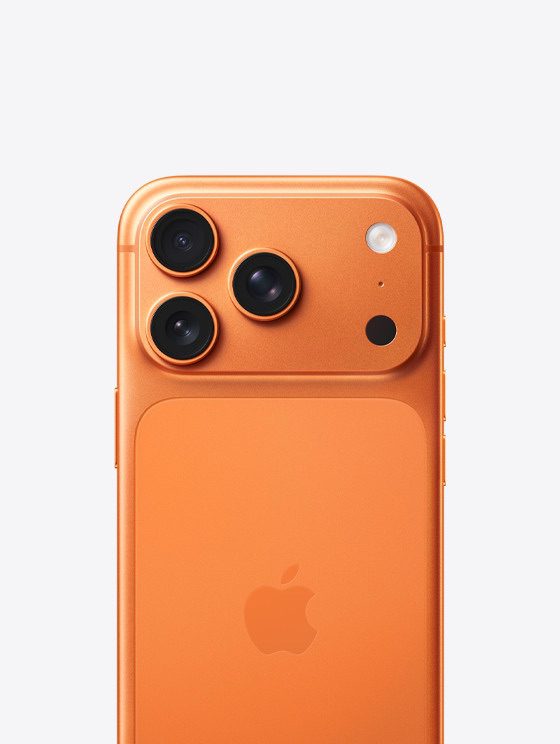
Is your iPhone camera not working after iOS26 update? Check out our tips on the most common iPhone camera problems on iOS 27: black screens, flipped images, and more.
Here are the most common problems you might have come across with your iPhone camera after updating to iOS 27, along with everything you can do to fix them.
1. iPhone Camera Shows a Black Screen After iOS 27 Update
Some users have complained that the camera app opens to a black screen after iOS 27 update. I experienced this problem as well. After installing iOS 27 on my iPhone 13 Pro Max, i had issues with my camera not initializing. The app opened up to a black screen, and I was unable to take a picture. I also noticed that occasionally it will take a picture but not save the image.
If you launch the Camera app on your iPhone after iOS 27 update and see a black screen, try the following steps to fix it:
- Make sure nothing is blocking the camera lens. You may have put the case on incorrectly or there may be something stuck to the back of your iPhone.
- Try using the official iPhone Camera app, rather than any third-party alternatives. This app is more reliable than the alternatives and more likely to work properly.
- In the Camera app, switch between the front and back cameras to see if both of them are working or not. To do this, tap the camera flip icon on the right side of the screen. If only one camera works, that might indicate a hardware problem.
- Restart the Camera app. To do so, swipe up to the middle of the screen, then close the Camera app by sliding it off the top of the screen.
- Turn off your iPhone by holding the Side button (along with either Volume button, then slide to power off. Wait 30 seconds before pressing the Side button again to restart your iPhone. If that doesn’t work, force restart your iPhone instead.
2. iPhone Camera is Blurry After iOS 27 Update
When i updated my iPhone to iOS 27, i realized my back camera was not taking clear photos; it was all blurry and was not focusing on anything. I took off my camera screen protector, hoping that would help, but nothing.
If the photos you take with your iPhone camera are blurry or out of focus after iOS 27 update, try these fixes:
- Clean the front and back camera lenses with a microfiber cloth. If you see dirt or debris behind the glass, take your iPhone to an Apple Store or Authorized Service Provider for a repair.
- Remove any metallic or magnetic iPhone cases and camera accessories. They can interfere with the optical image stabilization on an iPhone.
- Keep your hand steady while tapping the shutter button. Sometimes it’s easier to press one of the Volume buttons to take steady pictures instead. Be careful in the dark when the shutter needs to stay open for longer.
3. iPhone Camera Flash Isn’t Working After iOS 27 Update
Although most photos look better without a flash, sometimes you need that extra light for dark environments. If your iPhone camera flash stopped working after iOS 27 update, try these tips:
- Test the LED flash on your iPhone by turning on the flashlight from the Control Center.
- Make sure you set the flash to On or Auto in the Camera app. To do this, tap the lightning bolt icon on the left side of the screen to see your flash options (you can’t use the flash for panoramic photographs or time-lapse videos).
- Be careful when using the flash for long videos or in hot environments. If your iPhone gets too hot, it might disable the flash entirely until it has cooled down again.
4. iPhone Photos Are Flipped the Wrong Way
This problem can often happen when you turn your iPhone horizontally to take a landscape-oriented photo. After snapping the picture, it flips back to portrait orientation in your photo library. If your iPhone photos are flipped the wrong way after iOS 27 update, try these tips to fix it:
- Open Control Center on your iPhone and tap the lock icon with a circle around it to turn off Rotation Lock.
- To open Control Center, swipe down from the top-right corner on your iPhone.
- Before snapping a photo, take a moment to make sure that the icons in the Camera app have rotated to their new horizontal orientation. If not, rotate your iPhone back and forth until they do so.
- You can always edit your pictures later from the Photos app, or other third-party iPhone image editing apps.
- If you’re wondering why your selfies always appear mirrored, that’s simply how Apple designed the front-facing camera. The camera works like a mirror, but the photo flips over as if someone took it for you.
5. The Camera App Is Missing or Keeps Freezing After iOS 27 Update
If you can’t find the Camera app on your iPhone after updating to iOS 27, or if the app freezes when you switch between cameras, it may be due to your iPhone restrictions. You can check this out from the Screen Time settings:
- Go to Settings > Screen Time > Content & Privacy Restrictions.
- If Content & Privacy Restrictions is turned on, tap on Allowed Apps and enter your Screen Time passcode if you have one.
- Make sure you turn the Camera app on; the toggle should be green.
6. General iPhone Camera Software Fixes
If you experience any other oddities with your iPhone camera not working after iOS 27 update, it’s a good idea to try some general software troubleshooting tips. Test your iPhone camera again after each of the tips below.
- Close all the apps on your iPhone.
- Restart your device.
- Update iOS by going to Settings > General > Software Update.
- Go to Settings > General > Transfer or Reset iPhone > Reset > Reset All Settings. This doesn’t delete any of your content—such as photos or apps—but it does reset all your iPhone settings.
- Finally, factory reset your iPhone and set it up as a new device. This erases everything and is the last resort, but should resolve any iOS 27 glitches that stop your iPhone camera from working.
7. General iPhone Camera Hardware Fixes
If you’ve tried everything above and your front or back iPhone camera is still not working, you might have a hardware problem instead. Try the troubleshooting steps below to fix it:
- Double-check that the camera is not obstructed by a case or sticker.
- Make sure there are no smudges, dirt, or debris on the camera lens. Smudges and fingerprints should wipe away easily with a microfiber cloth.
- Contact Apple Support to arrange a hardware repair at the Apple Store or at an Apple Authorized Service Provider.
Get Back to Taking Great Photos With Your iPhone
These tips cover the most common reasons your iPhone camera might not be working after iOS 27 update. If you didn’t see your exact issue, hopefully the general tips helped you fix the camera anyway. Otherwise, you may need to speak to Apple about a hardware repair.