Some iPhone users have been waking up in the morning to dead iPhones. It seems that sometimes when an iPhone has been left to charge at night, it dies unexpectedly.
In this article, i’ll explain what to do if your iPhone died overnight while charging and won’t turn on. Luckily, this issue can usually be easily fixed. I’ll also explain why this problem may have occurred.
By dead, we mean that your iPhone:
- shows no sign of power, or
- does not respond when you press the buttons or when you touch the screen, or
- does not seem to turn on, or
- has a black or blank screen, or
- Immediately turns off itself when you turn it on.
Some of the features of this problem include:
- The iPhone has been charging for hours but won’t turn on.
- The iPhone appears dead and not charging.
- The iPhone died overnight while charging.
- The iPhone displays a black screen.
- Pressing and holding the Side button does not turn on the iPhone.
This problem can be a big inconvenience. Some users rely on their iPhone alarm to wake them in the morning and have slept in because of this. Most people also use their phones for important communication tasks, and until you figure out how to resurrect your iPhone, you won’t be able to make calls or text. If your iPhone has any of the above problems, try the tips below to fix it. After each step, see whether it fixed your issue.
How to fix iPhone dead after charging for hours
Try the following to resuscitate your iPhone.
1. Turn on your iPhone
Use the side button to turn on your iPhone. Press and hold the side button until the Apple logo appears.
2. Force Restart your iPhone
You may need to force your iPhone to restart.
Different iPhone models require different steps to force re-start. Here is how:
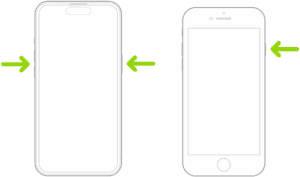
- iPhone 8 or later including iPhone X, iPhone 11, iPhone 12, iPhone 13, iPhone 14, iPhone 15 and iPhone 16): Press and quickly release the volume up button and then press and quickly release the volume down button and now press and hold the side button until you see the Apple logo.
- iPhone 7 models: Press and hold the side and volume down buttons simultaneously until you see the Apple logo.
- Other iPhone models (iPhone 6 etc): Press and hold the side and home buttons simultaneously. Keep holding them until you see the Apple logo.
3. If the Force Restart hasn’t woken your iPhone
If you have another charging cable and charging adapter that you can use, try using those instead. Plug your iPhone into power and leave it there for an hour. Then try again to turn on your phone by pressing the Side button or doing a Force Restart.
4. Use recovery mode with your iPhone
If you are still having this issue, the firmware may have been corrupted. You may need to restore and set your device up by using recovery mode. These steps will put your iPhone into Recovery Mode. And this will reinstall iOS without erasing your data. Here is how:
First back up your iPhone. You can backup your device by going to Settings > [your name], and iCloud.
- Connect your iPhone to your computer: Mac or PC.
- If your Mac is running macOS Catalina or later, open Finder. Any other systems (Windows or macOS Mojave or earlier), open iTunes.
- Find and select your device in Finder (your iPhone will appear in the sidebar of the Finder windows) or in iTunes (your iPhone’s icon will appear in the upper-left corner of the iTunes window).
- Now depending on your iPhone, follow the steps below:
- iPhone 8 or later: Press and quickly release the volume up button and then press and quickly release the volume down button. and press and hold the side button until you see the Recovery Mode screen.
- iPhone 7 and iPhone 7 Plus: Press and hold the side and the volume down buttons simultaneously until you see the Recovery Mode screen.
- Other iPhone models: Press and hold the Home and the side buttons simultaneously until the Recovery Mode screen appears.
- You will see two options: Restore and Update. Click Update. And then follow the onscreen instructions.
5. Contact Apple Support
If you follow these steps, it is highly likely that you can easily fix your dead iPhone. If none of the tips above gets your iPhone work again, then it is time to take your iPhone in for service. You may want to contact Apple support.How to contact Apple Support for your iPhone, iPad, Mac or Apple Watch You may also want to go to an Apple store for service.
Why did your iPhone die while charging at night?
Although we can’t be sure, there are some theories about why this happens. There seem to be more users complaining of this issue since iOS 18. Many have said that their iPhone was set to update overnight, but that failed, and instead, their iPhone was dead when they woke.