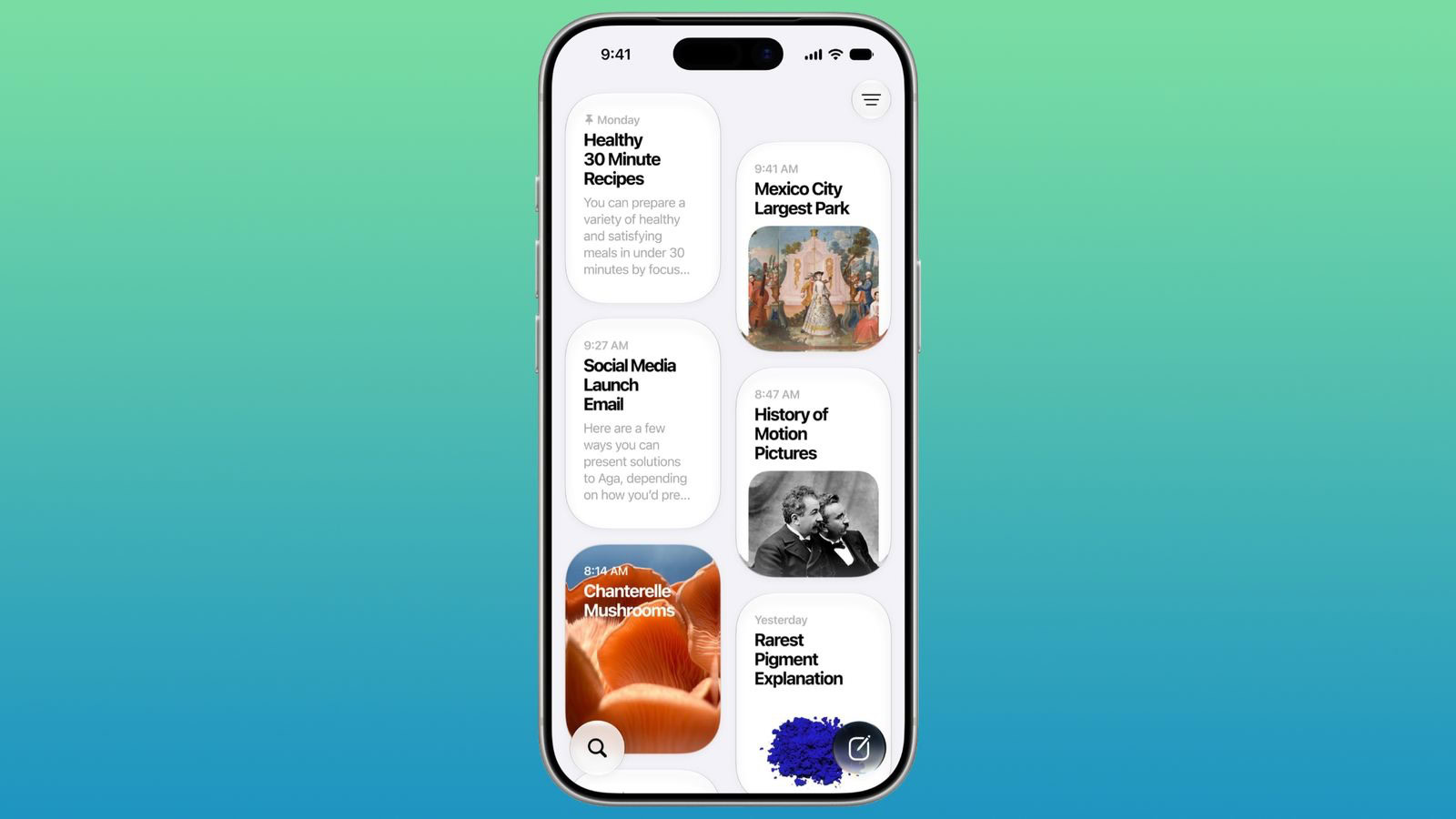
In iOS 27, there is a dedicated Siri app where you can start new conversations or revisit past conversations you’ve had with Siri. The app has a card-style interface with details on your most recent chats across all of your devices. You can also use the search button to find conversations, and there’s a pin option for conversations that you revisit frequently. Here’s how to delete your Siri chat history on your iPhone.
How to Delete Siri Conversation History in iOS 27
- Open the Siri app and go to your conversations.
- Tap Select.
- Tap the circle next to a conversation to select it.
- Tap the delete icon (it looks like a trashcan) to delete the conversation. Note: The Siri app does not ask for confirmation when deleting the conversations and there is no recently deleted folder, so be absolutely certain you want to delete the conversation before tapping the delete icon.
1
You can also swipe left on a conversation to reveal more options, then tap the delete icon to delete it.
How to Auto-Delete Siri Chat History on Your iPhone
- Open Settings on your iPhone.
- Tap Siri.
- Tap Keep Conversations.
- Change the setting from Forever to either 30 Days or 1 Year.
Once selected, iOS 27 will automatically purge any Siri conversations older than your chosen timeframe. Now you can actually enjoy Siri’s new AI powers without worrying about your past queries coming back to haunt you.
That’s how to delete your chats in Siri app on iPhone. If you have any other questions about Siri app in iOS 27, drop a comment and let us know.