If you’ve just installed iOS 27 and asked Siri to pull up a picture, only for it to return zero or wrong results, you’re not alone. I experienced the same problem in my first few days with the update. I was talking to a friend about how much I like the fabric and texture of my favorite orange and beige shirts. Instead of scrolling through the entire gallery to find it, I simply asked Siri to find the pictures where I am wearing them.
The results i got were not to the point. All the results contained pictures of my friend, with the other person wearing the orange shirt, and of me.
The one I was looking for, the beige shirt, was not fetched by Siri.
It feels like a bug, and that’s the easy conclusion to jump to when Siri AI can’t find photos that you could scroll to yourself in about ten seconds. But nothing is broken. There’s a specific reason Siri can’t find your photos right after you update to iOS 27, and once you know what it is, it makes a lot more sense — and, better yet, the issue resolves on its own.
Here’s why Siri Ai can’t retrieve your photos, and what you can do for the photo search to start working in iOS 27.
Siri AI is quite good at finding pictures
iOS 27’s Siri AI includes voice search, so you can just ask out loud and let it do the hunting.
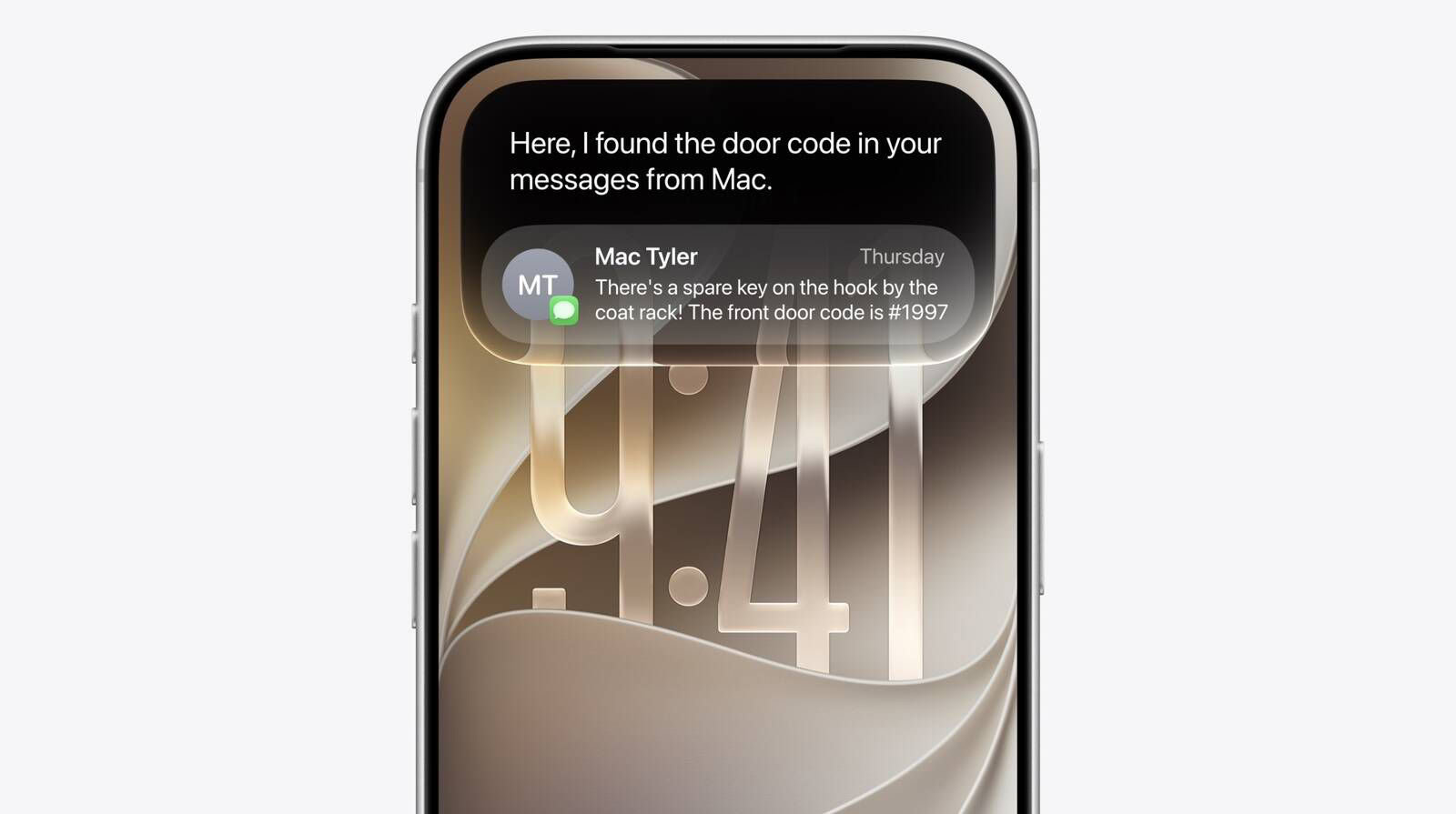
In iOS 27, Apple overhauled its search index, and Siri has access to emails, text messages, files, photos, notes, and more. Siri can find content from across your apps, but it also understands that content. You can ask Siri to surface photos, bring up information from emails or texts, or find files, and the Apple Intelligence semantic index behind the scenes finds what you need.
Siri can retrieve a photo by description — and it’s already remarkably good at it. For example, you can ask Siri the following questions:
- Find images with a cat from 2024
- Show me my photos from the music festival last weekend
For well-defined objects, natural-language voice search via Siri works just fine. I asked Siri to show me the picture of the AirPods Pro box contents that I captured in January 2026, another for Samsung phones, and one for Mercedes, and it fetched the right results. All of these were at least a couple of months old.
Even back in the first iOS 27 developer beta, I was able to get Siri to pull up photos for my daughter’s 10th birthday — nearly seven years ago — or precisely photos i took when i traveled to the UK in 2016.
The other day, my sister asked me to share with her the pictures of birds that I captured in a national park we visited a few months ago. I immediately fired up Siri, and it fetched me the required ones without breaking a sweat.
I tapped "Show All" to get a better view, selected one, and tapped the Photos button at the bottom to jump straight into the camera roll, where I could access all of them, along with a few great pictures of my family I had captured before and after.
In iOS 27, Siri knows what’s on your screen and can answer questions about it. Siri can analyze images.
Siri can tell you where a photo was taken if there’s something recognizable in it, without having to provide specifics.
- Where was this photo taken?
For this method to work, the photo needs to be on the screen.
It’s still a bit rough around the edges, though
There were a few instances when Siri AI didn’t do well. For instance, I asked the AI assistant about the time when I first purchased a robotic vacuum cleaner. In response, it told me that there’s no specific receipt or order confirmation, but there are several pictures of it in my gallery.
Fair enough. Then I asked it to go through the gallery and find the first time I captured a picture of a robotic vacuum cleaner, and it showed me one from March 31, 2026, even though there were multiple pictures from October 2025. It was only after I told it that Siri AI was able to surface the right pictures.
Why Siri AI can’t Find Your Photos
The main reason is that Siri has not indexed your entire photo library. When you ask Siri a question about your photos, it won’t spend time digging through all your information; instead, it checks an index that’s been specifically designed to build all the necessary semantic connections between your data. This allows Siri to come up with impressively fast responses. But it can only do this once that index has been built.
In my testing, Siri AI did not nail every answer on day one, but that’s actually because there’s still a hidden catch to personal context: Siri needs to know about it, and to do that, it has to be primed to quickly and efficiently access what could be a decade or more of information on your iPhone without spending minutes or hours sifting through all that.
The Siri AI indexing bar indicates that your iPhone is building a local, semantic database of your personal data. You can check whether the indexing process has completed by opening Settings. On devices still indexing, a banner says:
Indexing in Progress
You can use your iPhone as you normally would. Indexing improves search and can take a while. Longer charging sessions help indexing go faster.
Anyone who has installed iOS 27 knows that might take a while. In my case, the indexing took 72 hours. That’s why couldn’t answer questions about my photos.
For example, when I first asked about my cat, Siri was not able to find those photos until much later that it nailed the date on the first try — once it had indexed my entire photo collection. At that point, it found all images with a cat from 2024.
Siri might not be as accurate yet, but even so, the natural language image search serves its purpose: saving you from a frustrating amount of scrolling, whether you’re hunting for a needle (the picture you’re looking for) or navigating a haystack (your gallery).
See also: What “Optimizing Search and Siri” Means in iOS 27 (And How Long It Takes)