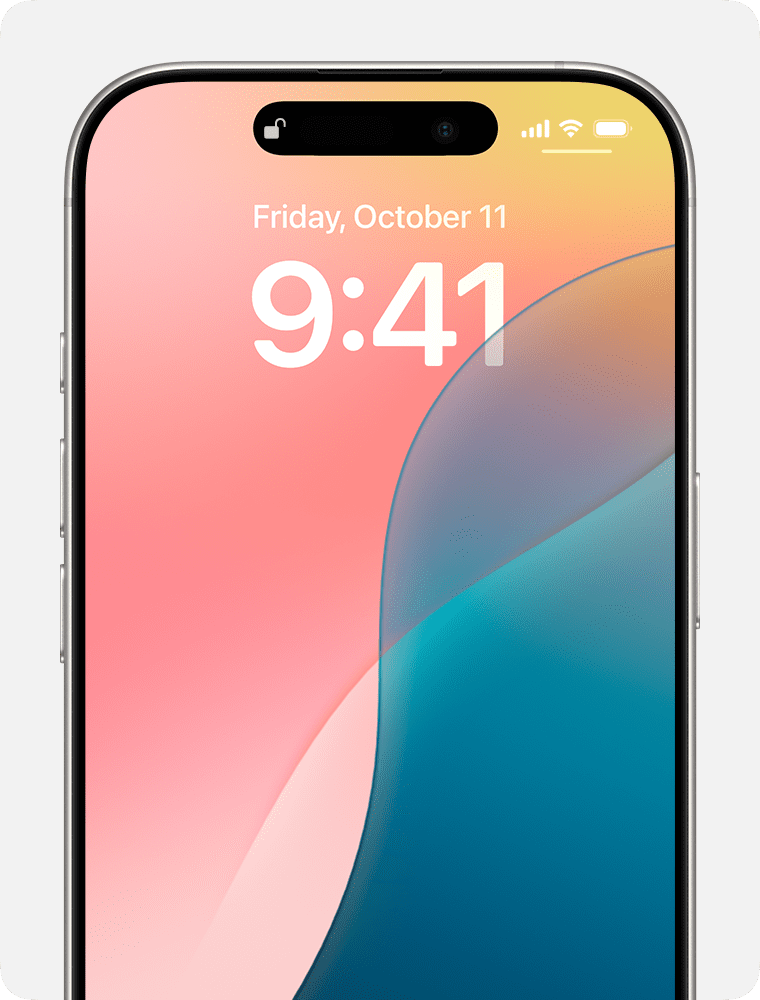
Face ID lets you unlock your iPhone, authenticate purchases, sign in to apps, and more. There are few things more frustrating than trying to unlock your iPhone or pay with Apple Pay only to have your phone ask you to enter your passcode instead.
Luckily, if Face ID is not working on your iPhone, there are a few simple steps you can take to fix it.
Why is my Face ID not working?
Your iPhone Face ID may not be working for a number of reasons, including:
- Your iPhone model doesn’t support Face ID (the feature only works with iPhone X and newer models).
- Incorrect Face ID settings.
- Your iPhone has a minor software glitch.
- Your iPhone’s software need to be updated.
- Something is blocking the camera or your face.
- Your iPhone has just been turned on or restarted
- Your iPhone hasn’t been unlocked for more than 48 hours.
- You haven’t used your passcode or password to unlock your iPhone for 156 hours (six and a half days),
- Your iPhone has received a remote lock command.
- You exited power off/Emergency SOS by pressing and holding either volume button and the Sleep/Wake button simultaneously for 2 seconds and then pressing Cancel.
- There were five unsuccessful Face ID authentication match attempts.
How to fix your Face ID
If you’re frustrated and muttering, “My Face ID won’t work," don’t worry—we’ve got your back. Here are some simple fixes to try.
Check your Face ID settings
The first thing to do when iPhone Face ID is not working is make sure the feature is set correctly. There are a few settings you can try changing in the Face ID & Passcode section of the iPhone’s Settings menu that may resolve your issue. For instance, you may not have Face ID turned on for certain tasks like contactless payments or password autofill. To check your Face ID settings, open the Settings menu, tap Face ID & Passcodeand enter your passcode when prompted. Under the Use Face ID For section, make sure the green switch next to these options is turned on:
- iPhone Unlock
- iTunes & Ap Store
- Contactless & Payments
- Password AutoFill
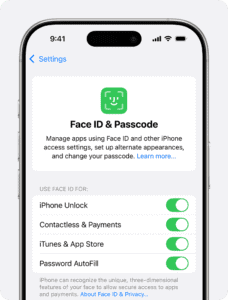
You could also try toggling off the Require Attention for Face ID setting, which makes it so that Face ID only works when you’re looking at the camera. However, leaving this setting on is better for security since it ensures that you’re intentionally unlocking your phone or authenticating a payment.
Check for updates
If Face ID is enabled but doesn’t seem to work properly, make sure your iPhone is running on the latest version of iOS. Doing so can address bugs and ensure the best possible performance. Go to Settings, tap General and choose Software Update.
Restart your iPhone
Your next move should be restarting your iPhone. This has the potential to fix a small software glitch that could be causing the problem.
, simultaneously press and hold either volume button and the side button until slide to power off appears on the display. Use a finger to swipe the red and white power icon from left to right. Your iPhone will shut down.
Wait 30–60 seconds, then press and hold the side button again until the Apple logo appears on the display. Your iPhone will turn on again shortly after.
Make sure your Face ID camera isn’t blocked
To make sure your iPhone has a clear view of your face when using Face ID, make sure that the TrueDepth camera is clean and not covered or blocked by a case, screen protector, or any other sort of obstacle. Try wiping down the front camera using a slightly damp, lint-free cloth. Apple states that you should avoid cleaning products when wiping your phone.
Face the TrueDepth camera
Face ID works in portrait and landscape orientation on iPhone 13 models and later using iOS 16 and later. For earlier models, Face ID works on iPhone only when it’s in portrait orientation and you’re facing the TrueDepth camera. Face ID requires that the TrueDepth camera sees your face or your eyes, whether your device is lying on a surface or you’re holding it in a natural position.
Maintain the required distance
Face ID is designed to work when you hold your iPhone 10–20 inches away from your face. If you’re holding your iPhone to close or too far from your face, it could be the reason why Face ID is not working on your iPhone. As a general rule, extend your arms straight out in front of you when using Face ID.
Don’t hide your face
You should make sure that your eyes, nose, and mouth are fully visible to the TrueDepth camera. By default, Face ID doesn’t work if anything is covering your mouth and nose.
On iPhone 12 models, iPhone 13 models, iPhone 14 models, iPhone 15 models, and iPhone 16 models, you can use Face ID to unlock your phone while you wear a face mask (or other covering that blocks your mouth and nose). To set it up, go to Settings > Face ID & Passcode and tap on Face ID with a Mask option. When asked, tap on Use Face ID with a Mask, then follow the onscreen instructions.
Important: If you usually wear glasses, you can improve the accuracy of Face ID by wearing a pair of transparent glasses (not sunglasses) when you turn on Face ID with a Mask.
Add a pair of transparent glasses (not sunglasses) to your appearance: Tap Add Glasses, then follow the onscreen instructions.
Please note that Face ID works with many sunglasses, though Face ID with a mask isn’t designed to work with sunglasses. If you’re wearing sunglasses designed to block certain types of light, then your sunglasses might be blocking the infrared light used by the TrueDepth camera. Try using Face ID without your sunglasses.
Add an alternate appearance
Apple says Face ID automatically adapts to changes in your appearance. But if it’s having trouble recognizing you when wearing a specific look or outfit that significantly changes your appearance, you can add an additional appearance for more reliable authentication. Open the Settings menu, tap Face ID & Passcodeand enter your passcode when prompted.
Tap the option that says Set Up an Alternate Appearance and follow the prompts on screen to complete the process.
Reset Face ID
If your iPhone’s facial recognition still won’t work, try a reset, then set it up again. Here’s how:
- Open Settings.
- Choose Face ID & Passcode.
- Enter your passcode.
- Tap Reset Face ID.
- Follow the instructions to set up Face ID a second time.
Reset your iPhone to its factory settings
If Face ID still isn’t working, i recommend that you reset all settings on your iPhone. When you reset all settings, all of the settings in your iPhone’s Settings app will be reset to factory defaults. This step can sometimes fix a troublesome software issue that may be difficult to track down.
To reset all settings, open the Settings app and go to General > Transfer Or Reset iPhone > Reset > Reset All Settings. Type in your passcode, then tap Reset All Settings when the confirmation pop-up appears on the screen. After the settings are reset, your iPhone will restart.
Get service
If you can’t set up Face ID on your iPhone, you might need service. You should make an appointment and take your iPhone to an Apple Store for service, even if it’s outside of your warranty period or you don’t have Apple Care+ protection against accidental damage. An Apple technician will check your iPhone over and perform diagnostics in a bid to isolate the problem. They may offer you a free fix, but even if the fix isn’t free, you’ll need to approve any work beforehand (so there’s no risk of being charged if you’d rather go elsewhere).