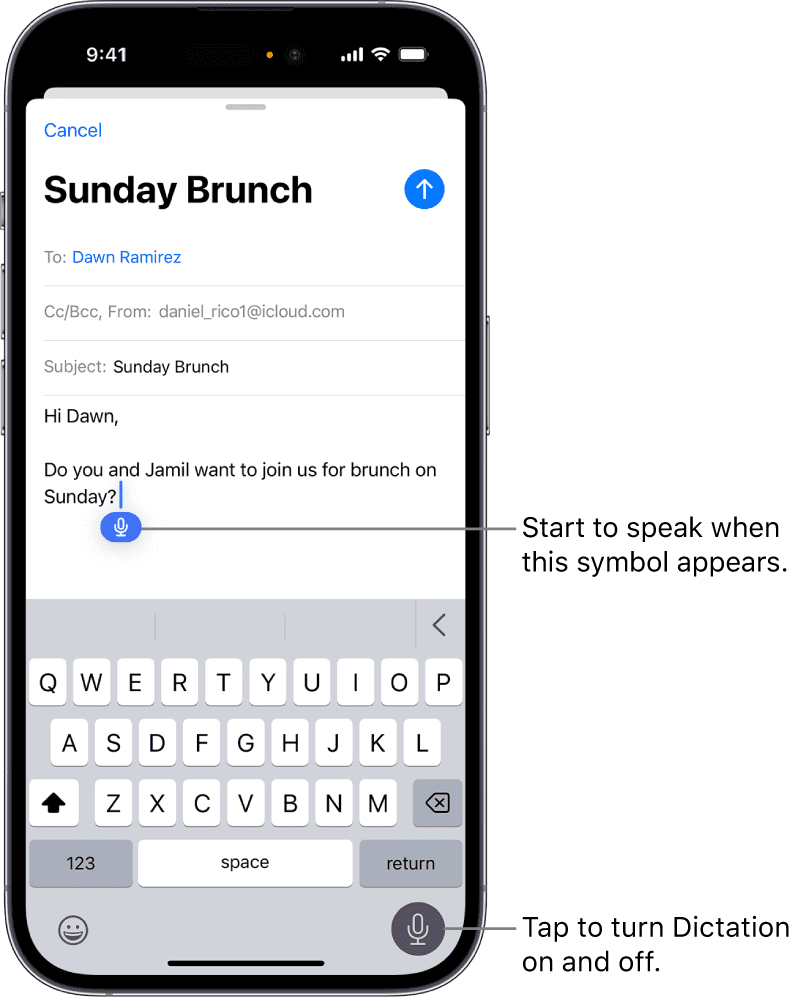
Some users have noticed that the iPhone Dictation is not working properly and adds random comma punctuation marks into the texts. Dictation on iPhone allows you to use your voice to dictate texts into documents, messages, mail, notes and more. A lot of users find it very useful, and it is commonly used by many iPhone users. How Dictation works is that your spoken words are transcribed into text in real-time. Dictation can be very helpful in many situations, for example:
- If you need to enter a lot of text using your iPhone, the iPhone keyboard may slow you down because of its size.
- If you are unable to type using the keyboard (e.g., you are driving), Dictation allows you to compose messages, etc.
- Some people may collect their thoughts more clearly, resulting in more productivity when they speak.
If you see commas in your text, even when you do not request “comma” to be inserted, there are a number of fixes you can try. Some people may think that this is a feature to insert commas automatically when needed. But users who are having this issue noticed that commas that are placed are not grammatically correct. Lastly, this issue occurs across different apps.
To start to dictate a text, you will need to tap the microphone icon on the onscreen keyboard, assuming Dictation is enabled in Settings > General > Keyboard. This issue can be serious. You may manually have to re-edit everything you dictated later to remove these extra commas.
Here are several simple troubleshooting steps you can follow when iPhone dictation adds random comma punctuation marks into the texts.
Update your iPhone
Dictation is a built-in feature of iOS. Thus, updating your iPhone will ensure that you are running the latest version of Dictation. Here is how you can update your iPhone:
- Open the Settings app.
- Tap General.
- Tap Software Update.
- If there is an update, follow the onscreen instructions to download and install the update.
If you see that your iPhone is up to date, move to the next solution.
Turn off Dictation and then turn it on again
There may be a temporary glitch; disabling and then re-enabling dictation may fix this problem. Follow these steps:
- Go to Settings > General > Keyboard.
- Tap Enable Dictation. When a prompt appears, tap Turn off Dictation.
- Now, restart your iPhone by going to Settings > General > Shut Down.
- After your iPhone restarts, go to Settings > General > Keyboard and turn on Enable Dictation.
Now test Dictation. Do you see extra commas now?
Are your microphones working?
Dictation heavily depends on the microphones. If your iPhone microphones are not picking up your voice clearly, Dictation may not work properly. A quick way to test your iPhone’s microphone is to record a short audio clip using the Voice Memos app. Open the Voice Memos app. Speak and record a memo. Then play back the memo. Do you hear your voice clearly? If not, try these:
- If you are using a case or screen protector, remove it and try again.
- If you see debris in the microphone openings, clean them.
Reset All Settings
If the problem persists, you can opt to reset all settings on your iPhone. This process returns all your iPhone settings to their default state without deleting your valuable data.
Go to Settings > General > Transfer or Reset iPhone > Reset > Reset All Settings.
Modify your settings
If the above solutions fail, as a last attempt, there are a few fixes you can try. Some of these may be temporary fixes. Some of them may not be ideal for you. Until Apple fixes the Dictation issue (you should check for updates periodically), adjust the following settings. After changing each setting, test to see if the Dictation problem is fixed.
- Go to Settings > General > Keyboard and turn off Smart Punctuation under All Keyboards.
- Go to Settings > General > Keyboard > and turn off Auto-Punctuation under Dictation.