Summary
If Dictation is not working on your iPhone, you should first check if Dictation is enabled on your device and that the Dictation language is added to your phone’s keyboard. It’s also worth checking to make sure the Dictation feature is not restricted in Screen Time. You can further diagnose by testing your iPhone’s microphone, refreshing your Siri settings, restarting, or updating your device. If all else fails, reset all settings on your iPhone.
I use Dictation a lot, as do many others. Dictation is a convenient feature that lets you say words and sentences instead of typing them anywhere you can write text. For example, I know that a lot of people use Dictation when they are composing notes, text or email messages. This feature may also be called speech-to-text
If you are having issues converting voice to text on your iPhone, or if the dictation icon is not showing up on your iPhone, don’t worry; here are several simple troubleshooting steps you can follow to fix voice dictation issues on your iPhone.
Make sure dictation is turned on
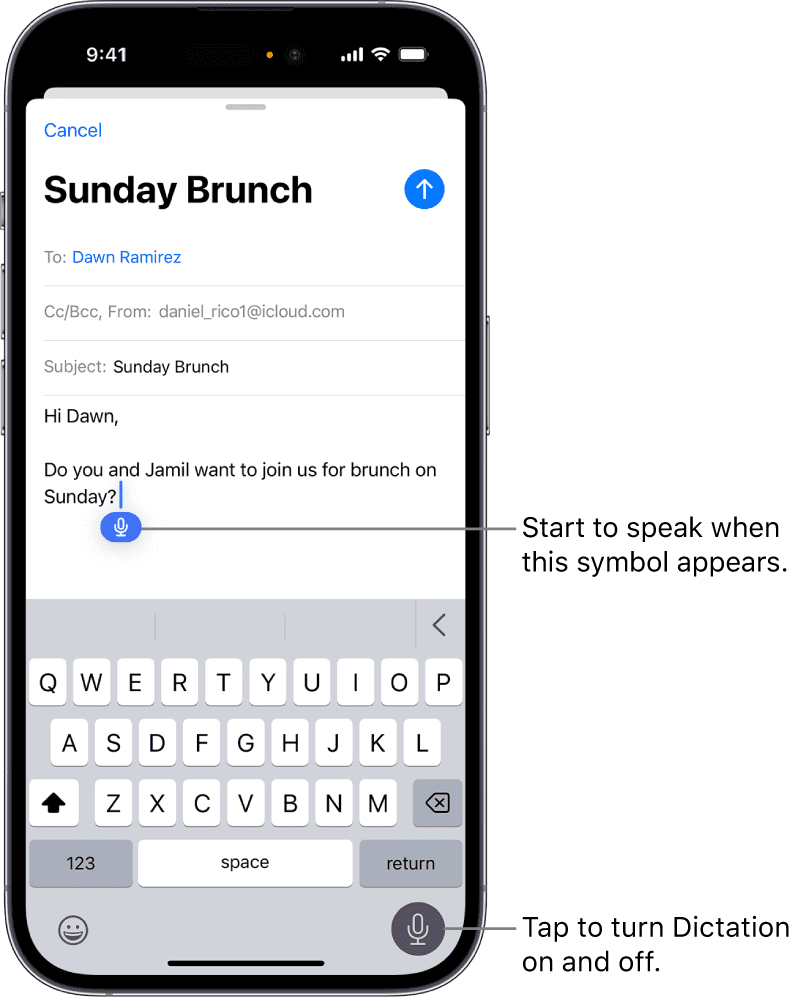
The dictation feature is represented by a microphone icon at the bottom-right of your iPhone’s on-screen keyboard. While dictation is enabled by default, you’ll need to turn it on in Settings first if you don’t see the microphone icon on the keyboard.
- Go to Settings > General > Keyboard.
- Turn on Enable Dictation. If a prompt appears, tap Enable Dictation.
Now try to dictate text to see if it’s working. Here’s how:
- Tap in the text field to place the insertion point where you want to begin dictating text.
- Tap the Dictate button on the onscreen keyboard (or in any text field where it appears).
- When the Dictate button appears near the insertion point in the text field, begin to dictate your text.
- When you’re done, tap the Dictate button or say “Stop dictation”; Dictation stops automatically when you stop speaking for 30 seconds
Turn Dictation off and on
If the iPhone Dictation is not working properly, turning the feature off and on may fix the issue. Follow these steps.
- Go to Settings > General > Keyboard and turn off Enable Dictation.
- Restart your iPhone.
- Go to Settings > General > Keyboard and turn Enable Dictation on again.
Add the Dictation Language to Your iPhone Keyboard
Let’s say you typically type in English on your iPhone but want to dictate something in Chinese. The iPhone’s dictation feature won’t recognize what you’re saying if Chinese hasn’t been added to the keyboard yet.
In this case, go to Settings > General > Keyboard > Keyboards > Add New Keyboard. From the list, choose Chinese (or your preferred language), select the keyboard input method, and tap Done.
If you intend to dictate text in a Chinese dialect, there’s an additional setting you need to do. In the Keyboard setting page, go to Dictation Languages. From the list, select one of the language variations in addition to Mandarin.
Now, when it comes to dictating your text, remember to switch the dictation language too. Tap the microphone icon, tap EN (which stands for English), and choose your new preferred dictation language.
Dictation isn’t available for all languages. You can check Apple’s site for a list of dictation languages available for the iPhone.
Allow Siri & Dictation in Your iPhone’s Screen Time Settings
If dictation still isn’t working on your iPhone, it may be due to your iPhone’s Screen Time settings, which can restrict the dictation feature on your device.
To check this, follow these steps:
- Go to Settings > Screen Time > Content & Privacy Restrictions.
- If Content & Privacy Restrictions is turned on, tap Allowed Apps & Features.
- If Siri & Dictation is toggled off, toggle it on so your iPhone will let you use the dictation function again.
Check your microphone
Voice-to-text may not be working on your iPhone due to an issue with your microphone. Test to see if your microphone is working. You can easily test this:
- Open the Voice Memos app on your iPhone.
- Tap the Red record button to begin recording. Speak for about a minute. Speak into the microphone at the bottom of your iPhone.
- Tap the Stop Recording button to stop recording.
- Listen to your recording. Are you hearing everything correctly? If not, you can try to clean your iPhone’s microphones. If cleaning does not work, this could be a hardware problem. You may want to contact Apple support or schedule a Genius Bar appointment for assistance.
Refresh your Siri settings
If your microphone is working and you have a stable internet connection, refreshing your Siri® settings could help.
- Go to Settings > Siri (or Apple Intelligence & Siri).
- Tap Talk & type to Siri, and then choose the Off option from the next screen. Then, toggle off Press side button for Siri and Type to Siri.
- Turn them back on.
Open your Messages app > select a text thread > tap the microphone icon and try using dictation.
Update your iOS
If you have all the correct settings in place, yet dictation isn’t working, the issue may be due to iOS bug. iOS updates can fix bugs, introduce new settings, and improve features like Dictation.
To check for an iOS update, follow these steps:
- Go to Settings > General > Software Update.
- Tap Update Now if a new iOS update is available.
After the update is complete, test Dictation. Is it working? If not, move on to the next solution.
Reset all settings on your iPhone
If the above solutions fail, resetting all settings on your iPhone can resolve the dictation issue.
This process returns all your iPhone settings to their default state without deleting your valuable data.
- Go to Settings > General > Transfer or Reset iPhone > Reset.
- Tap Reset All Settings and follow the prompts.
The process takes some time, so it’s best to attempt it only when you don’t need to use your iPhone for a while.