The $999 iPhone Air is Apple’s newest iPhone, featuring a thin and light design. While it doesn’t include a "17" in the name, it is being sold alongside the iPhone 17, iPhone 17 Pro, and iPhone 17 Pro Max. The iPhone Air replaces the "Plus" iPhone in the lineup, and it offers pro-level performance in a compact design, albeit with a few compromises.
At 5.6mm thick, the iPhone Air is Apple’s thinnest iPhone to date. It is over 3mm thinner than the iPhone 17 Pro. It’s also thinner than Samsung’s 5.8mm Galaxy S25 Edge. The iPhone Air features a polished titanium frame with a 6.5-inch display, so in terms of size, it is bigger than the iPhone 17 but smaller than the iPhone 17 Pro Max. Titanium is stronger than aluminum, and the iPhone Air was designed not to bend. Apple says the iPhone Air is more durable than any previous iPhone.
There are significant design changes, and many new features, tips and tricks to learn about. Some of the additions need some setup so you can get started, so we’ve created an iPhone Air tutorial that covers what you should do first after setting up an iPhone Air.
IPhone Air 10 Things You Should Do First
Set Up Your Lock Screen
You’ll see the new Liquid Glass design from the first moment you start using the iPhone Air, because it starts at the setup screen. After the initial setup, unlock your iPhone Air and long press to get into the Lock Screen customization features, where you can select new options.
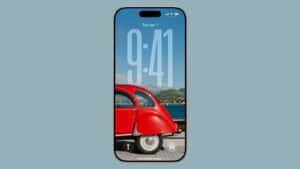
You can turn on a Liquid Glass effect for the time, so select your preferred font and color, then choose the "Glass" option.
If you drag the right hand corner of the clock, you can change its size. The size will adjust dynamically if you have a photos wallpaper selected, but for other wallpapers, you can choose a size.
When selecting a wallpaper, you can use a 2D image to generate a 3D Spatial Scene that uses depth information to separate the subject from the background. Spatial Scene wallpapers show a little bit of motion when you move your iPhone, improving the 3D effect.
Make sure you also set up your widgets and your Control Center buttons. In iOS 26, you can put your widgets on the bottom of the display, and you’re not limited to having them right under the clock.
After everything is customized, save it and then give your iPhone Air a tilt. You’ll see the subtle movement of the Spatial Scene if you selected one, and subtle glints of light reflecting off of the Liquid Glass elements.
Set Up Your Home Screen
There are even more customization options on the Home Screen. Long press, tap on Edit, and then choose Customize to get to the different options.
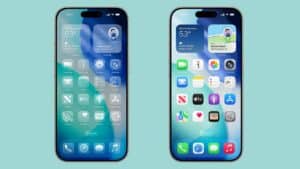
If you tap on the "Clear" setting, all of your icons will shift to a clear, glass-like look that shows your wallpaper behind them. There are Light and Dark mode options to choose from.
Default uses standard, multi-color icons that have a new stacked glass look. You can also choose Tinted for a unified color that’s not quite as transparent as the Clear option. Tinted icons still have a translucent look, but it’s subtler.
Apple added buttons so you can choose a tint that matches your iPhone color or your case color if you have an Apple case, so tap on the icons below the color slider if you’re interested in those options.
Give Visual Intelligence a Try
The Visual Intelligence feature that’s activated with Camera Control now works with screenshots. You can capture a screenshot on your iPhone Air and then use Visual Intelligence to identify what you’re looking at, find products, and get more information.
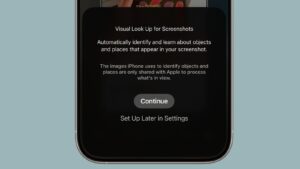
To use on-screen Visual Intelligenceon your iPhone Air, just take a screenshot (press the volume up and side buttons at the same time), then tap on ask, search, or Highlight to Search if you want to select a specific part of an image to ask about.
You can search for products with Google Image Search, Etsy, and more, or ask ChatGPT what you’re looking at.
Set Up Call Screening
With Call Screening, you can get more information from people calling from an unknown number before you choose to accept a call.
When Call Screening is on, your iPhone Air asks a caller for their name and reason for calling. The information is relayed to you, and you can decide if you want to accept the call or ignore it.
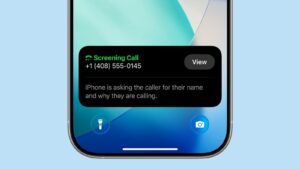
You can turn on Call Screening by going to Settings > Apps > Phone. There are also new settings for identifying and filtering out spam calls and spam voicemails.
Choose Messages Backgrounds
The Messages app supports custom backgrounds on an iPhone Air, both for individual conversations and group conversations. You can set a different background for every person or group that you chat with.
To set up a background, tap on the name at the top and then choose the "Backgrounds" option. There are pre-selected settings like sky, water, and aurora, or you can select a color. You can also choose a photo or generate a background using Image Playground.
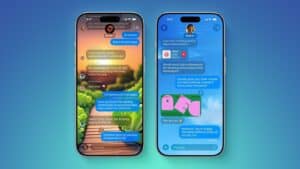
Backgrounds that you set are changed for every participant in the conversation, so make sure not to choose something that you think is for your eyes only.
If you don’t want to see custom backgrounds, you can turn it off by going to Settings > Apps > Messages.
Turn on Live Translation
Live Translation is a Messages app feature that automatically translates incoming messages from someone that speaks another language. If you regularly chat with someone who doesn’t speak your language, you can give it a try.
To turn on Live Translation for a conversation or a group chat, tap on the name at the top and then toggle on "Automatically Translate." From there, anything someone types in another language is translated to your language, and your responses will be translated into their language.
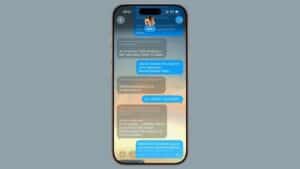
Live Translation for Messages is available in English (US), English (UK), Chinese (Mandarin, Simplified), French, German, Italian, Japanese, Korean, Portuguese (Brazil), and Spanish (Spain).
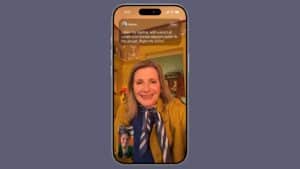
You can also use Live Translation for FaceTime, where it shows captions with language translations, and the Phone app, where there are spoken translations. AirPods Pro 2, AirPods Pro 3, and AirPods 4 also support in-person Live Translation for real-time conversation translations.
Make a Genmoji
On an iPhone Air, you can mix two or more emoji together to create a new emoji. If you’ve had trouble coming up with ideas for Genmoji, the option to combine two characters may be useful.
In the Messages app, tap on the Emoji button and then choose Genmoji to get to the Genmoji interface. You can type in a description, or tap on the smiley face icon to select two or more emoji characters to combine together.
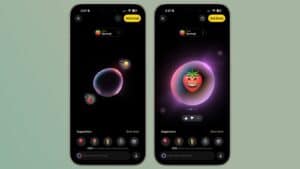
Combining an emotion-related emoji with an object emoji is a good way to get a custom character that has a face or expresses a feeling.
Apple updated Image Playground to take advantage of feeling emoji. You can use an emoji like a happy face or a sad face to change the expression and emotion of an Image Playground creation that features a person.
While in Image Playground, you can also try the new ChatGPT integration. You can use ChatGPT’s image generation tools to create an image in any style.
Try the Games App
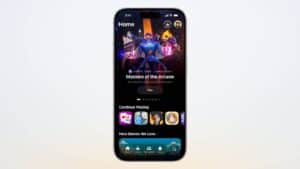
Apple added a Games app in iOS 26, and it comes pre-installed on the iPhone Air. It has all of the games from the App Store, along with Apple Arcade titles, but it also has new features for playing games with friends and challenging them to beat your high scores.
Customize Your Alarm and Ringtones
The iPhone Air includes new variations of the popular "Reflections" ringtone that you can use for everything from calls to messages alerts. To try out the new ringtones, open up the Settings app, tap on Sound and Haptics, and tap on Ringtone.
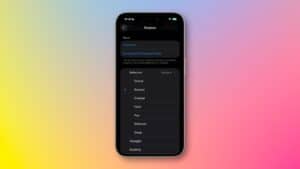
You’ll see the new options if you tap on "Reflection." There’s also a new ringtone called "Little Bird" that’s worth checking out. It’s also easier to set a custom ringtone using the Files app and the Share Sheet.
After you set a ringtone, you can customize your alarm’s snooze time. For years, Apple has used a nine minute default snooze time for alarms, but now you can choose anywhere from one minute to 15 minutes as the duration between when your alarm will go off.
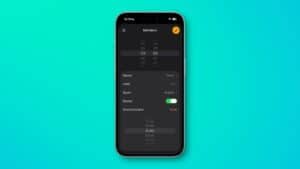
To customize an alarm, open up the Clock app, choose the Alarms tab, tap on an alarm or create a new one, and then tap on Snooze Duration to select a duration. You can change the snooze length for all of your separate alarms.
Choose Your Safari Preference
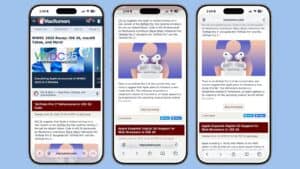
Apple added a new "Compact" view for the Safari Tab bar that tucks several settings out of sight. If you want to change back to your preferred view at the top or the bottom, you can change it by going to Settings > Apps > Safari.
With the first round of pre-ordered devices now being delivered to customers and availability in stores, GeeksChalk has put together the following series of dedicated iPhone 17 how-to articles explaining all the new features that can be found on Apple’s newest models.
All iPhone 17 Models (Incl. iPhone Air):
- Dynamic Island Explained: What It Does and How to Use It
- Action Button: What It Does and How to Customize It
- How to Use the New Center Stage Front Camera
- How to Rotate the Front Camera Without Changing iPhone Orientation
- How to Disable Center Stage Front Camera Auto-Zoom
- How to Disable Center Stage Front Camera Auto-Rotate
- How to Enable Dual Capture Video Recording
- How to Disable Adaptive Power Mode (On by Default)