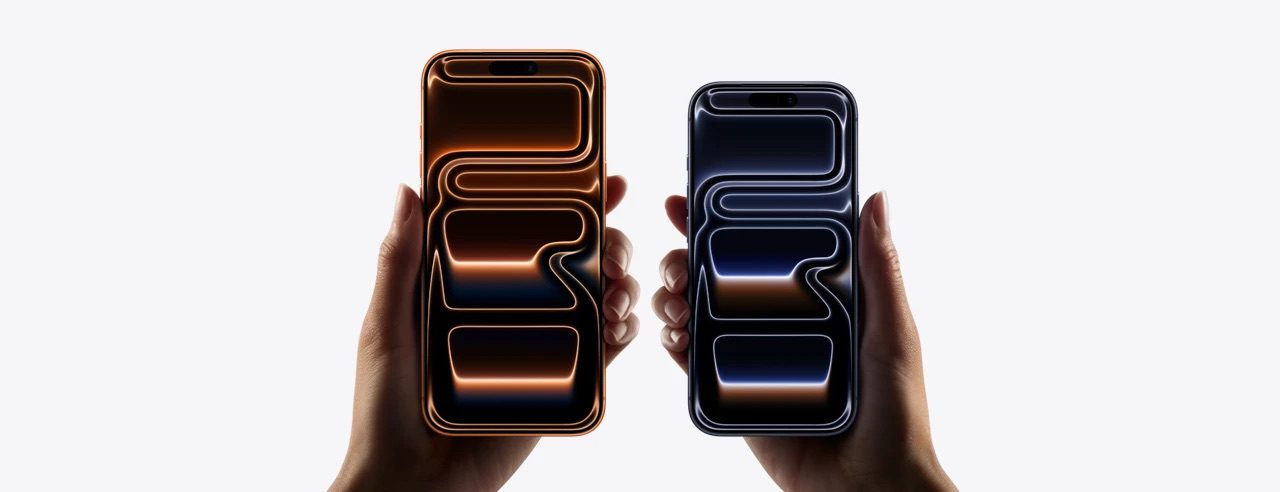
- To fix an iPhone 17 Pro or iPhone 17 Pro Max that is not receiving texts from Android phones, try toggling Airplane mode on and off.
- You can also try checking your block list, enabling group and MMS messages, and deleting old texts.
- Restarting your iPhone 17 Pro, updating it, and resetting your network settings can also fix the problem.
Ordinary SMS texting — which is what Android phones rely on — is not nearly as sophisticated as iMessage, which iPhone users rely on.
Even so, you should generally be able to exchange texts between iPhone and Android seamlessly — iPhones can receive SMS messages just as easily as Android.
But what if your iPhone 17 Pro or iPhone 17 Pro Max is not receiving texts from Android? If this is happening to you, you’re not alone. Many iPhone 17 Pro owners have reported having this issue.
Luckily, there are a few fixes to try that will get you receiving messages from Android phones again in no time.
Here’s what to do if your iPhone 17 Pro is not receiving text messages from android users:
Verify that your cellular connection is active and has decent signal strength
Because Android and iOS can only exchange texts via SMS, MMS, or RCS, you need a working cellular link. Disable Airplane Mode if you’re using it, and make sure that cellular data is enabled on your iPhone 17 Pro.
Toggle Airplane mode
Your next step should be to toggle Airplane mode. Often, just turning it on and back off again can solve myriad problems with wireless networks on your iPhone 17 Pro. Head to Settings and tap the button next to Airplane Mode to disable wireless networks on your iPhone. Wait a few seconds. Tap Airplane mode again to re-enable the wireless networks.
Make sure you’re not blocking the Android number
If you accidentally or intentionally block a number, you won’t receive texts from that person at all—no matter what type of phone they have.
To make sure you didn’t accidentally block the Android number by accident, you can check which numbers you’ve blocked. Head to Settings -> Apps -> Messages and tap Blocked Contacts. Here, you’ll see a list of the phone numbers you’ve blocked on your iPhone. Scroll through the list of blocked numbers and look for the Android user’s phone number. If you see it, swipe the number to the left and tap Unblock.
Ensure group messaging is enabled
While the ability to send and receive group messages among iPhones using iMessage is turned on by default, you might find that group texts using SMS isn’t enabled for your iPhone 17 Pro. Not a problem, though — you can enable it with a few taps.
Head to Settings -> Apps -> Messages and turn on Group Messaging by swiping the toggle button to the right.
Note: Also, make sure that you have enabled cellular data or that your iPhone is connected to Wi-Fi in order to receive MMS messages.
Configure your iPhone 17 Pro to receive MMS messages
Likewise, if your iPhone 17 Pro has trouble receiving texts from Android users with embedded photos or videos, MMS might be turned off. You can enable MMS in the same place as group messaging:
Head to Settings -> Apps -> Messages and turn on MMS Messaging by swiping the toggle button to the right.
Turn off Screen Unknown Senders
If you’ve enabled Screen Unknown Senders feature on your iPhone 17 Pro, all messages sent from unknown numbers are automatically be placed in a new folder called “Unknown Senders. To make sure you receive messages from Android numbers not in your contacts list, head to Settings -> Apps -> Messages. Scroll down to Message Filtering, then turn off Screen Unknown Senders.
Once you turn off Screen Unknown Senders, try to get someone with an Android phone to send you another text message. If you receive it, then this was the issue, and you’re good to go. If not, try the next fix.
Delete old text messages
If you have too many text messages on your iPhone 17 Pro, you might miss additional messages due to inadequate storage. If you haven’t deleted text messages in a while or get low-storage notifications on your iPhone 17 Pro, deleting old messages can help.
To delete messages on your iPhone 17 Pro, head to the Messages app and tap Edit in the top left corner of the screen. Tap Select Messages, then tap on any text message that you don’t need – it will have a checkmark on the left to indicate that you have selected it. After you’re done selecting the messages you want to remove, tap Delete in the bottom right corner. In the pop-up, confirm your decision by tapping Delete.
Once you delete these messages, try to get someone with an Android phone to send you another text message. If you receive it, then this was the issue, and you’re good to go. If not, try the next fix.
Restart the iPhone
If you’ve tried everything up to this point in the article and you’re still not able to get Android texts on your iPhone 17 Pro, you might want to restart your phone, if you haven’t already. This will fix temporary glitches in software and memory on your iPhone. To restart your iPhone 17 Pro, simultaneously press and hold either volume button and the side button until slide to power off appears on the display. Then, swipe the power icon left to right to turn off your iPhone. To turn your iPhone back on, press and hold the side button until the Apple logo appears.
Check For A Carrier Settings Update
Sometimes, our phone carriers send network updates to our iPhones. Most of the time, these update automatically. However, some instances, like a bad connection, can delay the update process. The irony here is that we need the update to have a better connection.
To update your carrier settings on your iPhone 17 Pro, head to Settings -> General -> About. A pop-up will usually appear within ten seconds if a new carrier settings update is available. If it does, tap Update to install it.
Check for iOS updates
After checking for a carrier settings update, head to Settings -> General, then tap Software Update to see if a new iOS update is available. Apple regularly releases these updates to improve your iPhone’s performance, fix bugs, and roll out new features.
Tap Update Now if a new software update is available.
Reset your network settings
Sometimes, issues beyond our control corrupt the settings on our iPhone. When this happens, you can perform a reset to restore your settings to factory default values and resolve various issues.
If your iPhone 17 Pro still isn’t receiving texts from Android, reset the Network Settings by heading to Settings -> General -> Transfer or Reset iPhone -> Reset and tap Reset Network Settings.
A word of warning: Before you do this, make sure you know your Wi-Fi passwords, because Reset Network Settings will erase all of the saved Wi-Fi networks on your iPhone. After your iPhone reboots, you’ll have to re-enter your Wi-Fi passwords at home and at work. Your iPhone’s APN and VPN settings will also be reset to factory defaults.
Contact your carrier
If the above fixes weren’t helpful in your case, you should contact your carrier to see if there’s an issue with your cellular service. After all, your mobile network provider might have some information about why your iPhone 17 Pro isn’t receiving text messages.
Even if your signal looks good, it’s possible that your cellular provider is having a problem with their network coverage – maybe their SMS service is down. Contact them and find out if this is the case, and if it is, ask them when normal service will be restored.
iPhone 17 Pro Not Getting Android Texts? Fix It as Soon as Possible
Your iPhone 17 Pro is receiving text messages from android again and you can continue chatting with the important people in your life. Next time your iPhone 17 Pro is not getting text from android, you’ll know how to fix the problem! Leave any other questions or comments you have about your iPhone down below.