





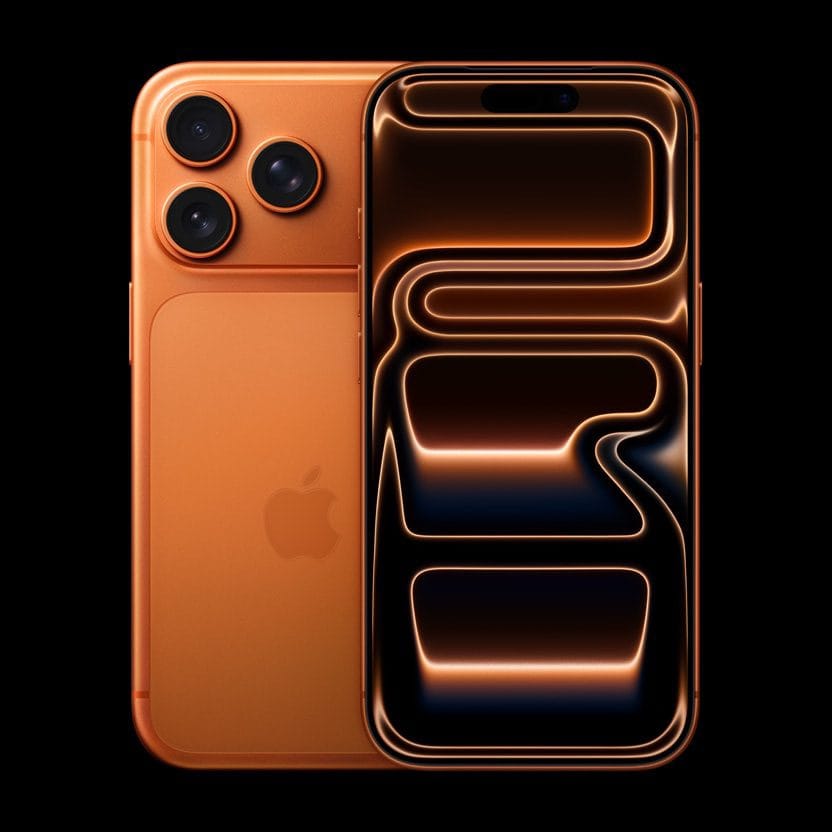
- If your iPhone 17 Pro or iPhone 17 Pro Max screen is frozen or unresponsive, there are a few things you can try when troubleshooting the problem.
- First, try a force-restart. If that doesn’t work, you can update or reinstall the operating system.
- If you’re still having problems, you can always contact Apple support for further help.
A frozen iPhone 17 Pro or iPhone 17 Pro Max won’t respond to touch, with the display completely stuck or working intermittently. Touches may register in the wrong locations, and physical buttons may refuse to work.
The Home Screen or an app could become non-interactive. With a frozen iPhone 17 Pro—different from an iPhone stuck in a boot loop—standard troubleshooting steps will only take you so far.
But worry not; you’ve come to the right place to seek advice. Follow along with us as we show how to fix a frozen or unresponsive iPhone 17 Pro and iPhone 17 Pro Max.
What to Do if Your iPhone 17 Pro Freezes
Force Quit Apps
If a specific app is causing your iPhone 17 Pro or iPhone 17 Pro Max to freeze, force quitting the problematic app can resolve the issue most of the time.
To force quit an app, swipe up from the bottom edge and stop near the middle of the screen. Find the problematic app by swiping left and right, then swipe up on the app to close it.
Upon identifying the app causing the freezing, reinstall it. To do this, press and hold its app icon until a context menu appears, then tap on Remove App. Tap Delete App, then choose Delete to confirm.
Doing so will also delete any app settings from the device that might be causing issues. You can now redownload a fresh copy of the app from the App Store. If the iPhone 17 Pro display remains frozen and generally unresponsive, the next troubleshooting step is a force restart.
Force-restart your iPhone 17 Pro
If your iPhone 17 Pro screen is completely unresponsive, try to perform a force-restart. In most scenarios, this method should get you unstuck. Forcing your iPhone to restart will not erase any apps or data. To force restart your iPhone 17 Pro, press and quickly release the volume up button. Press and quickly release the volume down button. Press and hold the side button until the Apple logo appears.
If, after a force-restart, your iPhone won’t turn on or start up, charging your phone is next on your list of potential fixes.
Charge your iPhone
It’s possible that charging your iPhone 17 Pro for a short time can unfreeze it. For the best results, plug your phone directly into a power adapter – avoid charging it wirelessly or plug it into a computer’s USB port. Let it charge for at least one hour and then try to use it again.
If your iPhone 17 Pro still isn’t working, or it gets stuck during start up, your next option is to update or reinstall iOS.
Reinstall iOS
As a last resort before contacting Apple Support, you can try updating or restoring iOS. This is a good option if your iPhone successfully restarts but can’t get past the Apple logo. Here’s how to do it.
- Connect your iPhone to a computer and start iTunes or Finder.
- Put your iPhone in recovery mode following these steps:
Press and quickly release the volume up button, press and quickly release the volume down button, then press and hold the side button. Hold the side button until you see the recovery mode screen, which has a lightning connector and iTunes logo. - When you see the option to restore or update your iPhone on your computer, click Update. This may fix the frozen iPhone 17 Pro without deleting any apps or settings. Do not choose Restore, which will erase all of your data.
- If the Update doesn’t work, your final option is to choose Restore. This option will restore your iPhone to its factory settings.
. With the device restored and responsive again, now’s a good time to go to Settings > General > Software Update and install any pending iOS or security updates.
With that done, venture into Settings > General > iPhone Storage and delete anything that’s clogging storage space, like massive photo libraries, cached videos in streaming apps, games, and so on.
iOS needs at least one gigabyte of free storage space to function smoothly. Clearing storage space is the best way to avoid issues like slow-downs that could lead to sudden freezes.
Contact Apple support
Is your iPhone 17 Pro still frozen even after trying out all the above tips? If so, we highly recommend contacting Apple support for further help.
Even better, you can make an Apple Store appointment at a Genius Bar, provided you have one nearby where you live.
An Unresponsive iPhone 17 Pro Is Virtually Useless
An iPhone 17 Pro that suddenly freezes is a brick in your hand. Whether iOS is outdated, some apps are incompatible with it, the battery is low, or the device is running low on storage space, following the instructions in this guide should help fix a frozen iPhone 17 Pro.
Hopefully, you won’t have to factory reset your iPhone 17 Pro and wipe all the saved data and settings just to solve the responsiveness and freezing problems.











A phone of this caliber and capability shouldn’t be experiencing these issues. If they simply waited a few years between releases, the problems would be resolved, and they would release a fantastic phone. However, how would they generate revenue annually, and heaven forbid they create a phone that can be used for more than two years? In conclusion, the 17th release made me absolutely certain of leaving the iPhone ecosystem and returning to Samsung or Pixel. I’ll need to conduct further research to enforce my decision. Technology has become utterly unappealing.