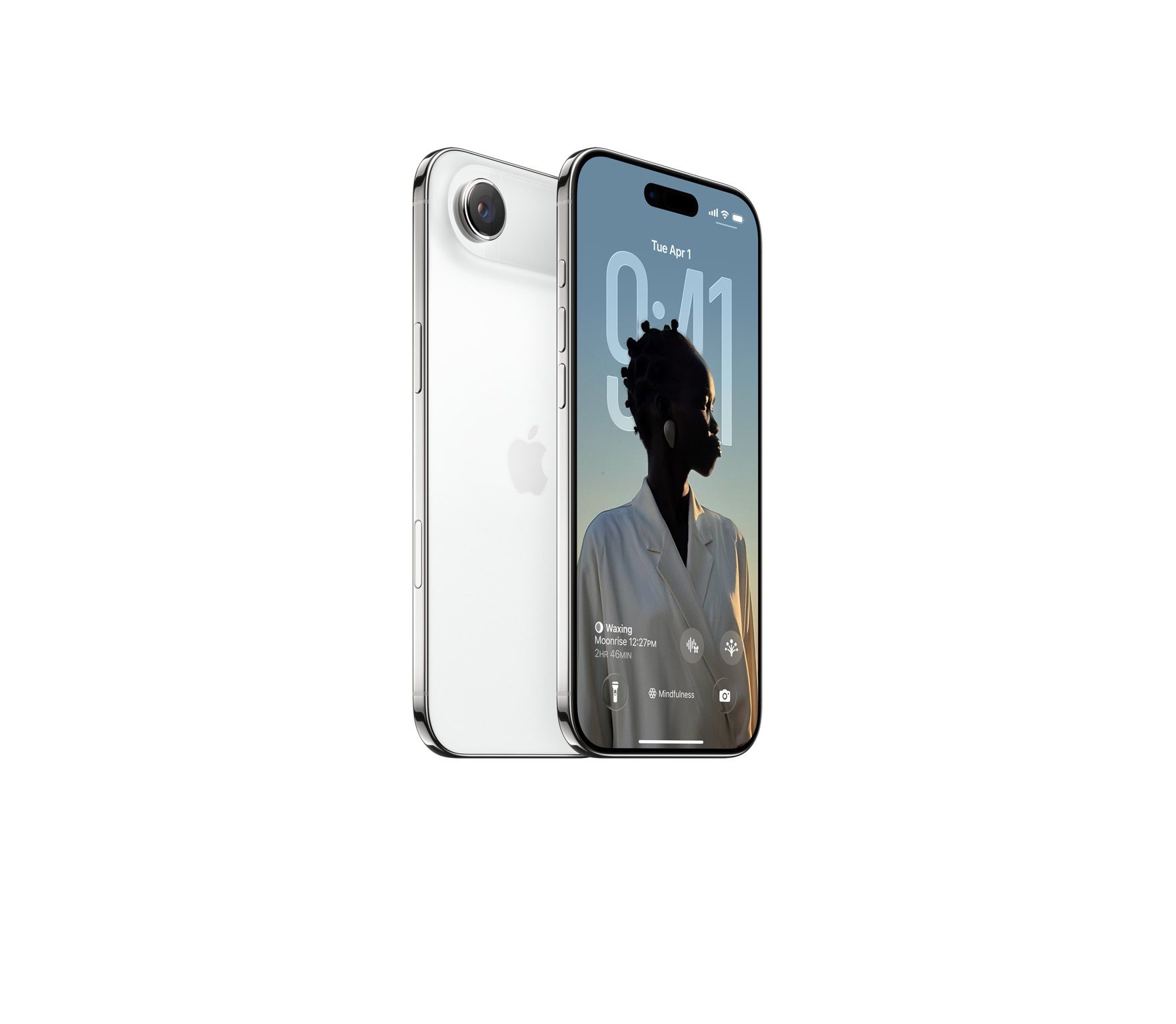
The Center Stage front camera on iPhone 17 models and iPhone Air automatically zooms and rotates based on who is in frame when taking photos and keeps you centered in video calls.
The square sensor also captures more image data than rectangular sensors, giving you unprecedented flexibility in framing and composition without sacrificing image quality.
This article explains how to use the new Center Stage front camera on iPhone 17, iPhone Air, iPhone 17 Pro and iPhone 17 Pro Max.
Understanding Auto-Rotate and Auto-Zoom
Center Stage automatically switches between horizontal and vertical orientation when you’re lining up a shot, meaning you don’t need to physically rotate your iPhone. The camera also dynamically adjusts its field of view based on what’s happening in front of it.
When you’re taking a solo selfie, for example, Center Stage keeps the frame tight for a more personal feel. As friends join the shot, the view expands to include everyone without cropping anyone out.
Taking Photos with Center Stage
- Open the Camera app on your iPhone 17.
- Tap the circular arrows icon at the bottom right to switch to the front camera.
- The Center Stage button (the icon of a person’s profile within a frame) above the viewfinder should appear as yellow, indicating the feature is enabled.
- Line up your shot — Center Stage automatically adjusts orientation and zoom.
- Tap the shutter button to capture your photo or video.
Manual Camera Controls
You can override Center Stage’s automatic functions when you need more control:
- Manual rotation: Tap the orientation icon within the viewfinder to switch between portrait and landscape modes.
- Manual zoom: Use the zoom icon (arrows pointing in/out) within the viewfinder to adjust the field of view yourself.
How to Disable Auto-Rotate
When the front camera is engaged, if Center Stage detects faces beside you or in the background and rotates to include them when you want a personal selfie:
- Tap the yellow Center Stage button.
- Tap Off next to "Auto Rotate."
- Take your photo normally — the camera will no longer auto-rotate. Alternatively, use the rotate orientation icon in the viewfinder to do so manually.
How to Disable Auto-Zoom
When the front camera is engaged, if Center Stage’s automatic zoom adjustments don’t match your needs:
- Tap the yellow Center Stage button.
- Tap Off next to "Auto Zoom."
- Use the manual zoom button (with arrows pointing in/out) within the viewfinder to frame your shot exactly as desired.
Center Stage works during FaceTime calls too, keeping your face centered, similar to how it functions on iPads and MacBooks. If you’re interested to learn about dual capture video recording on iPhone 17, be sure to check out our dedicated how-to.