Several users have complained that their iPhone 18 Pro has started taking blurry photos or videos. More specifically, the photos or videos taken by the iPhone are blurry, out of focus, unclear, and overall bad.
A similar issue is that the iPhone Camera is showing blurry images while trying to use FaceTime, Zoom, or similar video apps. If you are having a similar issue while you have a good and stable Wi-Fi or cellular data connection, there are a few things you can check.
This article provides possible reasons why the Camera app and your pictures or videos are blurry and offers several tips you can try to fix this problem. It seems that this problem may occur using the front and back camera. Several factors may cause this issue, such as an unclean lens or poor user execution. This article is for you if the Camera app shows videos or photos that do not look right. See How to Turn Off Auto-Enhance in iPhone 18 Pro Camera.
Restart the Camera app
Simply restart the Camera app on your iPhone 18 Pro. This may fix your Camera if it is not working as expected. Here is how:
- Open the App Switcher:
- Swipe up from the bottom edge of your screen and pause near the middle.

- Swipe up from the bottom edge of your screen and pause near the middle.
- Now find the Camera app. You can swipe left or right to find it.
- Swipe up on the Camera app.
- Then open the Camera app and try to take photos.
Restart iPhone
If restarting the app does not fix your problem, restart your iPhone 18 Pro. Here is how:
- Simultaneously press and hold the side button and either volume button until the sliders appear, then drag the Power Off slider.

Update software
The first step is to check for iOS updates, and if there are updates available, update your iPhone 18 Pro. This may fix your problem. For example, there could be an iOS update addressing possible Camera auto-focus problems, if your iPhone camera is unable to focus on an object when taking photos or videos.
Updating is easy. Simply go to Settings > General > Software Update and follow the onscreen instructions.
Clean the lens
Dust, fingerprints, or debris on the lens can interfere with your camera’s auto-focus feature. A dirty lens can be one of the biggest culprits. Furthermore, a humid indoor environment may produce a blurry, soft-focus effect. It is a good idea to clean the front of your lens. Your iPhone has built-in rear and front-facing cameras. The rear cameras are located on the back of the phone and the front-facing camera is on the front of the phone. Using a soft, dry, lint-free cloth, clean the lens. You should not use facial tissues.
The case
If you are using a case, your case may be the problem. Certain cases, especially metallic cases, may cause issues with optical image stabilization. Remove the case, take a photo and then compare the photos you take with and without the case.
Avoid camera shake
If you move your iPhone 18 Pro too much while taking photos, this may cause motion blur. To avoid this, hold your iPhone steady. Do not move and stay still until the photo is taken. You may want to hold it with your two hands.
Use Burst Mode
You may want to shoot in Burst Mode especially if your objects are moving. Burst Mode lets you take multiple high-speed shots continuously in a second. Simply, open the Camera app and press and hold the Shutter button and drag it to the left. You can also use the Volume Up button if you enable it by going to Settings > Camera, and enable the “Use Volume Up for Burst” option.
You can view your photos and select the best one. Simply open the Photos app and find the photo and then tap Select.
Adjust auto-focus
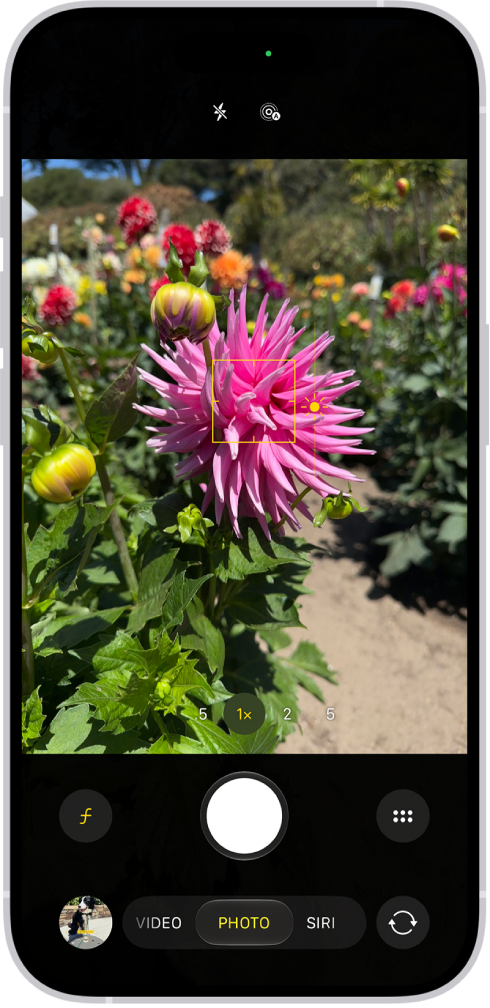
Your iPhone’s Camera is pretty sophisticated. However, it is possible that your camera may focus on the wrong subject or area. And this may result in blurry results. And the good news is that you can decide where to focus. This will fix this problem. Simply, tap on an area, a person, or an object in the Camera preview screen where you want the Camera to focus within the frame.
More help
If your issue persists, you may want to contact Apple. It is possible that your camera hardware needs to be fixed. You may further want to make a Genius Bar appointment.