Several iPhone 18 Pro users have said that their recorded video sounds are either too low or nonexistent. This can be caused by a software or hardware issue. For example, this problem may indicate the microphone volume is too low or does not work. Or your Camera may not be working properly.
There are various ways to fix this problem that you may experience with your iPhone 18 Pro camera using the built-in Camera app or a third-party app. In this article, we list some troubleshooting tips to try if you are having trouble hearing the sound coming out of your videos.
Are you having similar problems with the volume of videos taken with your iPhone 18 Pro? Please try the steps below until you have fixed your problem. Make sure to shoot a short video to test after each step to see if sounds start working.
Update
You may be having this problem because of the iOS software itself. An iOS update might fix your sound problem. On your device, go to Settings > General > Software Update. And then follow the instructions to update your device.
Restart
Restart your device to see if this helps. Here is how you can restart your device:
- Simultaneously press and hold the side button and either volume button until the sliders appear, then drag the Power Off slider.

Check your receivers and speakers
- Does your device have a screen protector, film, or case? They may be obstructing your microphone or speaker. If so, try removing it to see if your case, film, or screen protector is causing the problem.
- Try clearing the microphones of your iPhone 18 Pro. Dust may be obstructing your device’s microphones or speakers. Find the openings of your iPhone and clear any debris or dust using a soft-bristled brush. You may also try using a toothpick gently.
Device settings
Adjust your settings. Please try the tips below. Some of them are based on our readers’ suggestions.
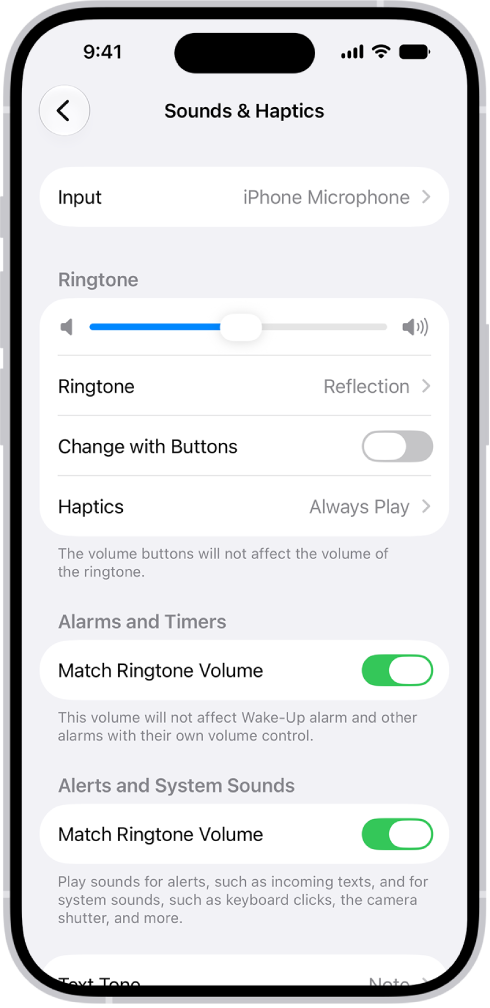
- Check the iPhone volume level. This also affects the microphone level. On your device go to Settings > Sounds & Haptics and then turn off Change with Buttons. Then use the volume up or down button to increase or decrease the volume.
- Press and hold the Action button to turn Silent mode on. And record a video to see if this changes anything.
- On your device, go to Settings > Camera > Record Sound, and choose Mono.
Reset all settings
You may want to reset your device to its default state. Doing so will reset all of your settings including network (Wi-Fi passwords, VPN settings, etc), privacy, location settings. Your content and data will not be deleted. On your device, tap Settings > General > Transfer or Reset iPhone > Reset > Reset All Settings. And then follow the onscreen instructions.
Other video sound problems
If you are having sound issues with your iPhone videos that were uploaded to YouTube, then try the following:
- If, on YouTube, the volume is still not loud enough even though the sound is perfect when you play the videos on your iPhone 18 Pro, then the problem is the YouTube app. Check for updates for the YouTube app by going to the App Store.
- Check to see if the volume of the YouTube player, your device (tablet, PC, Mac, iPhone), and your browser (Chrome, Safari, etc) volume is muted or set too low. If it is, change your volume settings.
If you are still having issues, you may be having a hardware problem with your microphone or speaker. Contact Apple for further support. There are a lot of support options:
- Send your device to Apple.
- You can start a live chat session with an Apple support specialist.
- Make a reservation with a Genius.
You may also want to know your Apple warranty and AppleCare coverage status before getting help with a hardware repair.