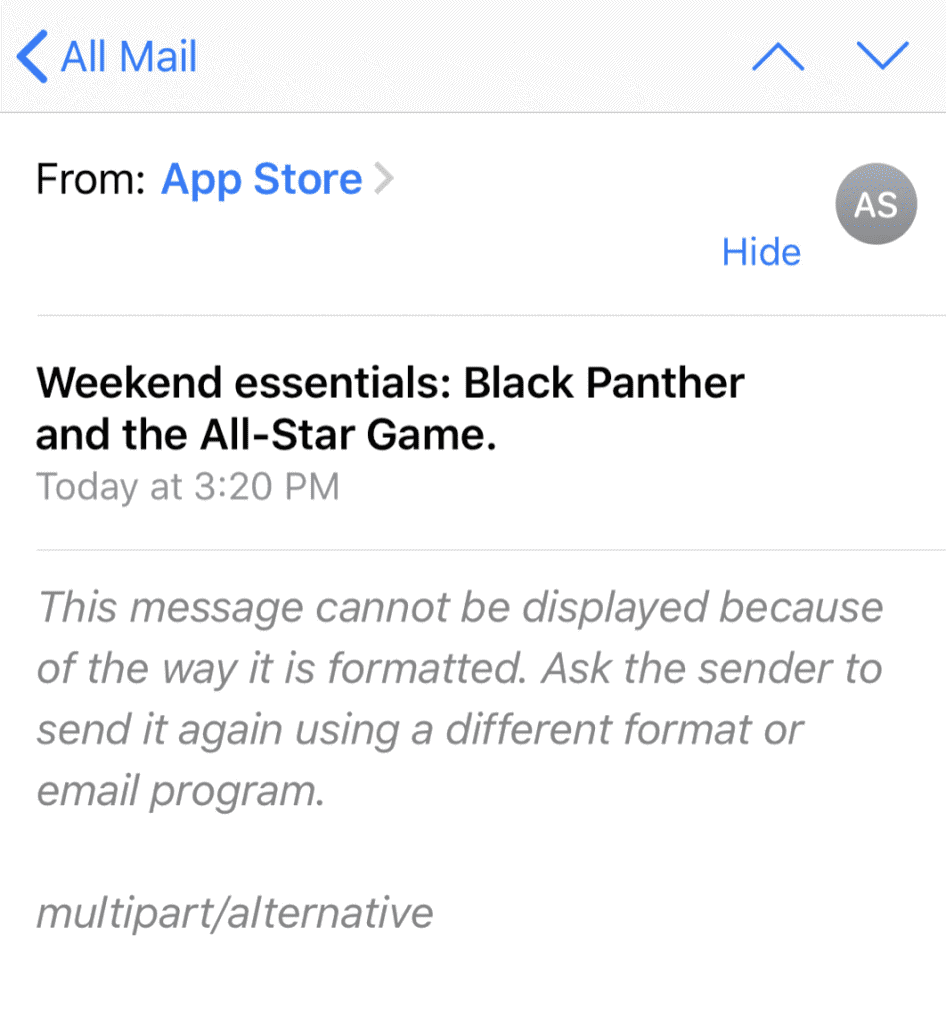
Several iPhone and iPad users have complained that they are unable to view some of their emails using the Mail app. Instead of the mail messages, users see an error message saying "this message cannot be displayed because of the way it is formatted. Ask the sender to send it again using a different format or email program. multipart/alternative or text/plain"
Additionally, some users have said that they see this error message when they want to view the messages in the Sent folder. And lastly, some users have said that the issue only occurs when sending an email using CC or BCC.
It appears that certain messages are affected by this problem. This message indicates that your email server rejected the message due to its formatting. Thus, the Mail app on your device could not load it. It appears that this is an old problem that users have been experiencing since iOS 3, and we are now in iOS 26.
This article explains how you can fix this problem.
Update iOS
The first thing you should do when you encounter “This Message Cannot Be Displayed Because Of the Way It is Formatted” error is to update your iPhone or iPad to the latest version of iOS or iPadOS. An update may fix this problem. Updating your device is an easy process. Simply go to Settings > General > Software Update and follow the onscreen instructions.
Quit and Restart
If your device is running the latest version of iOS or iPadOS and are still experiencing this problem, try this:
- Quit the Mail app on your iPhone or iPad.
-
Open the app switcher. Here is how you can open this:
- iPhone X or newer and iPad with iOS 12 or later: Go to the Home screen, swipe up from the bottom of your screen.
- Other iPhone and iPad models: Double press the Home button.
- Find the Mail app.
-
Swipe up on the Mail app’s preview to close it.
-
Restart your device. Here is how:
-
iPhone X, 11, 12, 13, 14, 15, 16, 17, or later and iPad without a Home button models: Press and hold the volume up (or down) button and the side button together until the power off slider appears. Then drag the slider towards the right. Wait a few seconds for your device to completely power off. And then press and hold the side button until the Apple logo appears.
-
Other iPhone and iPad models: Press and hold the side button (side or top) until the power off slider appears. Then drag the slider to the right. Wait for your device to turn off. Then again press and hold the power button until the Apple logo appears.
-
Now again open the Mail app and try to open the Mail message you could not see previously.
Delete the message
This is not a fix but a workaround. You can try this if the steps above do not fix your issue. Here is how:
- Open the Mail app and then go to your inbox.
- Locate the problematic email.
- Delete the message (swipe left over the message and then click the Trash button). When you delete a message, it will stay in your Trash for a period of time, such as 30 days.
- Open your Trash folder. Find the message you just deleted. And move it back to your inbox (swipe left and select Move > Inbox).
- Go to your inbox and open this message to see if it loads now.
Offload the Mail app
If you are still having this problem, you can try this. We will offload Mail. This will delete the Mail app but any documents or settings associated with it will not be deleted. User data will stay intact. Here is how:
- Backup your iPhone or iPad, especially if you do not have a recent backup. You can go to Settings > your name > iCloud > iCloud Backup. You can also use your Mac to back up.
- Then on your device go to Settings > General > iPhone (or iPad Storage) > Mail > Offload App. A popup will appear, tap Offload App again.
- Restart your iPhone or iPad.
- Now activate the Mail app by simply tapping its icon.
- Then check if the problem is fixed.