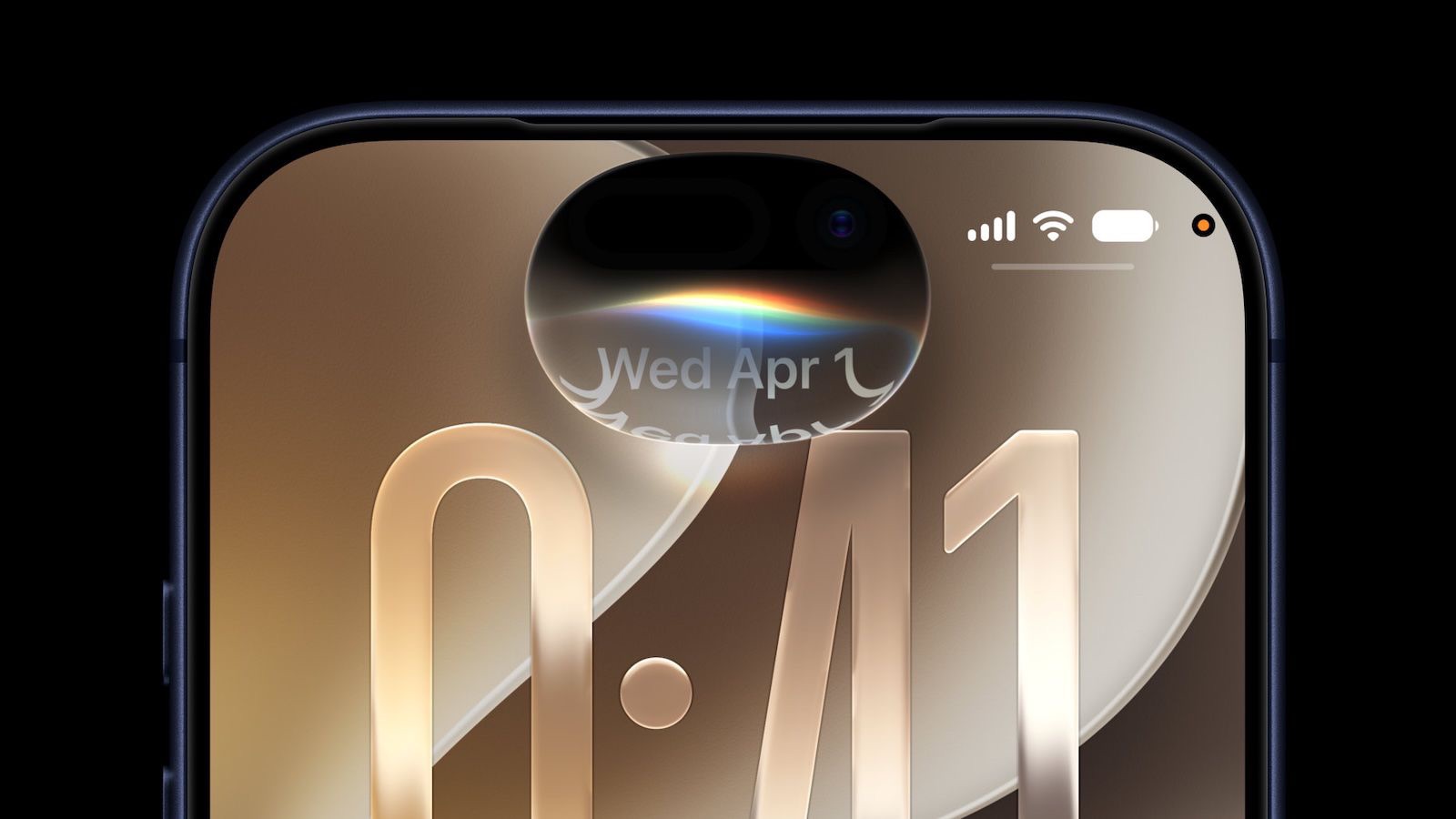
If your Siri AI waitlist seems stuck or isn’t moving, there are several things you can try to fix the problem. Joining Siri AI waitlist is easy. Just open Settings > Siri and tap Try New Siri. You’ll see a splash screen explaining the new features; tap Join Waitlist, then Continue.
Why is my Siri AI waitlist stuck?
Usually Siri AI waitlist isn’t stuck, you’re queued, and Apple hasn’t published a turnaround time. Apple used a similar waitlist when rolling out Apple Intelligence in iOS 18. It could be a matter of hours for some of the first users to update to iOS 27.
Once you’ve joined the waitlist, Apple says you’ll be notified when ‘New Siri’ is available for your iPhone.
See also: How to Tell if You’ve Been Approved for Siri AI
For the first iOS 27 release, most who received it were able to download the update within the first 30 minutes. Those who couldn’t download the software that fast actually waited a couple of days, or up to 72 hours. That said, there’s no way to skip the line, and the sooner you join, the sooner you can get the new Siri AI. In addition to the new UI, iPhone owners will also see the new Siri app available.
For me, I was able to join Siri AI waitlist right after downloading iOS 27, then waited up to an hour to get the new Siri AI interface.
See also: Why You Still Have Old Siri After Installing iOS 27
Some people are waiting up to 72 hours after joining. The process is similar to what the company did with the first batch of Apple Intelligence features in iOS 18, which means users might need to be patient to get the revamped personal assistant.
Save yourself the hassle of running through the checklist of troubleshooting actions below by first eliminating the possibility that your device or Apple is to blame by waiting in the queue. Apple appears to be granting access to new users in a matter of days.
How to Fix Siri AI Waitlist Not Working
If Siri AI waitlist is not working, here are eight solutions you can try.
Force Quit the Settings app
If the Settings app has crashed and is not working, it may cause Siri AI waitlist screen to get stuck. In this case, you need to take matters into your own hands.
Swipe up from the bottom of your screen to bring up the app switcher, then swipe up on the Settings app to close it.
Disable Your VPN
A VPN routes your traffic through an end-to-end encrypted "tunnel" to hide your browsing activity from your ISP, hide your IP address, and other privacy-related things. There could be a temporary problem with your chosen VPN provider or local server, but it could also be so-called "suspicious" activity that Apple has chosen to block. Sometimes, VPN providers that offer a kill switch to disable all internet traffic when the connection drops.
The easiest way to rule out your VPN as a cause of Siri AI waitlist not working is to disable it and try again. To do this, open your VPN provider’s app and disconnect. You can also try switching servers, to see if the problem is caused by your configuration.
Now wait to be accepted. Don’t forget to enable your VPN again when you’re done troubleshooting!
Make Sure the Date and Time Are Set Correctly
Siri AI may get stuck on waitlist if the date and time aren’t set correctly for your time zone. An easy fix to this is to set the date and time automatically under Settings > General > Date and Time. Check the "Set automatically" box.
On top of this, turning on Setting Time Zone by going to Settings > Privacy and Security > Location Services > System Services may help too.
Make Sure the Region is Set Correctly
Due to the Digital Markets Act (DMA) in the European Union, Siri AI isn’t officially launching in EU member countries. The DMA would require users to be able to choose which AI assistant powers Apple Intelligence, beyond Apple’s built-in Foundation model. Apple claims that allowing third-party AI tools would introduce significant security risks. Siri AI is not available in China.
Make sure your iPhone is set to the correct region. In Settings > General, scroll down and tap Language & Region. Tap Region and set it to United States.
Bear in mind that switching your region will also remove some features that are only available in the EU, like alternative app marketplaces. You have a thirty-day grace period to keep using third-party apps you’ve downloaded from AltStore PAL, but you’ll have to decide whether you want Siri AI or Fortnite.
Make Sure the Language is Set Correctly
While Apple Intelligence supports a wide array of languages, the new Siri AI only supports English (Australia, Canada, Ireland, India, New Zealand, South Africa, UK, U.S.).
If you need to add a language, go to Settings > General > Language & Region, tap Add Language… to add a variant of English, then set it as your primary language. It should work with any of the regional variations of English, should you prefer Australian, Indian, Philippine or the King’s English.
If you still want to type in a different native language, go back to Settings > General > Keyboard > Keyboards and make sure your preferred keyboard is on the top of the list.
Check the Status of Apple’s Servers
Sometimes the problem isn’t on your end but is instead caused by a service outage. Double-check on Apple’s System Status page that the Siri or associated services aren’t having any problems. If they are, consider waiting it out.
Restart Your iPhone
Restarting your phone fixes all sorts of problems, and a dodgy Siri AI waitlist may just be one of them. Sometimes background processes cease working or become unresponsive, which causes problems for applications or services that rely on them. Turning your iPhone off and back on fixes all of these issues, so it’s always worth a shot.
Go to Settings > your name, then choose "Shut Down" and confirm to reboot your iPhone.
Sign Out of your Apple Account, then Sign Back In
Sometimes the problem is related to your Apple account rather than the underlying software. This may fix your problem if Siri AI waitlist is not working.
Open the Settings app and tap your name at the top of the screen. Scroll to the bottom of the screen and tap "Sign Out" at the bottom of the list. Now sign in again using the Settings > Sign In option.
Conclusion
iOS 27 supports every iPhone that runs iOS 26. That includes iPhone 11 and newer, plus iPhone SE (2nd generation and later).
However, Apple Intelligence requires iPhone 15 Pro or newer. Apple’s most powerful new on-device model has an even shorter compatibility list, but Siri AI only requires Apple Intelligence compatibility to work.
Siri AI requires a device that supports Apple Intelligence, including the iPhone 15 Pro and later.
Once you are approved for Siri AI, you can try it out right away. In the dedicated Siri app, for example, you can have back-and-forth conversations with Siri in text or voice modes, and your conversation history is synced across your devices via iCloud.
Siri AI can draw on personal context understanding to search across messages, emails, photos, and more, and get things done across apps with even more system-wide app actions.
See also: Siri AI in iOS 27: Features, Requirements, and How It Works