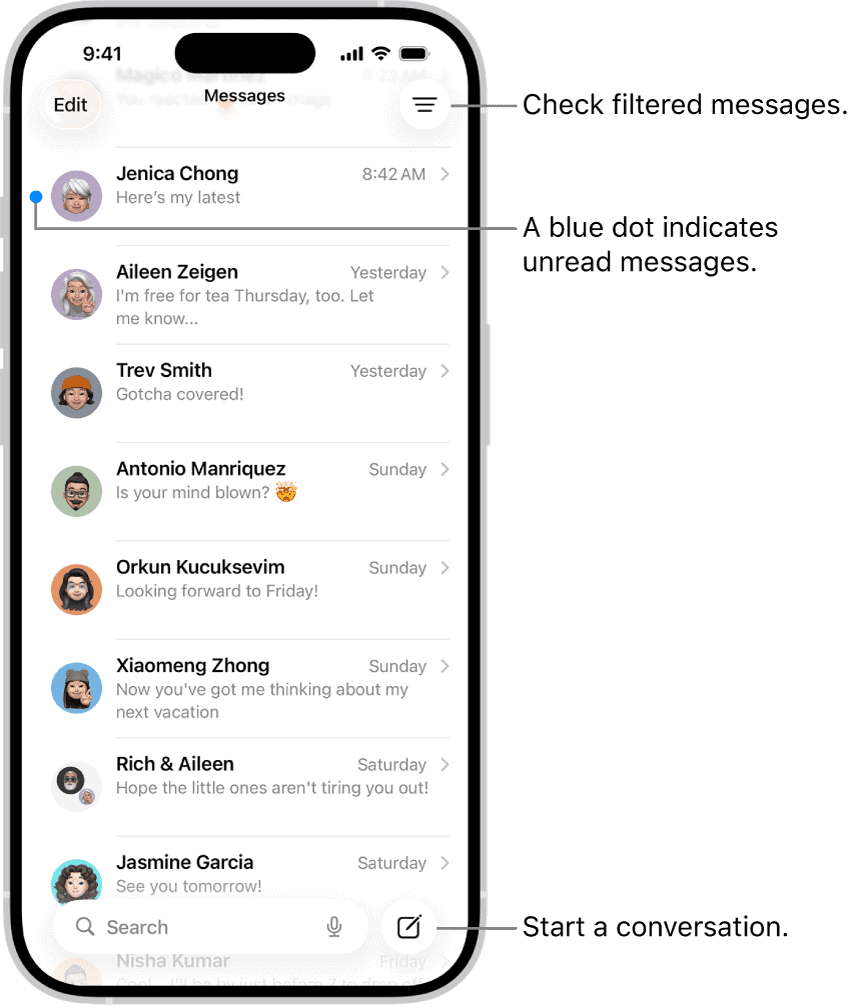
The Messages app on your iPhone lets you send and receive three types of messages with other cellular phones:
- Short text messages via the SMS (Short Messaging Service) protocol.
- Multimedia messages via the MMS (Multimedia Messaging Service) protocol — messages with attached pictures, videos, audio, contact data, or locations.
- Multimedia messages via the RCS (Rich Communication Services) protocol, an upgrade to SMS. Only some cellular providers and phones support RCS.
Beyond SMS, MMS, and RCS, which your cellular provider offers, your iPhone also supports the iMessage protocol. iMessage uses an Apple-provided service to send and receive unlimited messages with text, pictures, contacts, videos, and locations without going through your carrier. Messages automatically chooses which protocol to use, so you don’t need to.
Although the cellular operators all charge something for SMS, MMS, and RCS services, iMessages are free as long as you send and receive them over Wi-Fi. If you use cellular service, there’s no per-message charge, but an iMessage does use cellular data from your plan’s allotment.
However, you can share iMessages only with people using iPhones, iPads, Macs, Apple Watch, and the Vision Pro headset. And, if no data connection is available when your iPhone is using a cellular connection rather than Wi-Fi, the message will be sent as a standard SMS, MMS, or RCS message via your wireless carrier (and subject to the usual message charges where applicable).
Tip: If you have a limited data plan, choose Settings ⇒ Cellular to display the Cellular screen, and then set the Cellular Data switch off (white) to force Messages (and all other data-using apps) to use only Wi-Fi. Alternatively, go to the Cellular Data box toward the bottom of the Cellular screen, tap the Show All button, and then set the switch off (white) for each app you don’t want to use cellular data. If your cellular plan charges you for each text message, consider turning off the Send as Text Message feature: Choose Settings ⇒ Apps ⇒ Messages, and then set the Send as Text Message switch off (white).
Send a text message on iPhone
- Open the Messages app on your iPhone.
- Tap the Compose button at the bottom right corner to start a new message. Or go to an existing conversation.
- Type your message, then tap the Send button to send your message. The icon is blue when you’re sending an iMessage but green when sending an SMS, MMS, or RCS message.
Congratulations — you’ve successfully sent a text message on iPhone.
Tip: You can long-press the Messages icon on the Home screen and choose New Message to open the app directly to begin a new blank message.
Reply to a message on iPhone
Messages are grouped by conversation in the conversation list. A dot indicates you haven’t yet read one or more messages in that conversation.
- Open the Messages app on your iPhone.
- Tap the conversation that you want to participate in.
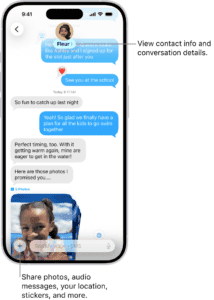
- Tap the text field, type your message, then tap the Send button to send your message.
Reply inline to a specific message on iPhone
You can respond to a specific message inline. An inline reply quotes the message you’re responding to. This keeps a busy conversation organized by clarifying which response relates to which message.
- Open the Messages app on your iPhone.
- In the conversation list, tap the conversation that you want to participate in.
- Do one of the following:
- Swipe right on the message bubble that you want to reply to.
- Touch and hold the message bubble that you want to reply to, then tap Reply.
- Type your message, then tap the Send button.
Note: Everyone in a group conversation can see your inline reply. To reply privately, tap the group icon at the top of the conversation, touch and hold the icon of the person you want to message privately, then tap Message. - To return to the main conversation, tap the blurred background.
- Touch and hold a message to react with a Tapback, such as a thumbs-up or a heart.
Tip: To copy part of a message, touch and hold the message, tap Select, select the text you want to copy, then tap Copy.
Send a text message from your other number
If your iPhone is set up with Dual SIM, you can tap your number to switch to your other outgoing line as you compose your message.
Why are some bubbles blue and others green?
If a message can be sent using iMessage, you see a blue Send arrow , and the message appears in a blue bubble.
If you can’t use iMessage (which happens, for example, when a recipient isn’t using an Apple device), you can use SMS, MMS, or RCS. Messages sent with SMS, MMS, or RCS appear in green bubbles.
See also: Why Your iPhone Messages Turn Green