





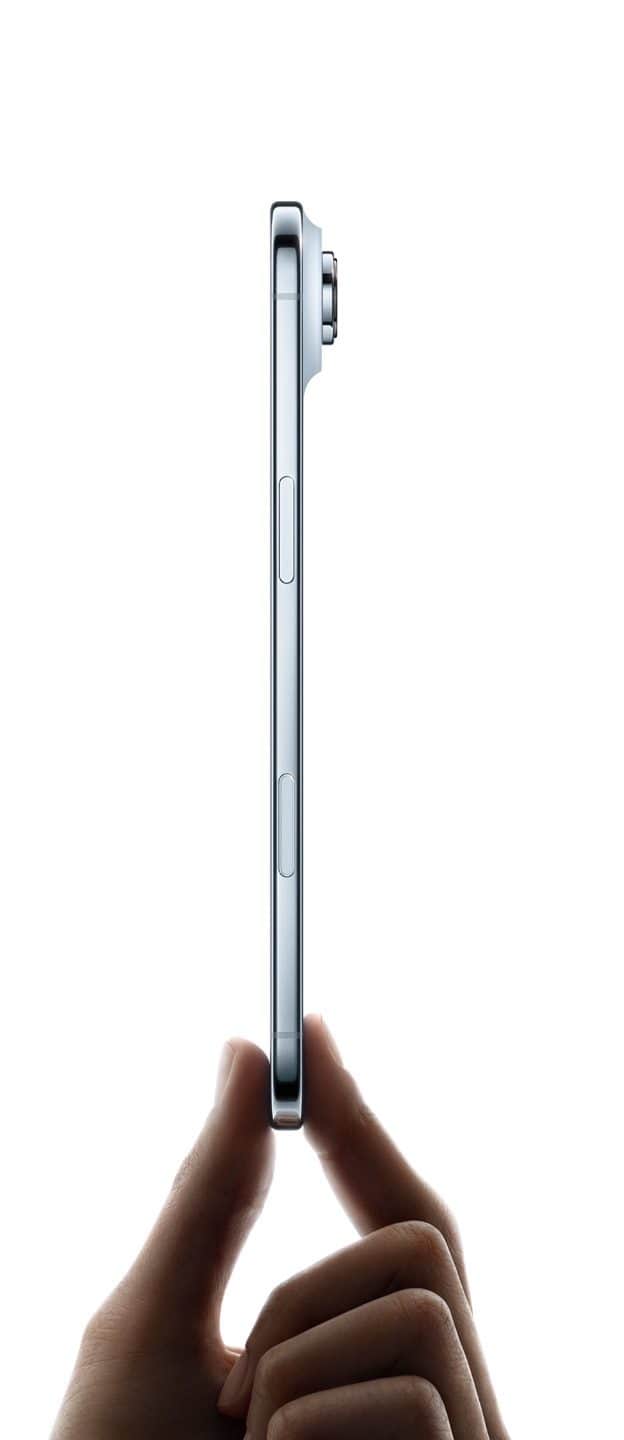
- If AirDrop isn’t working on your iPhone Air, ensure Wi-Fi and Bluetooth are on.
- Make sure that your iPhone Air is running the latest iOS version and your iPhone is unlocked.
- Be sure to restart your iPhone after making changes to your settings and try AirDrop again.
AirDrop is doubtless one of the most useful and convenient features for Apple users. The feature is designed to let you send and receive photos, videos, links, documents, contacts, passwords and anything else that can be transferred via the in-app Share button on your Apple device
And while AirDrop is useful, it can be a surprisingly finicky feature that sometimes fails to work for seemingly no particular reason.
If Airdrop is not working on your iPhone Air, here are the top nine ways, from toggling wireless networks to force restarting your phone, to get back up and sharing wirelessly as quickly as possible.
1. Check AirDrop Settings
The first thing you need to check if you’re having a problem with AirDrop on your iPhone Air is to make sure the feature is turned on. There is one inactive setting and two active settings for AirDrop: Receiving Off prevents anyone from sharing anything with you over AirDrop, Contacts Only limits shares to people whose email address or mobile number appears in your contacts, and Everyone for 10 Minutes temporarily accepts shares from any sender.
If you’re having trouble getting AirDrop to work on your iPhone Air, try switching to Everyone for 10 Minutes.
- On your iPhone, go to Settings ⇒ General ⇒ AirDrop.
- Select Everyone for 10 Minutes.
2. Enable Bluetooth and Wi-Fi
You probably know that AirDrop relies on both Wi-Fi and Bluetooth to transfer files over the air, so you should make sure both of these wireless networks are turned on for the devices you want to use to AirDrop.
On your iPhone, go to Settings ⇒ Wi-Fi. To the right of Wi-Fi, make sure the button is swiped to the right. Then tap the Back button to go back to the main Settings page and tap Bluetooth. Make sure the Bluetooth button is on as well.
If you find that Wi-Fi and Bluetooth are already on, it’s a good idea to toggle them off and back on again as an easy way to quickly resolve any potential wireless glitches.
3. Make sure the iPhone is unlocked
If you’re trying to AirDrop something to someone else’s iPhone or someone is AirDropping to your iPhone Air, here’s an easy fix: Make sure the target phone is turned on and unlocked. A locked iPhone won’t appear as a device that’s available to receive files via AirDrop. Simply unlocked your iPhone using Face ID, Touch ID or passcode to receive files.
4. Bring the Devices Closer to Each Other
If the iPhone is unlocked and it’s still not working, try bringing them closer together. This can be especially important if the Wi-Fi is spotty and AirDrop is trying to use Bluetooth to transfer files. Bluetooth has a range of about 33 feet (10 meters) on modern iPhones, so make sure the two devices you want to use AirDrop between are within this range, otherwise it might not work.
5. Disable Personal Hotspot
If you’re hosting a Personal Hotspot on your iPhone to provide internet access to another device, AirDrop won’t work. The only solution is to turn off the Personal Hotspot. This will make the internet connection unavailable to the device that was using the hotspot, but you can always turn it back on again once you’ve transferred files over AirDrop.
To turn off your hotspot, go to Settings ⇒ Personal Hotspot. At the top of the page, swipe the button for Allow Others to Join to the left. Your personal hotspot is now disabled and you can try to AirDrop again.
6. Make sure your devices are updated
Does the other device support AirDrop? While the iPhone Air work with AirDrop, if you are trying to send to an older device, you might run into trouble.
You can use AirDrop on any iPhone running iOS 7 or later. If you’re having issues, you should check on the iPhone’s iOS version and update it if needed. Likewise, if you are trying to Airdrop to an iPad, AirDrop works on the iPadOS 13 and later – update your iPad to the latest version of the operating system if needed. On your iPhone or iPad, go to Settings ⇒ General ⇒ Software Update. If an update is available, tap Update Now and follow the onscreen instructions.
You can also AirDrop from your iPhone Air to your Mac, as long as it is running OS X 10.10 or higher.
7. Disable your Mac’s firewall
If you are trying to AirDrop from your iPhone Air to a Mac, you should also check that your firewall settings allow for new connections – otherwise, AirDrop might not work. You’ll need to make your computer’s firewall settings less strict, which should allow it to receive AirDrops.
- On your Mac, click the Apple symbol in the menu bar and select System Settings… (or System Preferences… on older Macs).
- Select the Network menu (Privacy & Security on older Macs.)
- Click Options…. (On older Macs, click the padlock and enter your admin password or use Touch ID, then click Firewall Options….)
- Switch off (or uncheck the box next to) Block all incoming connections.
- Switch on (or check the box next to) Automatically allow built-in software to receive incoming connections.
8. Force restart your iPhone
If none of the above have solved AirDrop issues on your iPhone Air, try doing a force restart. A force restart is especially useful if you recently changed some settings on your iPhone. A force restart can also flush out any iOS glitch that is preventing Airdrop from working properly.
- Quickly press and release the Volume Upbutton.
- Quickly press and release the Volume Down button.
- Press and hold the Side button until the Apple logo appears, then release the Sidebutton.
During this process, you will see a slider to power off the iPhone. You’re going to want to ignore it and continue holding down the Side button until the screen goes black. At that point, the Apple logo will pop up, and after the restart is complete, the screen will activate once again.
9. Contact Apple Support
If none of the above steps have solved AirDrop issues on your iPhone Air, it could be down to a Bluetooth or Wi-Fi hardware issue. If in doubt, the best course of action is to contact Apple Support or check in to a Genius Bar at your nearest Apple store and they can run a diagnostic check on your device.











