All Inboxes Disappeared in Mail on iPhone 18 Pro? What to Do

Tap Edit on the Mailboxes screen and select All Inboxes if it disappeared from Mail on your iPhone 18 Pro or iPhone 18 Pro Max.

By Kristina Terech - Staff Writer
1 Min Read

Every once in a while a user will have a strange and annoying problem show up, like “My All Inboxes disappeared.” We can’t say exactly why this might have happened to a particular user; there are at least a few possibilities. We do know, however, that the fix is pretty easy.

Get your All Inboxes back

On iPhone 18 Pro

If you don’t see your All Inboxes mailbox near the top of the Mailboxes screen on your iPhone 18 Pro, you can get it back.

  1. Open the Mail app. Open the Mailboxes screen: If necessary, tap on the back arrow in the top-left corner (it will also say something like Gmail, iCloud or just Back).
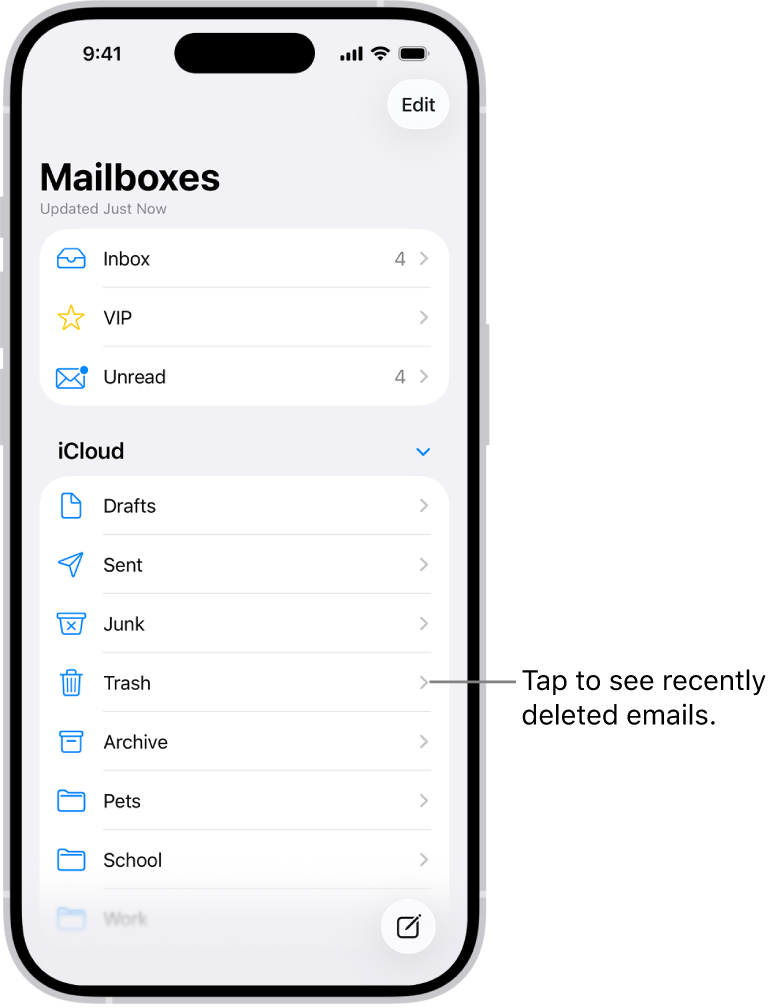
    The Mailboxes screen. Below iCloud, mailboxes are listed from top to bottom, including the Trash mailbox. Tap it to see recently deleted messages.

  2. Tap Edit in the top-right corner of the Mailboxes screen.
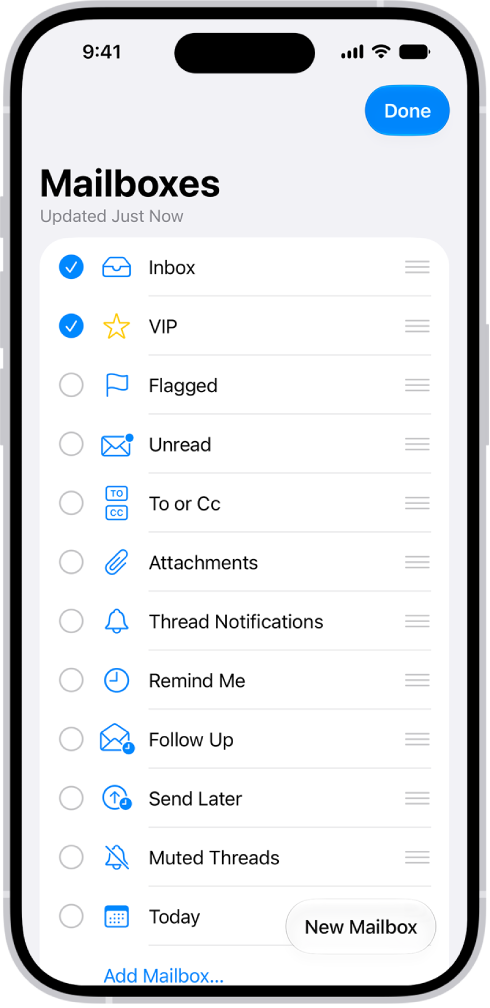
    The Mailboxes edit screen. Optional Mailboxes are listed from top to bottom with a checkbox to the left of each option. At the bottom-right corner of the screen is a button labeled New Mailbox.

  3. Tap the circle next to All Inboxes to select it.
  4. Tap on Done in the upper-right corner.

Staff Writer
Follow:
Kristina is a staff writer at GeeksChalk, and is interested in all things Apple. This includes its best products such as the iPad, iPhone, Mac, AirPods, and Apple Watch. When she's not tinkering with the latest Apple gear, you’ll find her watching movies, taking pictures and exploring the great outdoors.
Leave a Comment