Several iPhone or Mac users use AOL Mail to send or receive emails. You can add your AOL email account to your iPhone 18 Pro or Mac easily – automatically or manually. Several users have reported that the built-in Mail app keeps asking for their passwords. Users have further said that they get an error message saying “Unable to verify account name or password.” And lastly, users have said that they get this message even though they are sure that they are entering the correct password.
Are you also having problems signing into your AOL account? Then this article is for you. Sometimes you may see this error when you sign in to AOL with Apple’s Mail app. If you’ve entered your password correctly but you’re still getting the error, this article explains how you can fix this.
Unable to verify error fix
Update
Ensure that you are using the latest version of iOS or macOS. Because you may be having this problem if your iPhone 18 Pro is out-of-date.
- iOS: Go to Settings > General > Software Update and then follow the onscreen instructions if there is an update available.
Create an app password
The first tip is to create an app password and try this password. Here is how:
- Open a web browser and visit https://login.aol.com and then sign in using your username and password.
- Click your username (top-right corner).
- This will open your account settings page. Click Account Security.
- Click Generate app password or Generate and manage app passwords.
- Click Get Started, enter your app’s name (for example, iPhone Mail) in the text field, and then click Generate password.
- Copy this one-time password, click Done, and then go to Settings and update your Mail password with it.
AOL notes that when you create an app password, you should use a browser that you’ve used to sign into AOL Mail for several days in a row and avoid using Incognito mode.
Delete and then re-add
If you still can’t access your AOL emails, try removing your AOL account and then adding it back. Here is how:
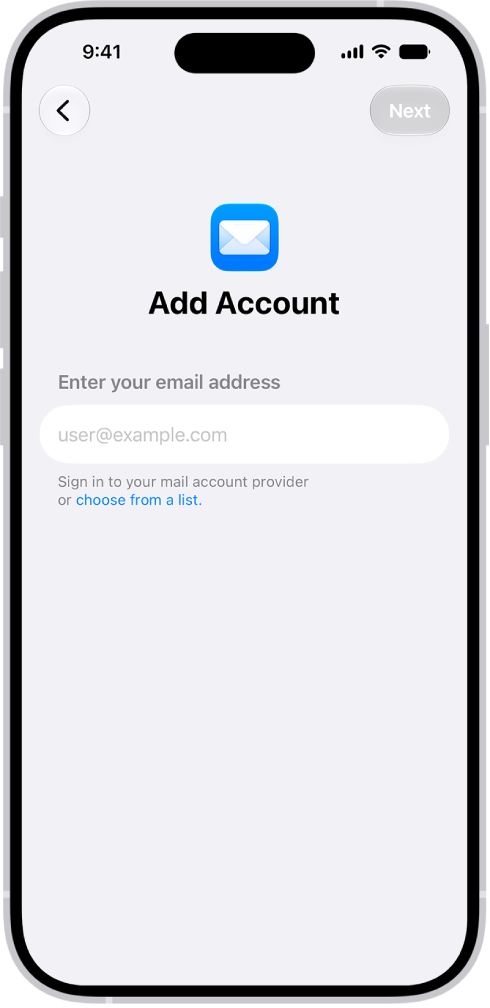
- iPhone: Tap Settings > Apps > Mail > Mail Accounts > AOL account > Delete Account. After deleting your account, restart your iPhone 18 Pro and then tap Settings > Apps > Mail > Mail Accounts > Add Account and add your account back.
If you are still having this problem, you may want to contact Apple or AOL.