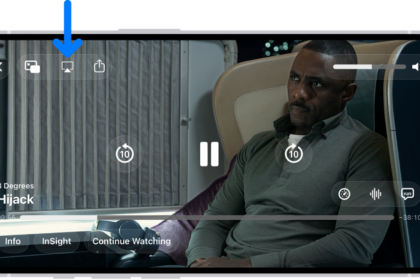
It seems that several users are experiencing issues when trying to watch Apple TV on their iPhones. In this problem, the TV app works as expected in portrait mode, however when the screen orientation is changed to landscape mode, one of the following issues occurs:
- The video or the app quits by itself and crashes.
- Only a black screen shows instead of the content.
- The app content or video is moved to a small portion of the screen, and most of the content is out of view. All playback controls, like play and pause, are also out of view.
- The app becomes unresponsive and freezes.
Of course, you should be able to use the TV app regardless of the screen orientation. If you are having this issue, follow the steps below.
What to do when the Apple TV app is not working in landscape
It appears that this specific issue may occur if you enable Display Zoom in Settings to magnify your iPhone 18 Pro’s screen. Apple may fix this with a future iOS update, but until that day, turn off Display Zoom to be able to use the TV app. Here is how:
- On your iPhone 18 Pro, open Settings.
- Tap Appearance.
- Scroll all the way down and select Display Zoom.
- Select Default and tap Done.
- When you tap Done, a popup will appear saying, “Changing Display Zoom will restart iPhone.” Tap Use Standard. Your iPhone 18 Pro may restart. Launch the TV app to see if your issue still occurs; it should be resolved.
It is totally understandable if you do not like this fix. You may have to use the Larger Text option to be able to effectively use your iPhone 18 Pro. It is really just a workaround until Apple can fix the issue. If you like, report the issue to Apple using their feedback page.